Setting your preferred purchase limit by yourself
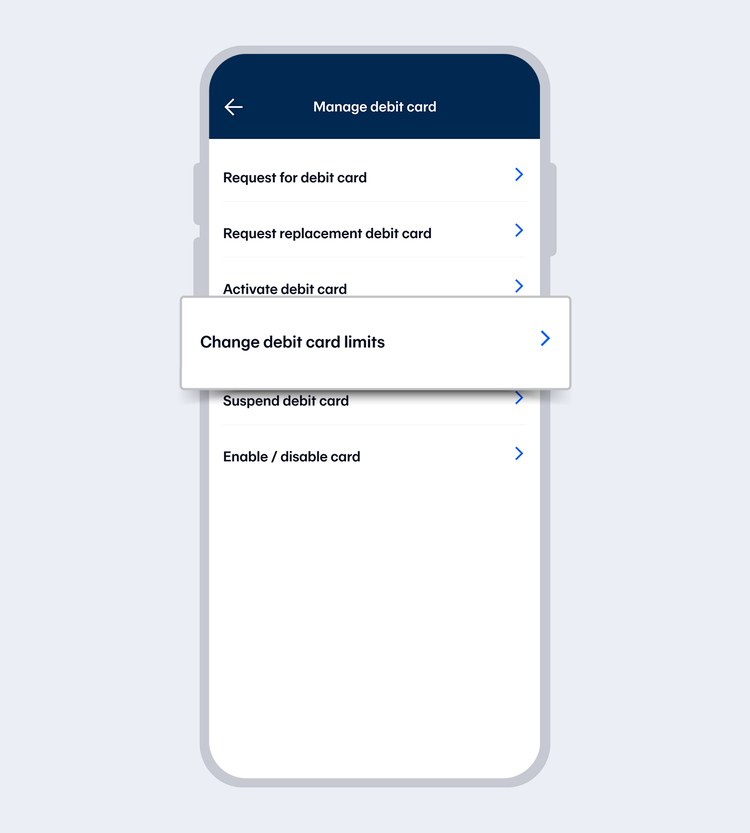
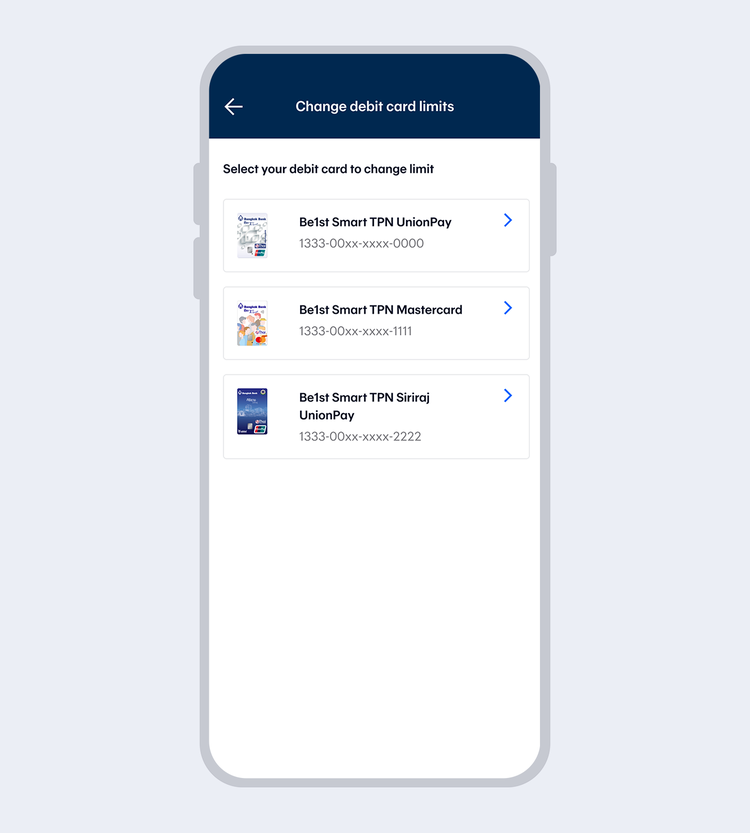
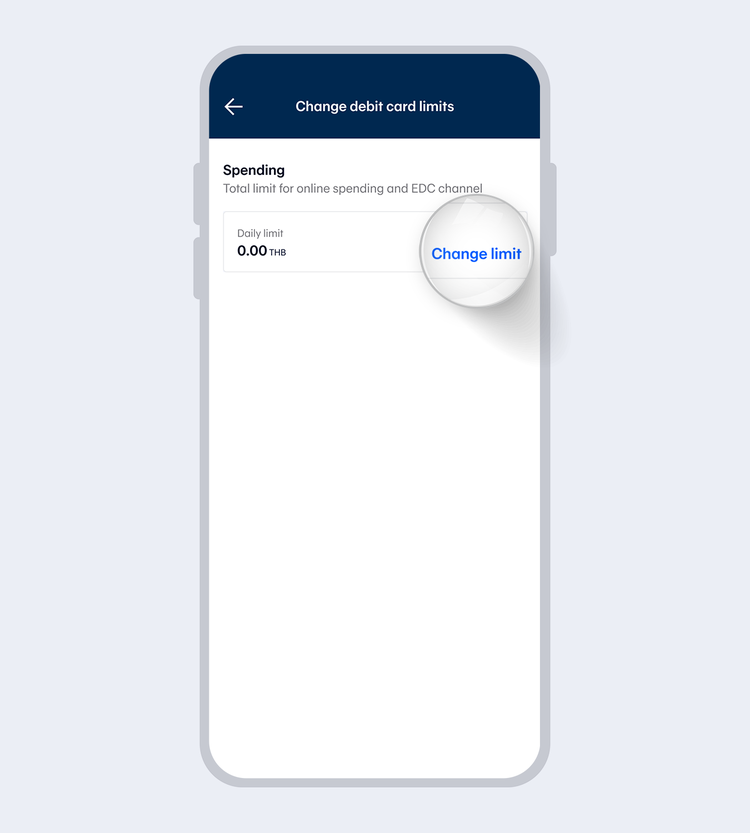
To make spending with your Be1st Smart debit card more convenient anywhere anytime at online and offline stores, you can set or change your purchase limit on your debit card by yourself via Bualuang Phone 1333 or (66) 0 2645 5555 or via Bangkok Bank Mobile Banking.
Steps for setting purchase limit on a Be1st Smart debit card via Bualuang Phone
Shortcut menu for setting purchase limit
- Call 1333 or (66) 0 2645 5555
- Press 2 for English
- Press *122 after you hear "To cancel your card press *0"
- Enter your Be1st card number and enter your 4-digit PIN for a VISA card and 6-digit PIN for TPN UnionPay card/Mastercard
- Press 1 to change the daily purchase limit on your Be1st Card and select your daily purchase limit
| Press | Daily Purchase Limit (Baht) |
| 1 | 5,000 |
| 2 | 20,000 |
| 3 | 50,000 |
| 4 | 100,000 |
| 5 | 150,000 |
| 6 | If you wish to suspend any purchases on your Be1st card |
Simply set your preferred purchase limit on a Be1st Smart debit card via Bangkok Bank Mobile Banking
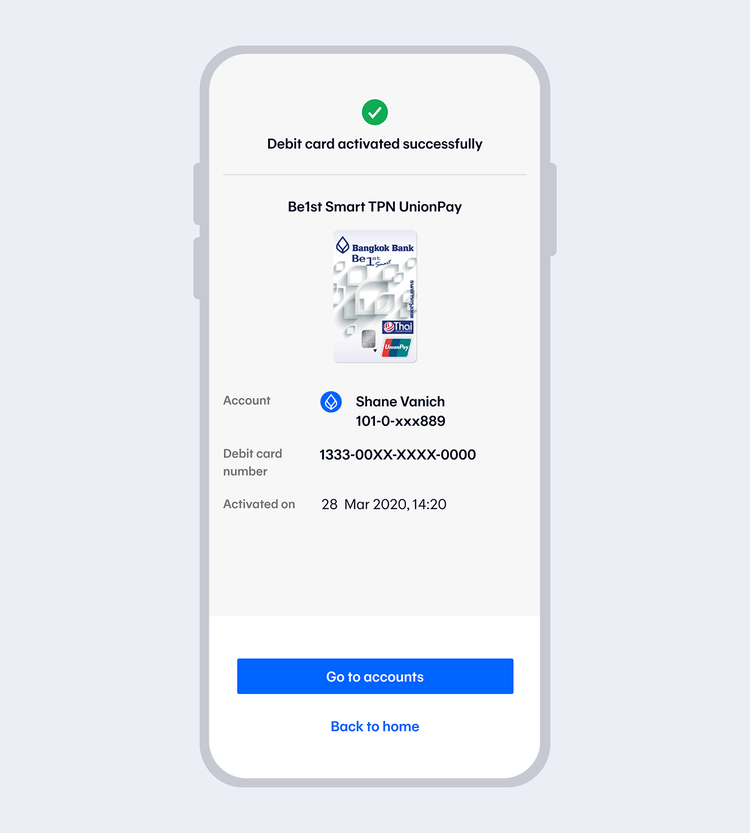
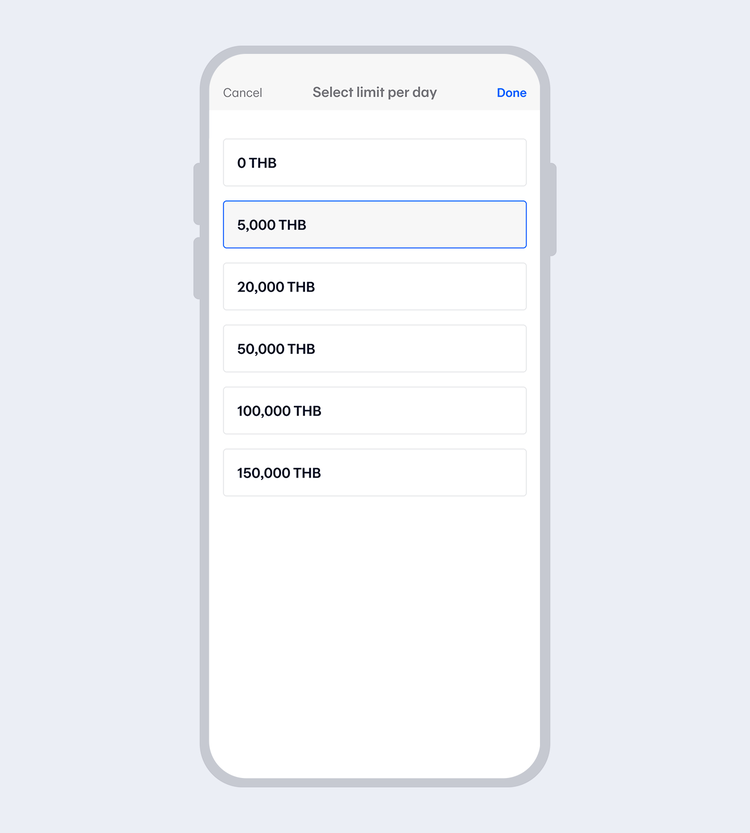
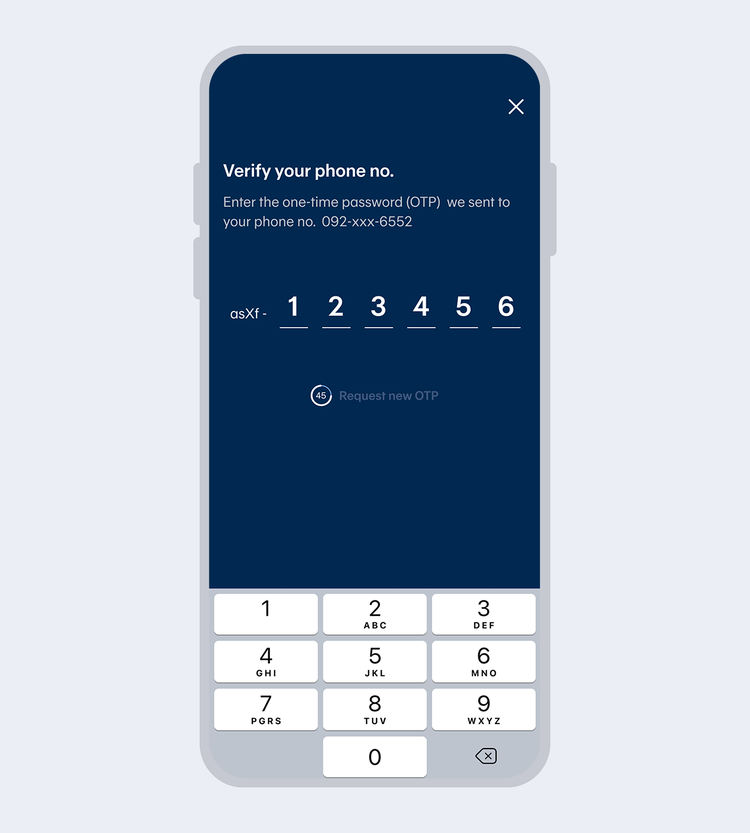
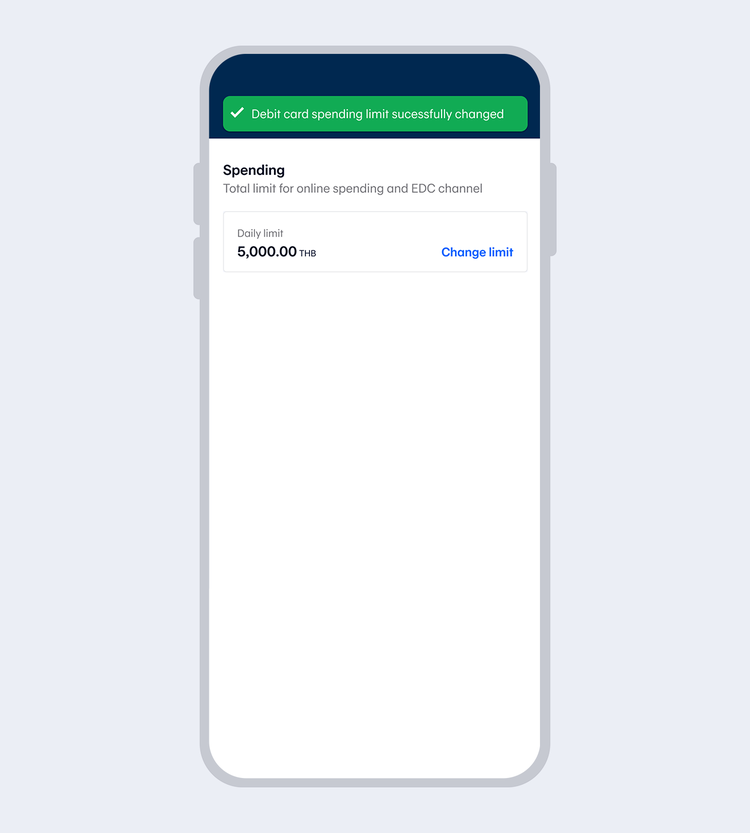
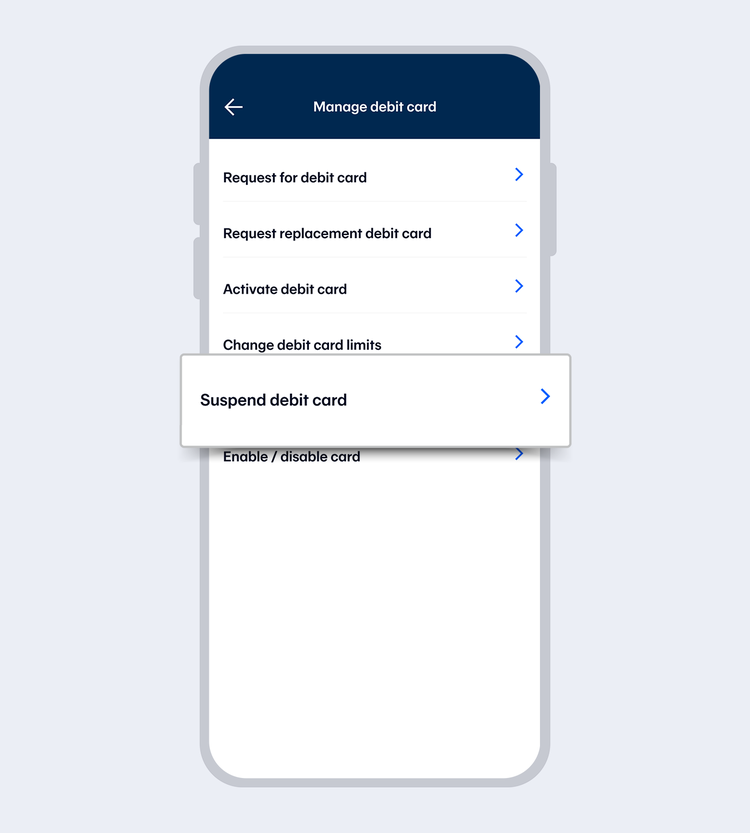
You can set or change your purchase limit on your debit card by yourself on Bangkok Bank Mobile Banking 24 hours a day by following these simple steps
Debit Card
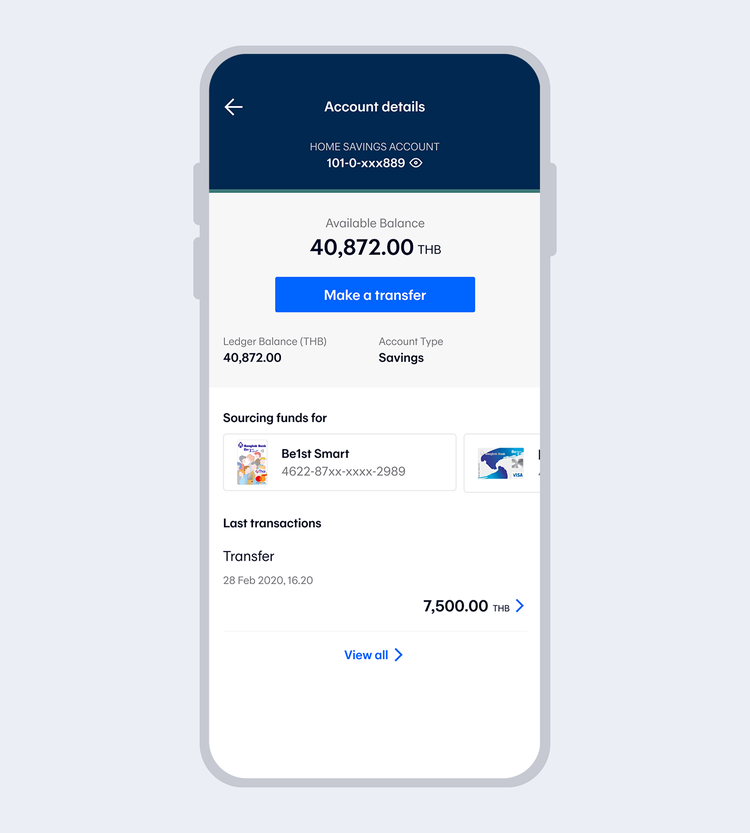
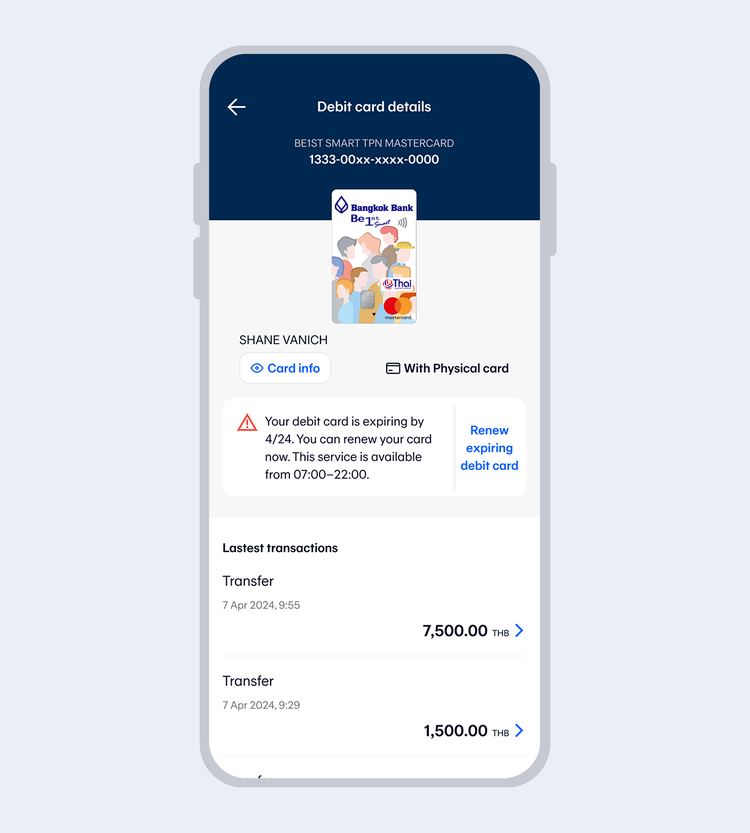
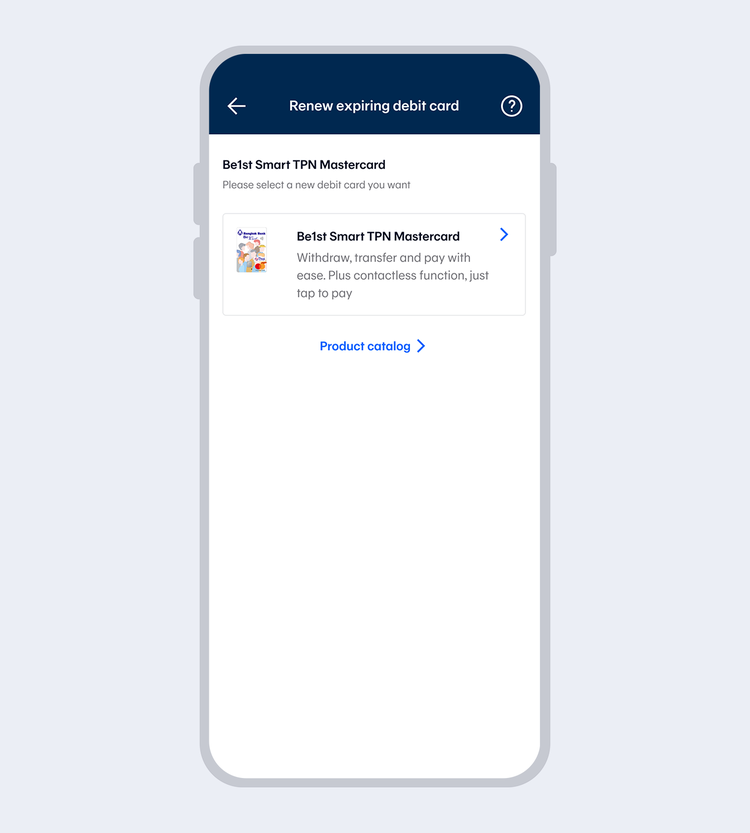
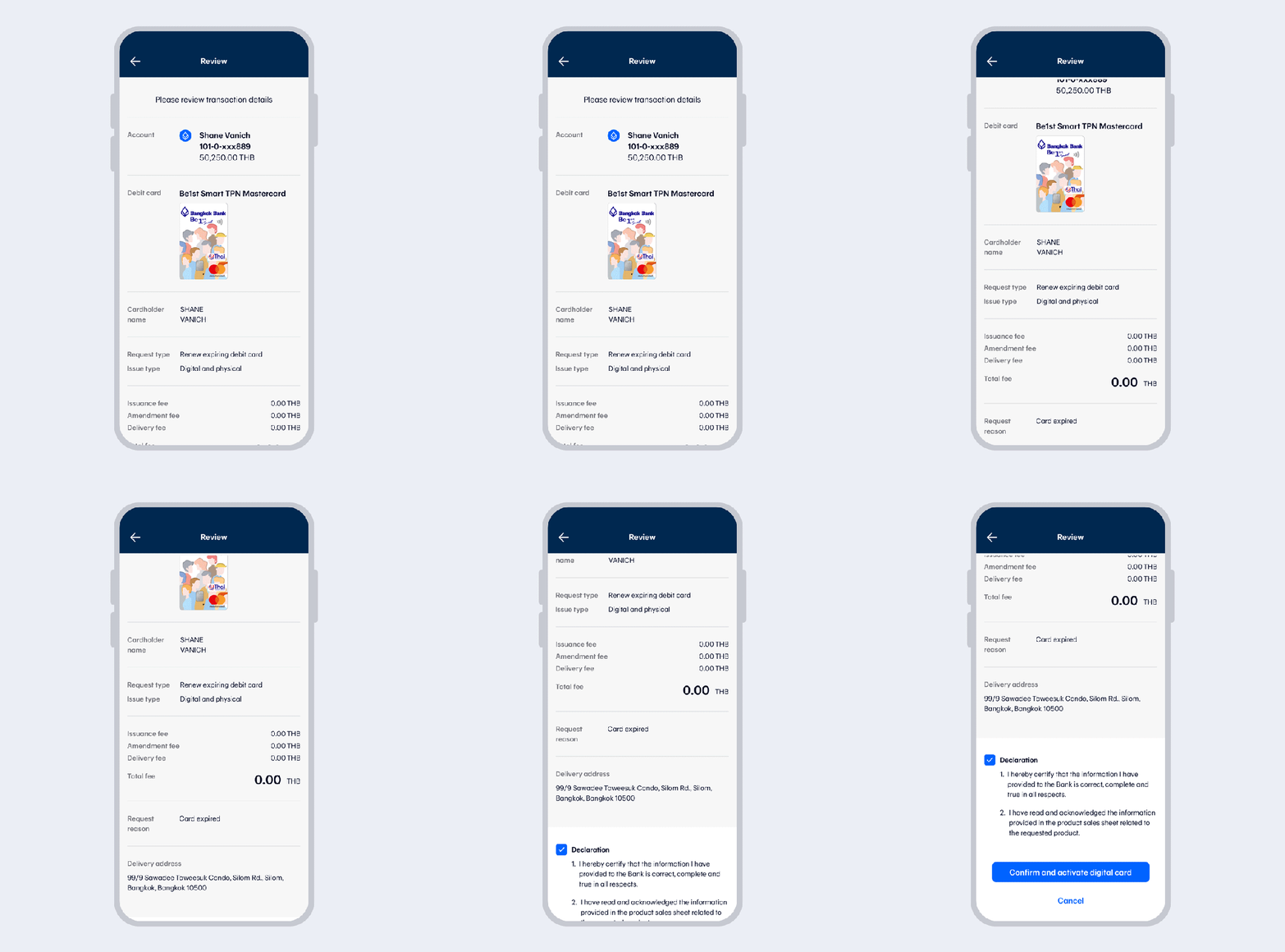
Select "Renew expiring debit card"
You can process the transaction up to 60 days in advance before the debit card expires.
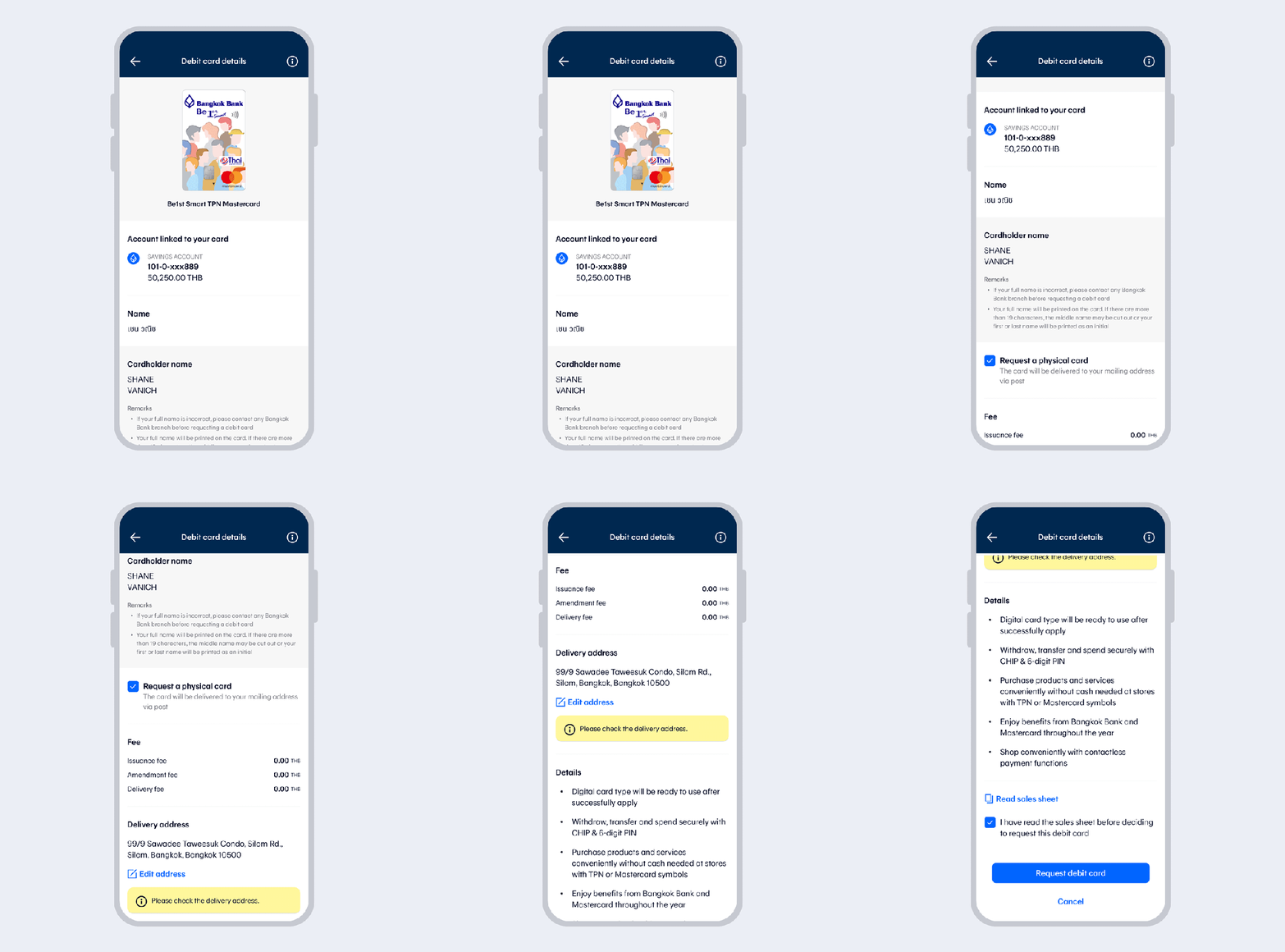
Check debit card details, select "Request debit card". Then read the terms and conditions and select "I agree".
If changing the card from a digital debit card to a combination physical and digital debit card, there will be a card issuance fee of 100 baht.
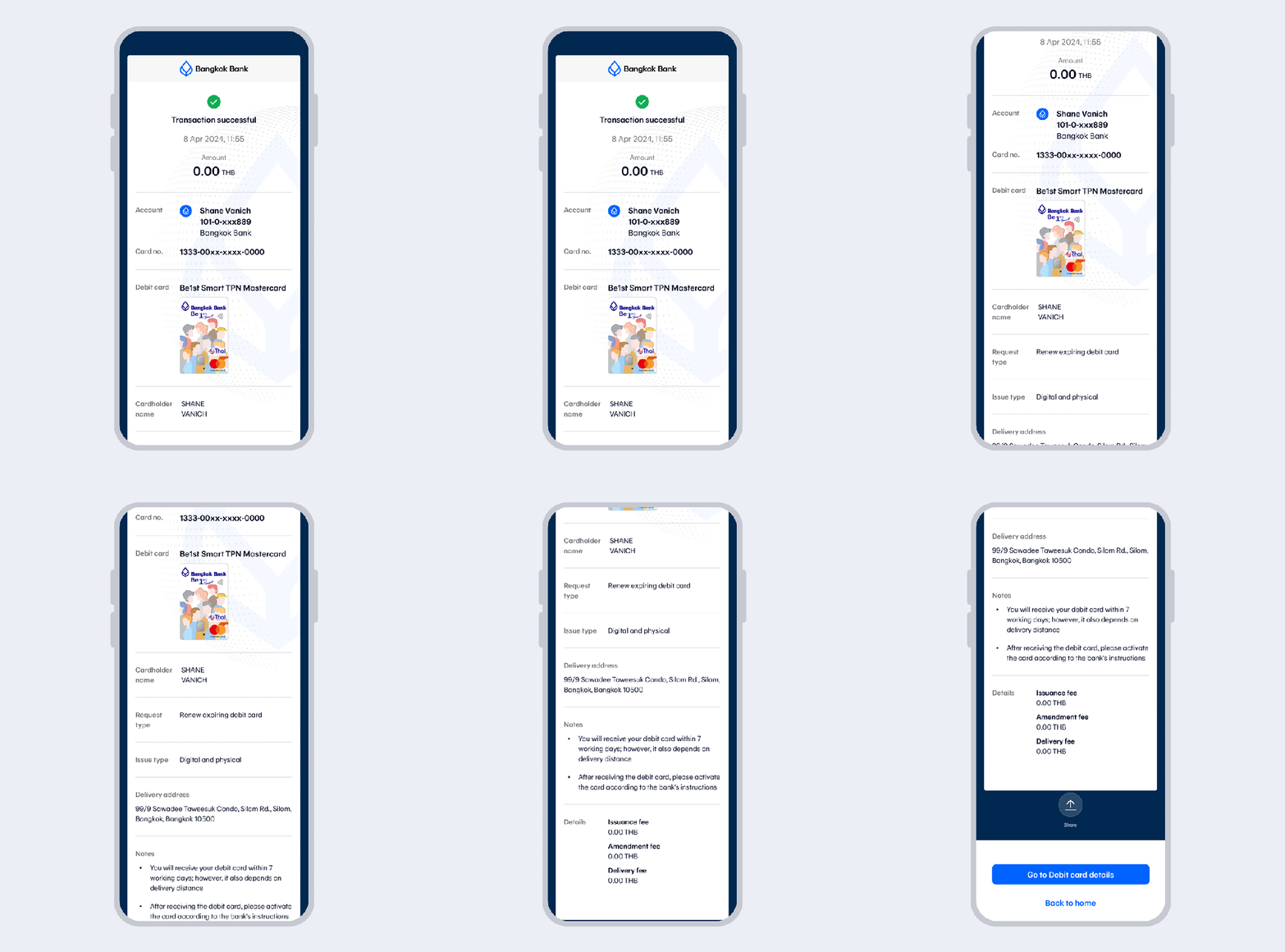
Once the transaction has been completed, you will receive an eSlip and email transaction record.
- You will receive your debit card within 7 working days; however, it also depends on delivery distance.
- After receiving the debit card, please activate the card according to the bank's instructions.
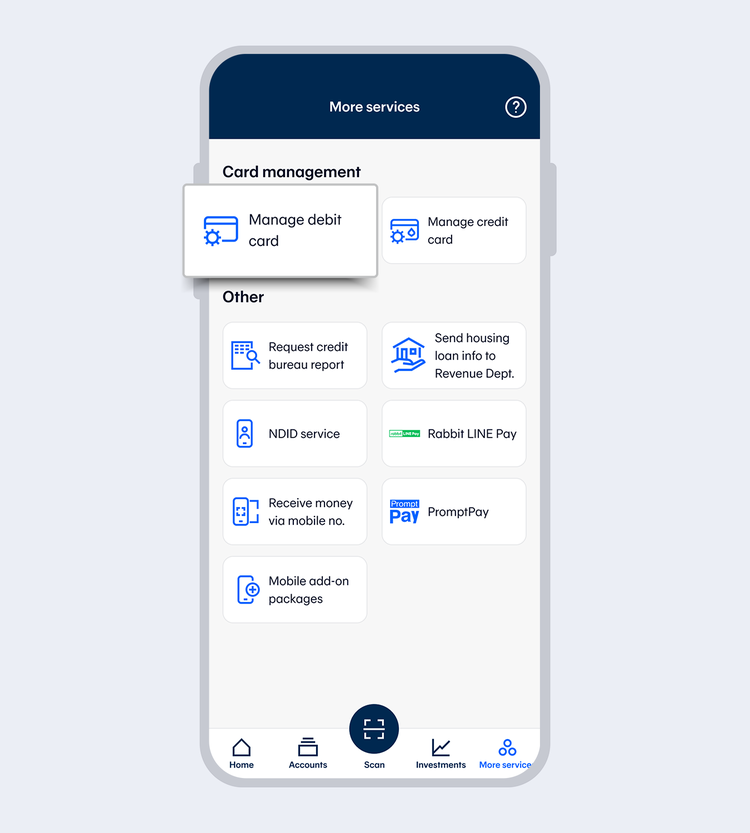
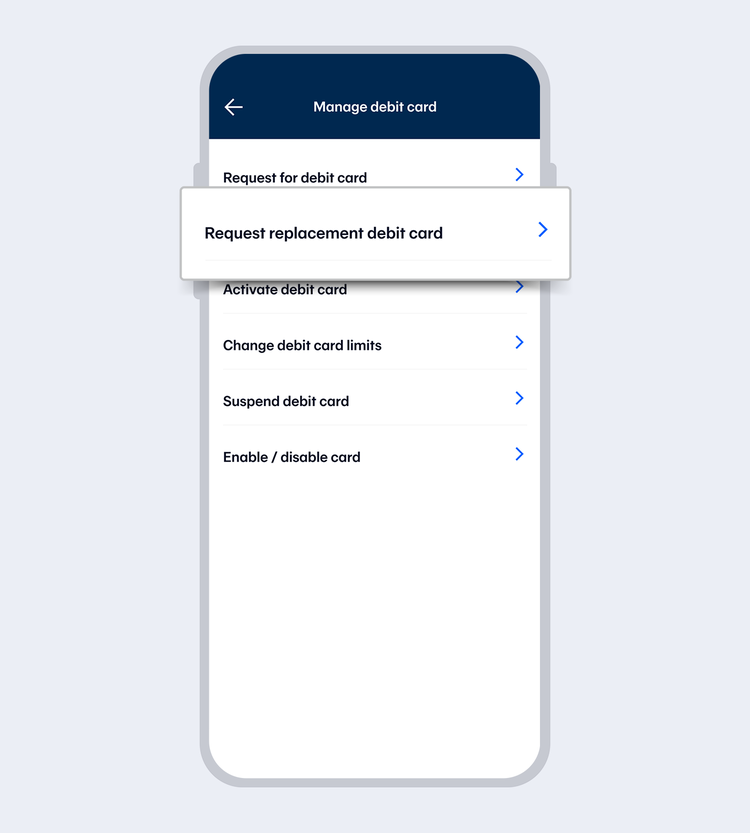
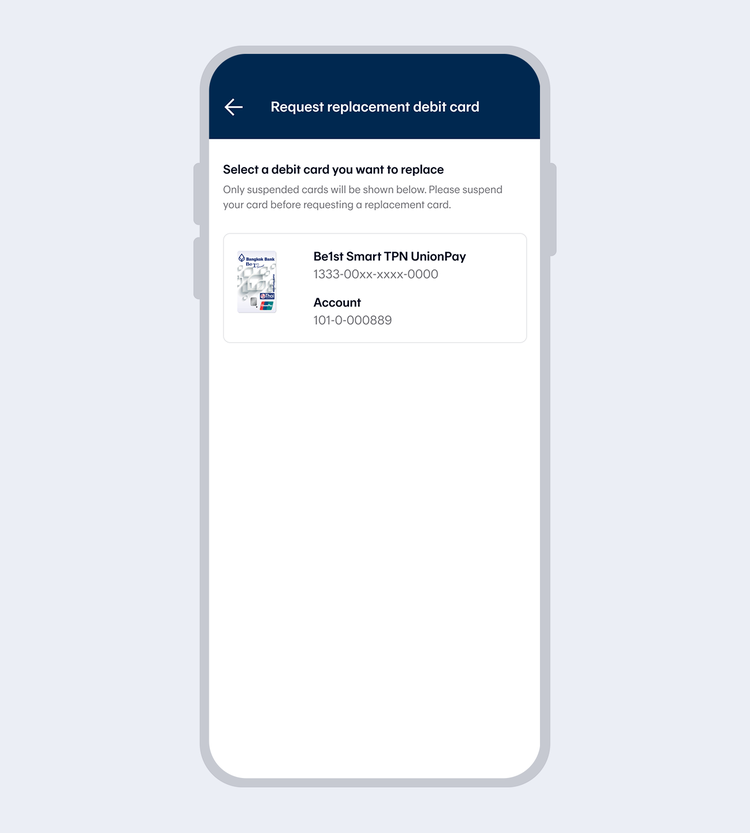
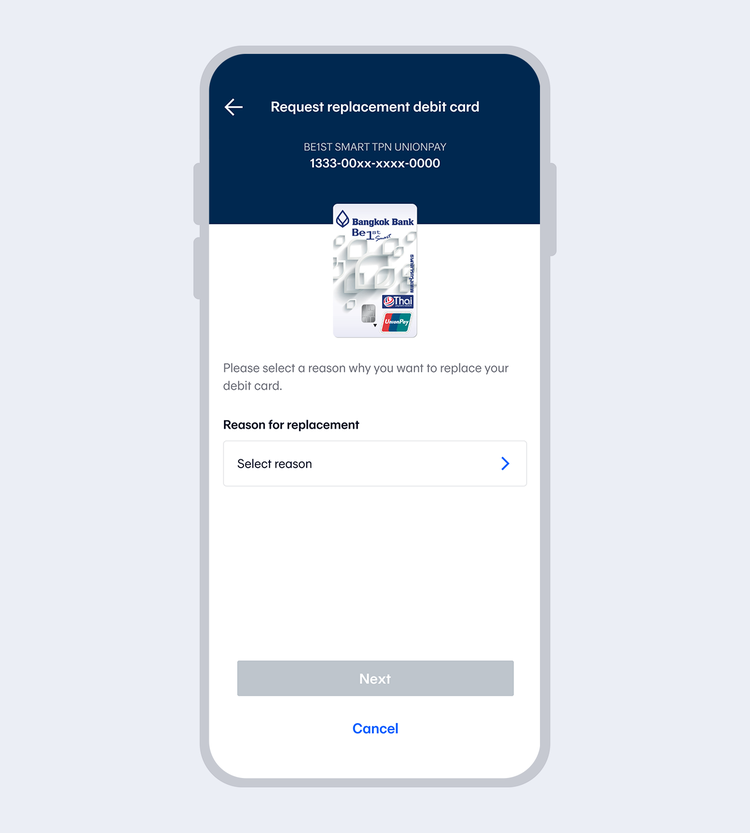
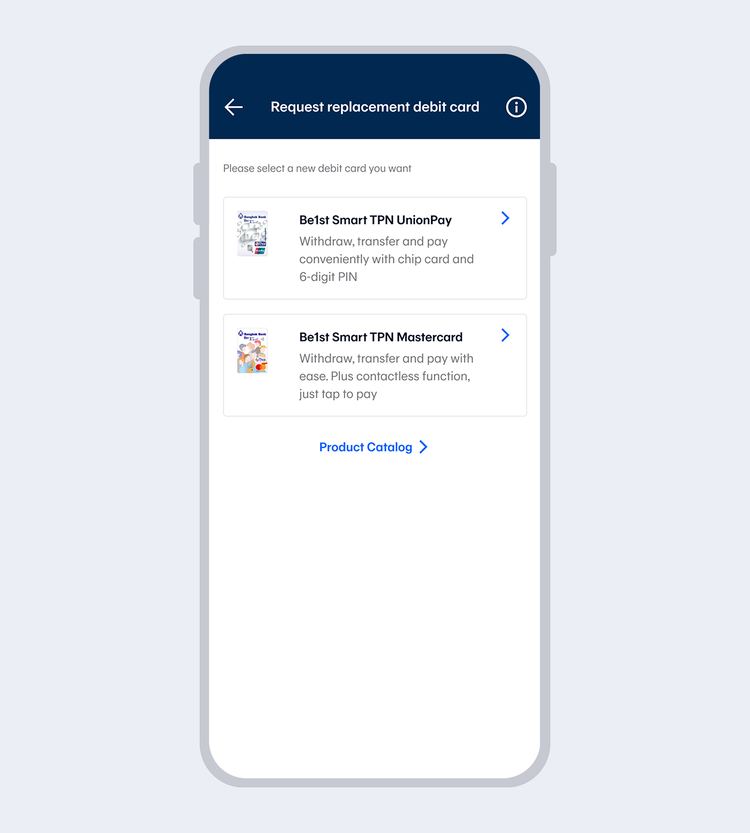
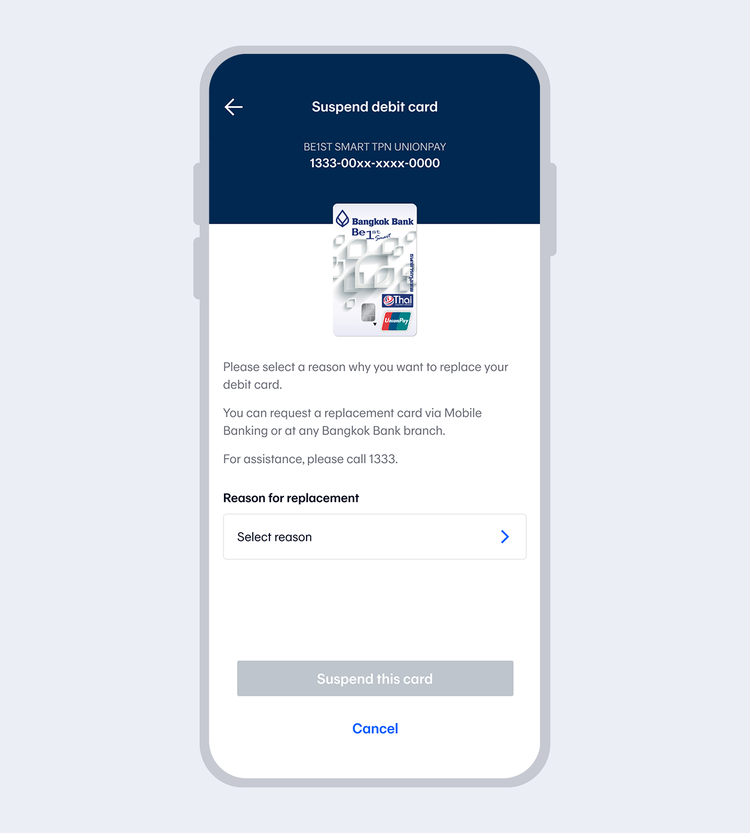
Select a replacement card.
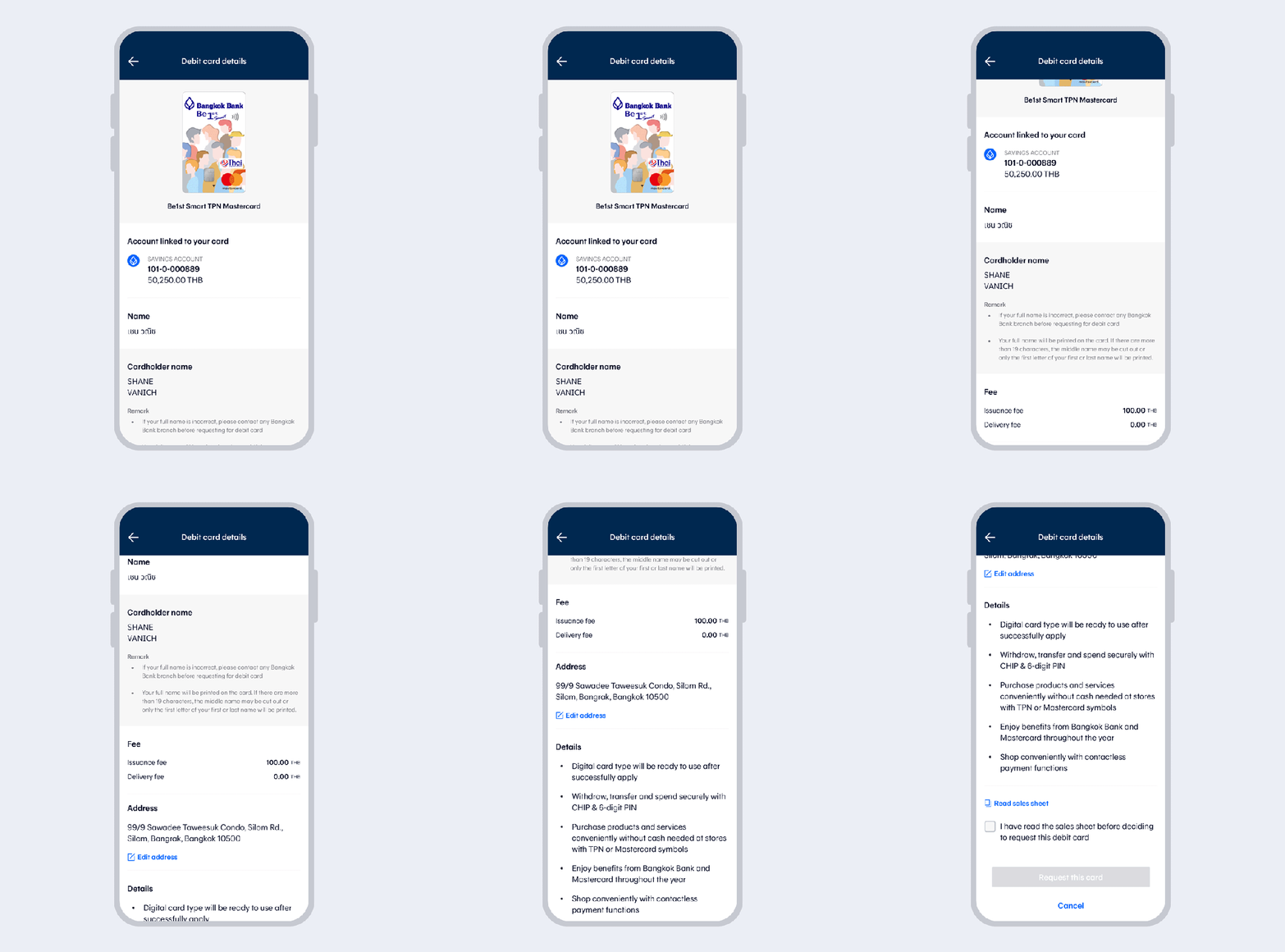
The system will display debit card details (for digital cards, the system will also provide options for requesting a physical card)
Read the sales sheet before requesting a debit card and select “Confirm”
Select “Request debit card”
Read the consent (different for each card type)
Read the terms and conditions and then select "Accept"
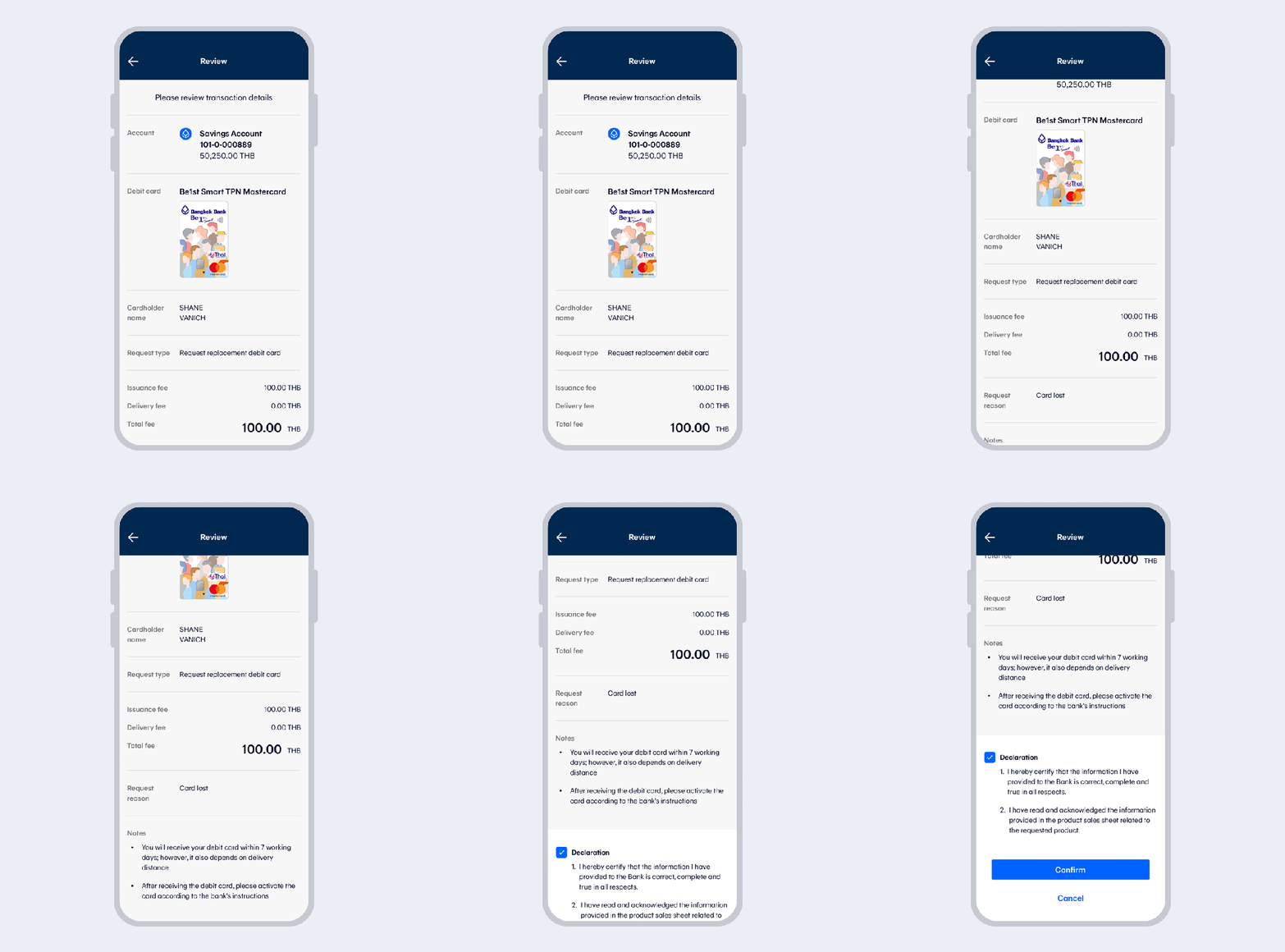
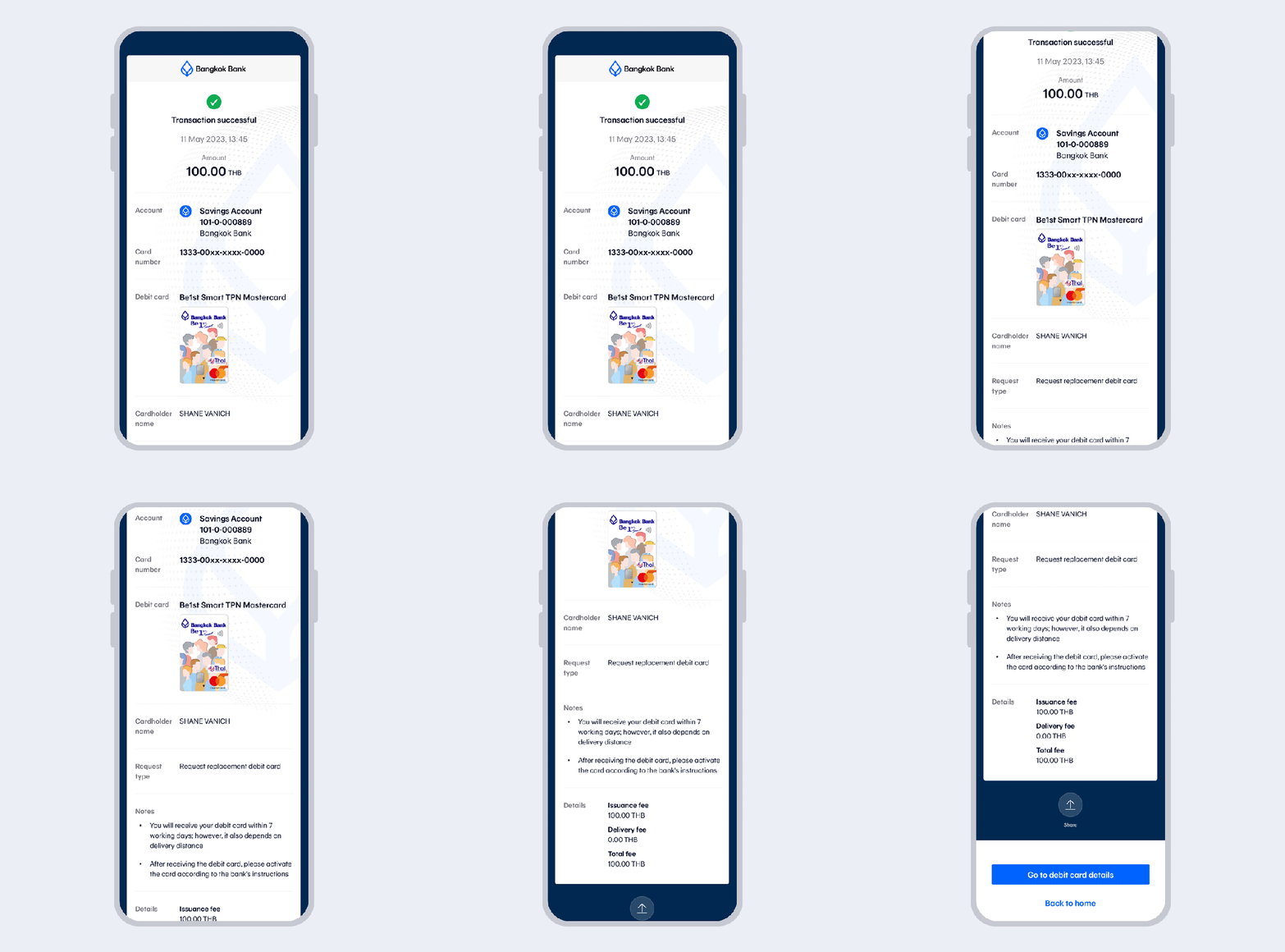
Request for replacement card successful. You will receive a confirmation email and your card via post within 3-7 business days.
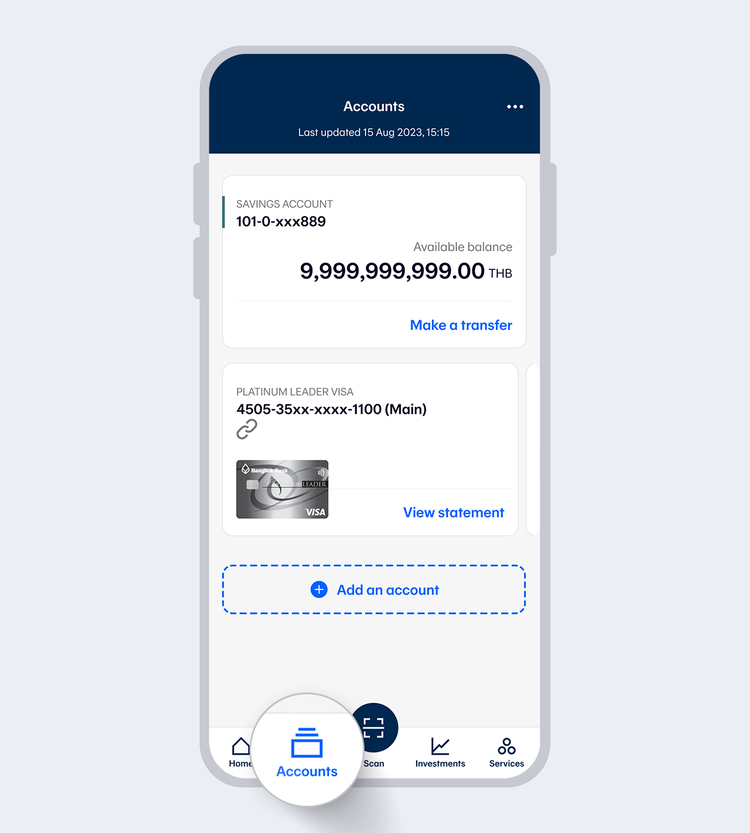
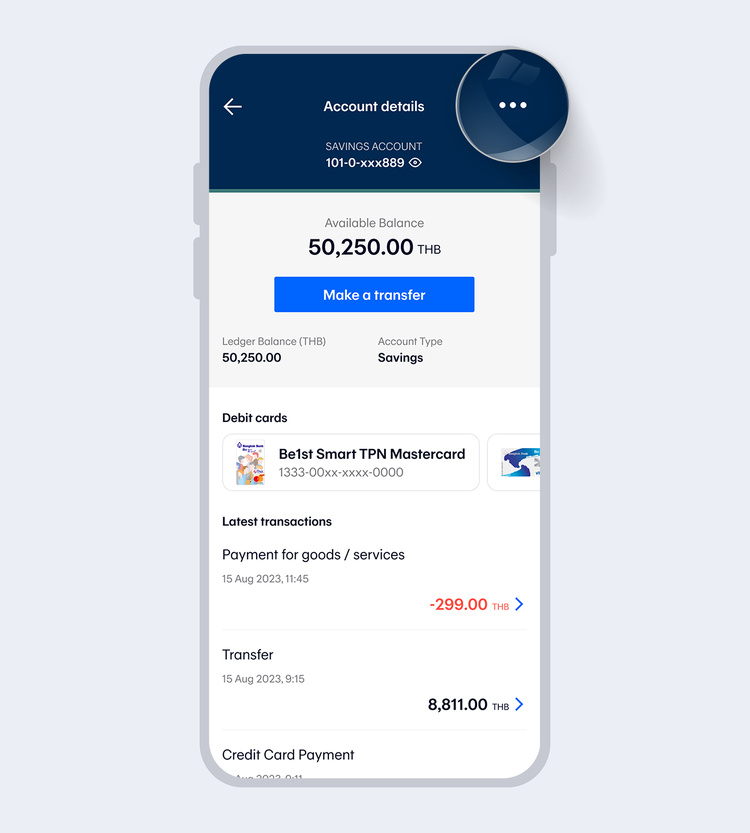
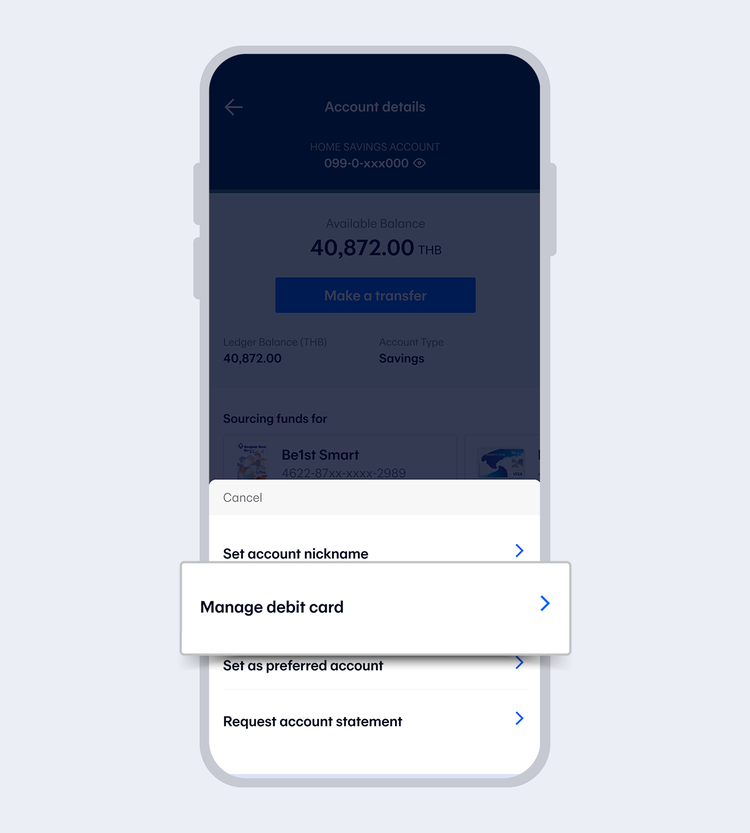
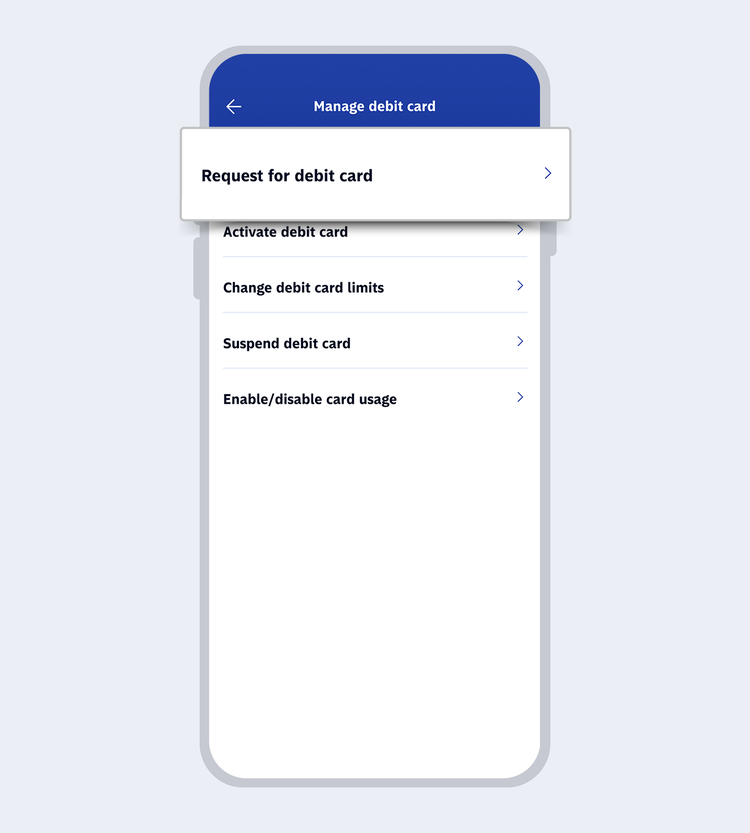
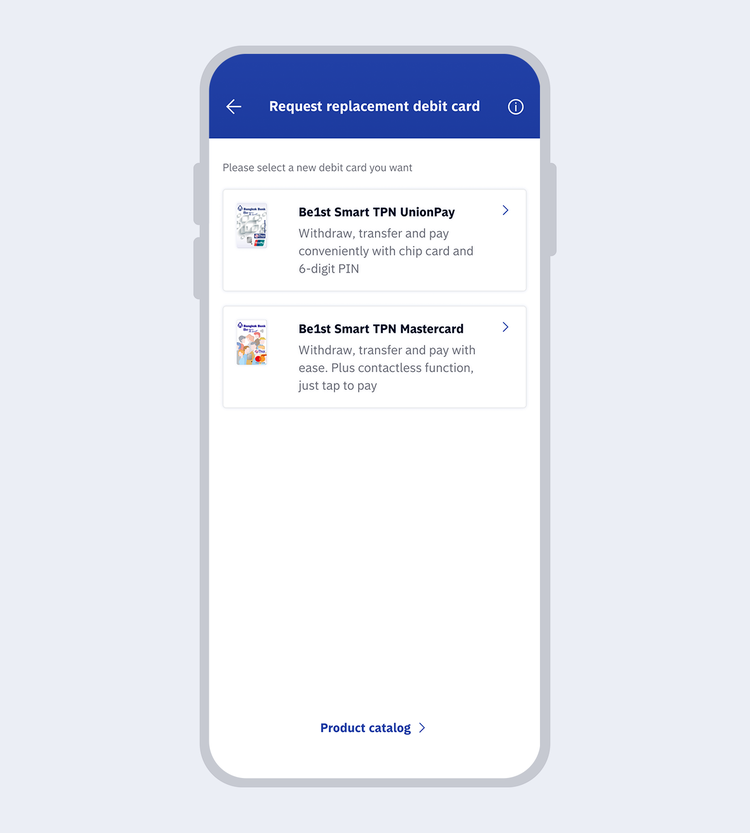
The system will display debit cards in the category of
- Digital Debit Card
- Debit Card
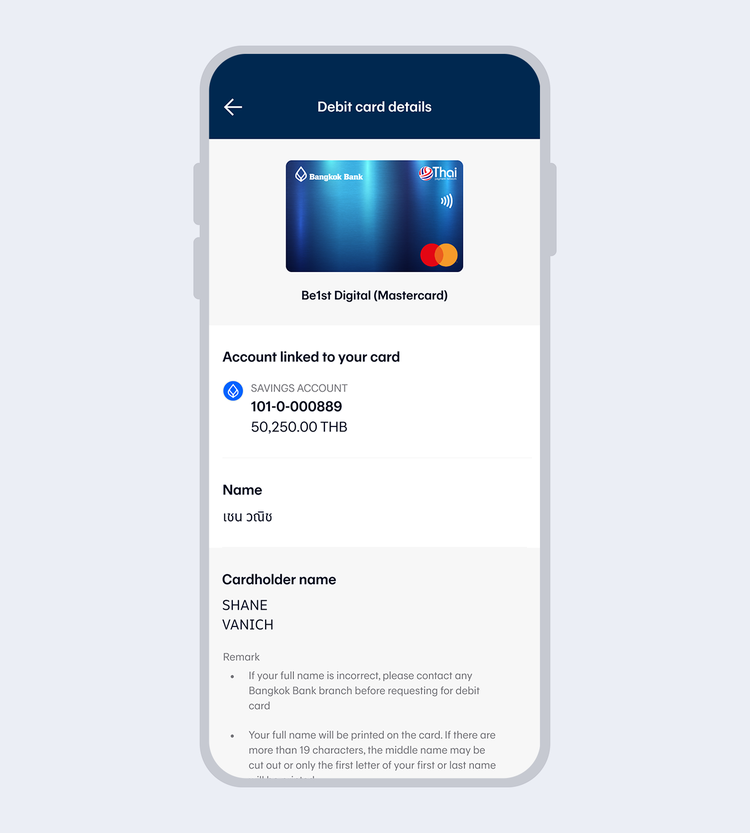
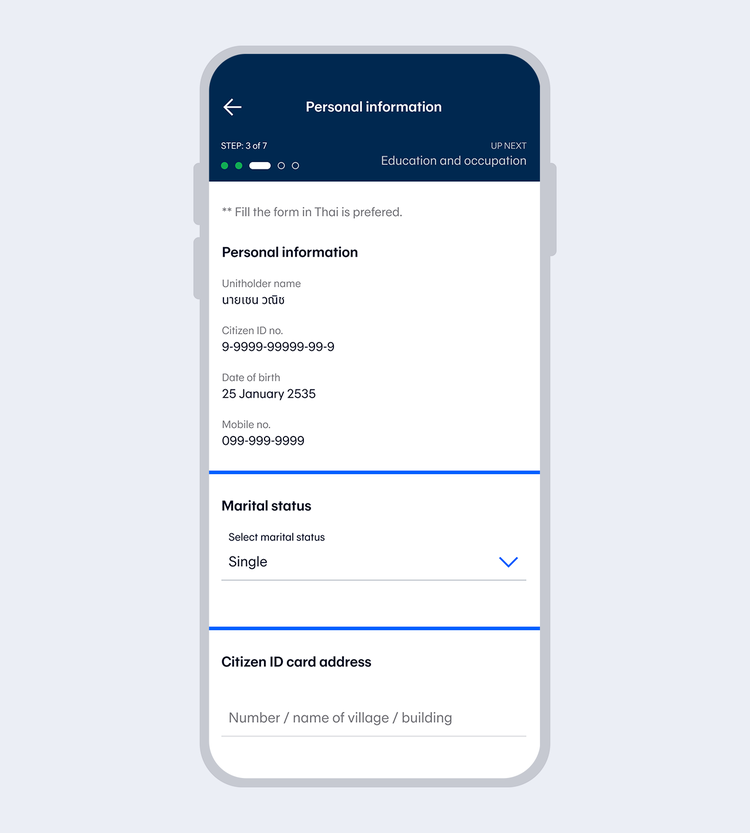
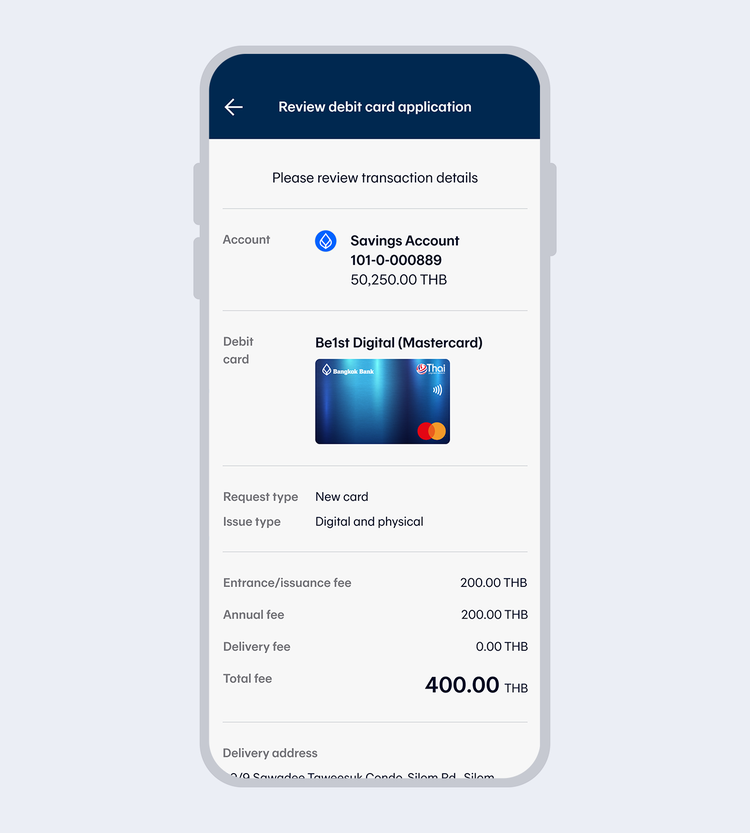
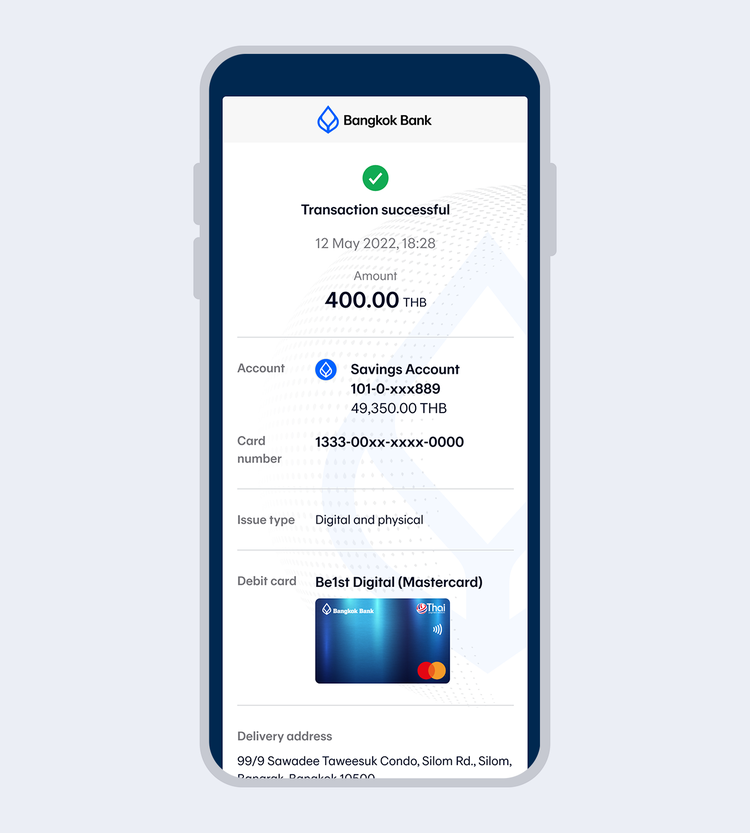
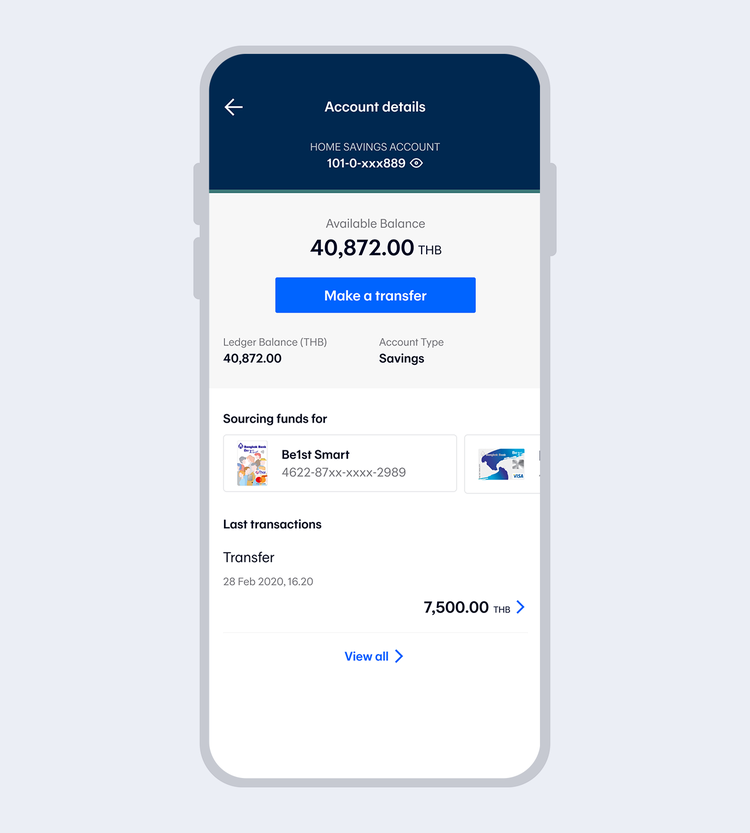
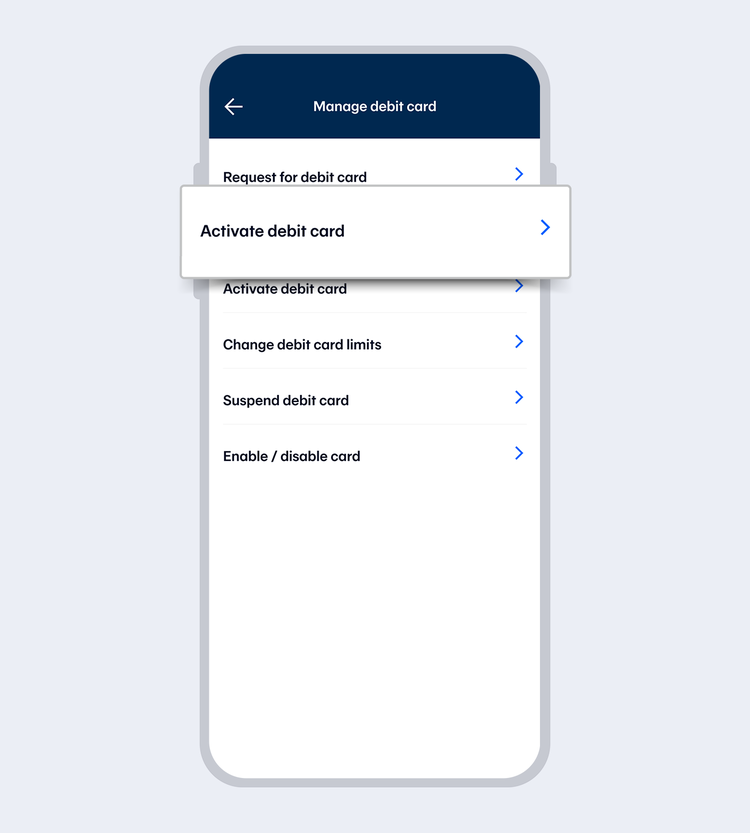
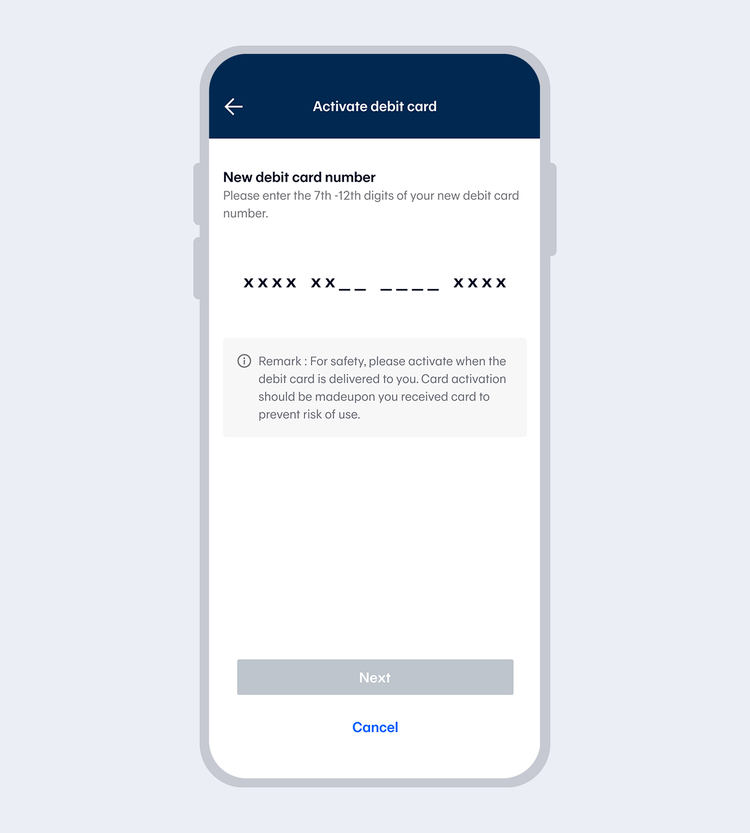
Note: For Be1st Digital physical card, you can see the full card number by selecting the debit card image on the account details page and select “View card info”.
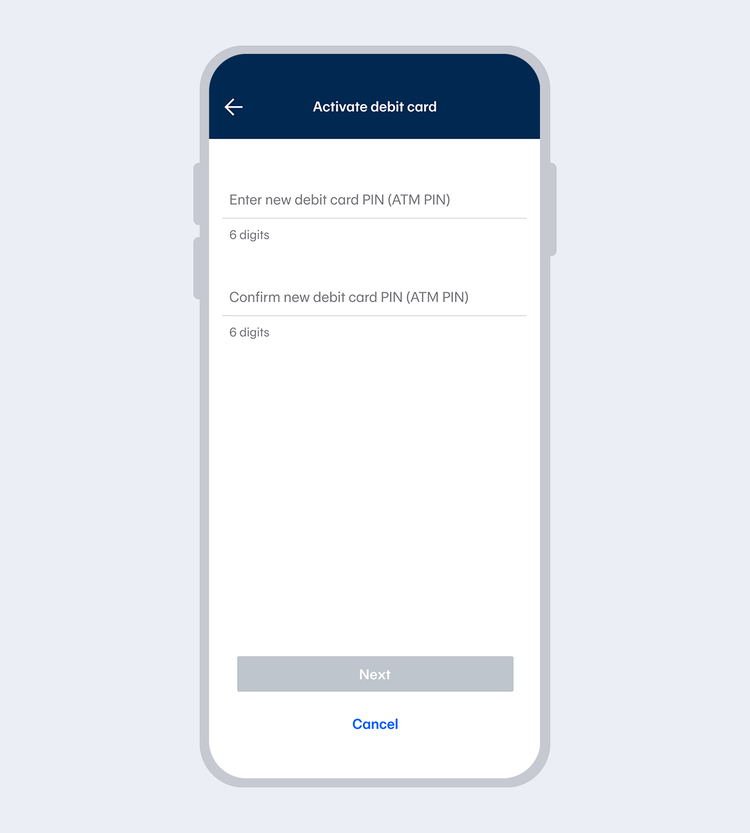
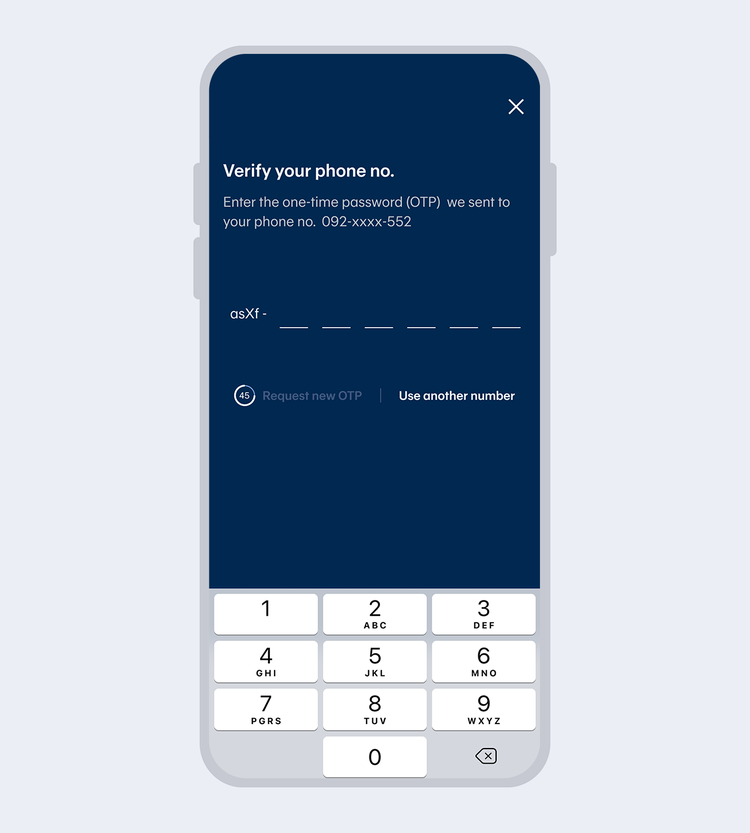
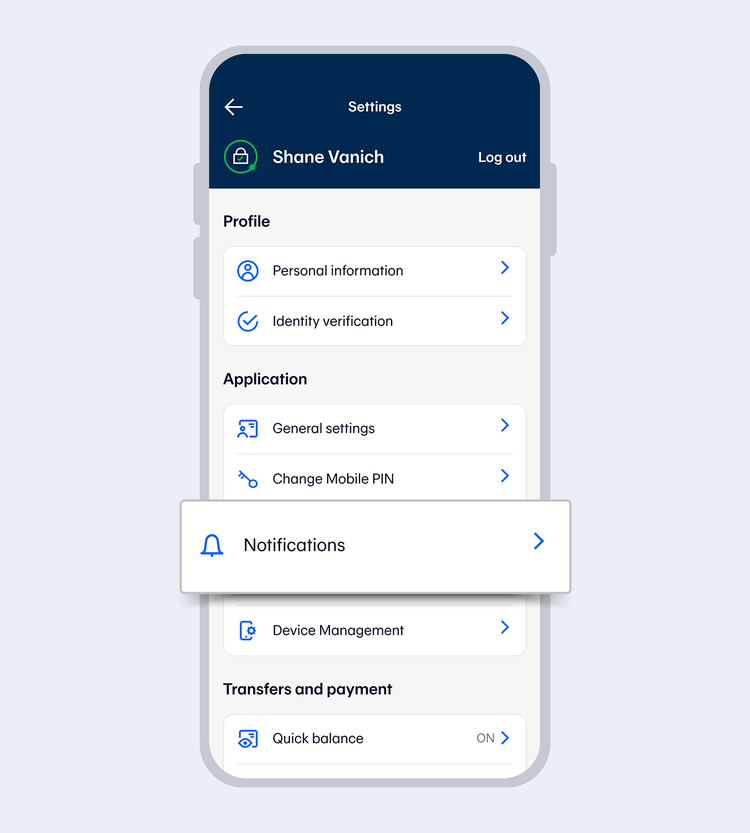
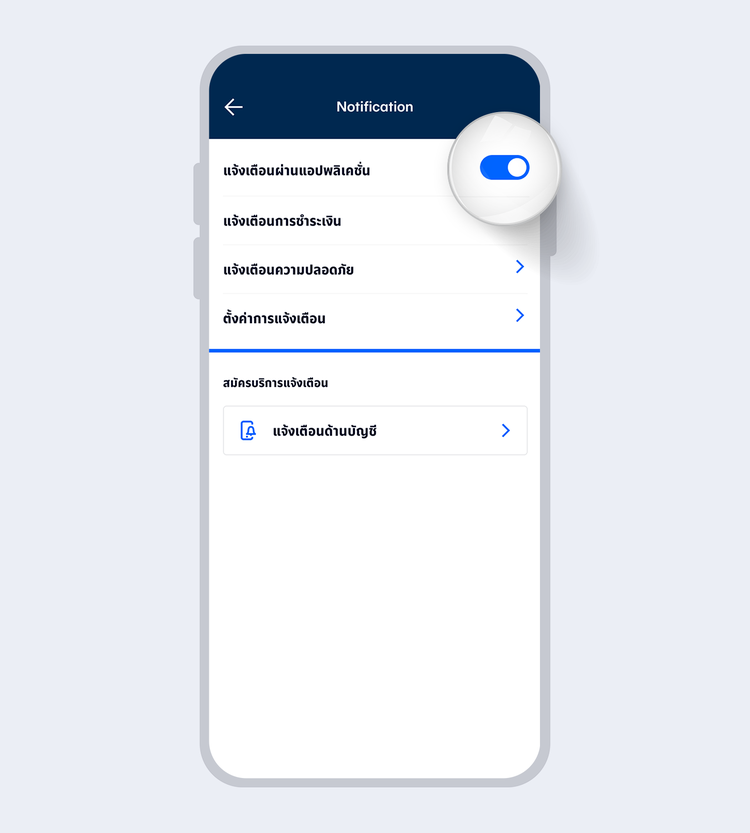
Turn on “Push notifications”
Note: Turning off push notifications means all notifications will be disabled, including debit/credit card spending, rewards redemption, PayAlert and bank announcements