How to Apply for Bangkok Bank Mobile Banking


Download Bangkok Bank Mobile Banking application at



When applying the Bangkok Bank Mobile Banking application—for security reasons, please connect to the internet using a mobile (cellular) network only.
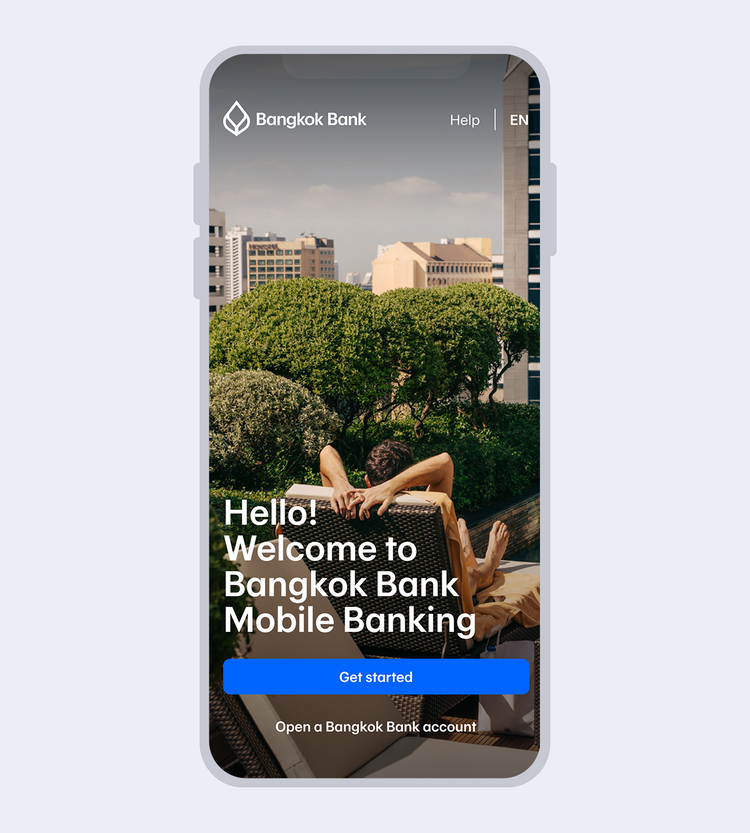
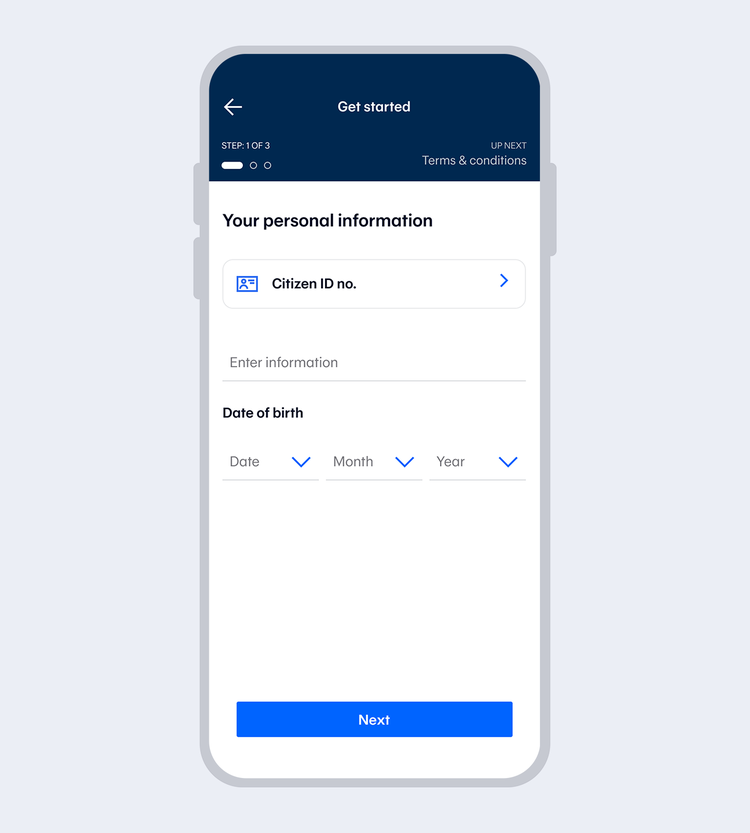
Enter your Citizen ID no. and date of birth.
*for Thai citizens only.
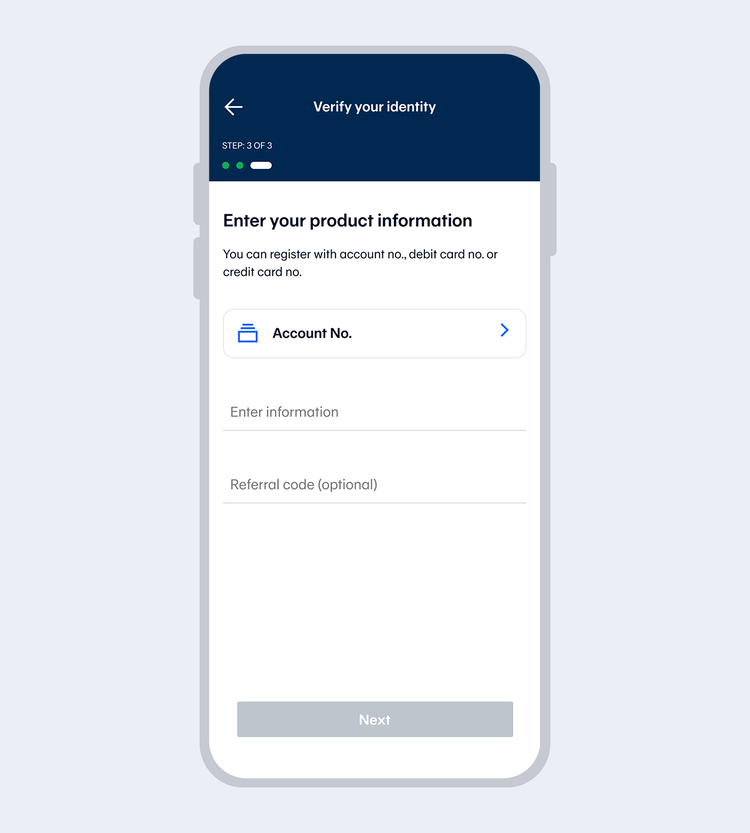
Select "Account no."
Enter the account number and referral code (if any).
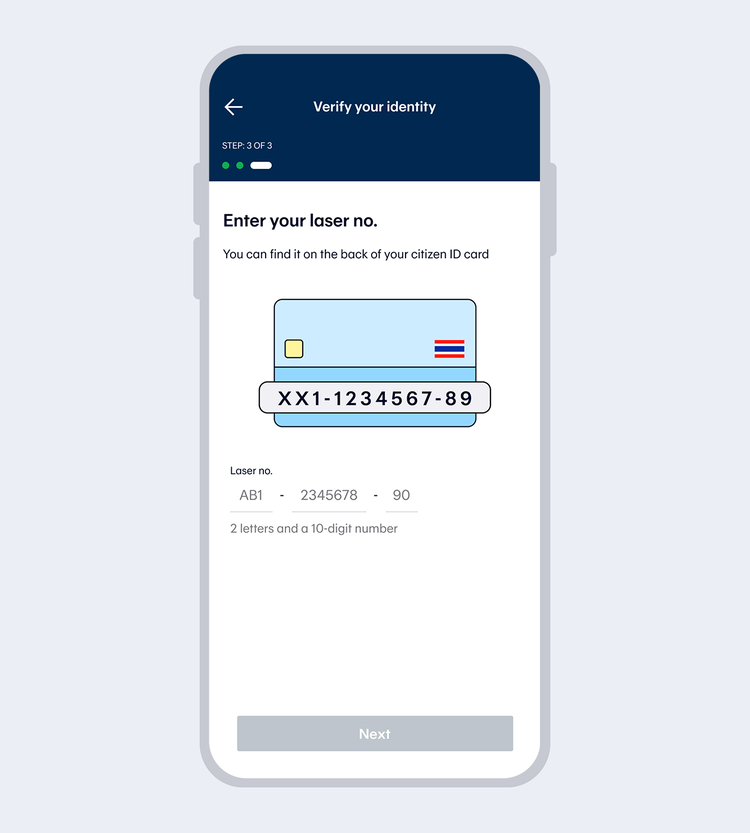
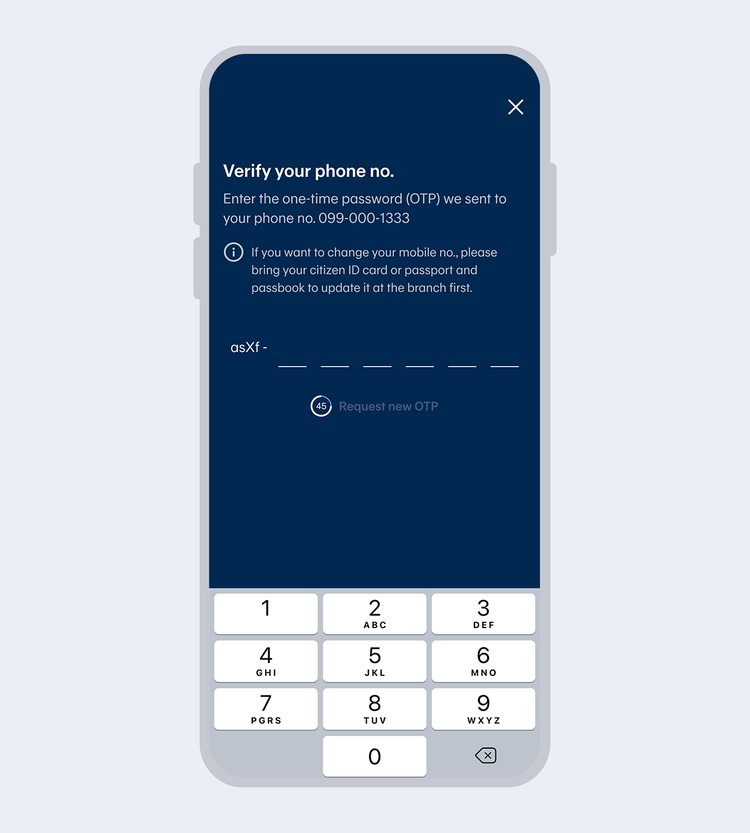

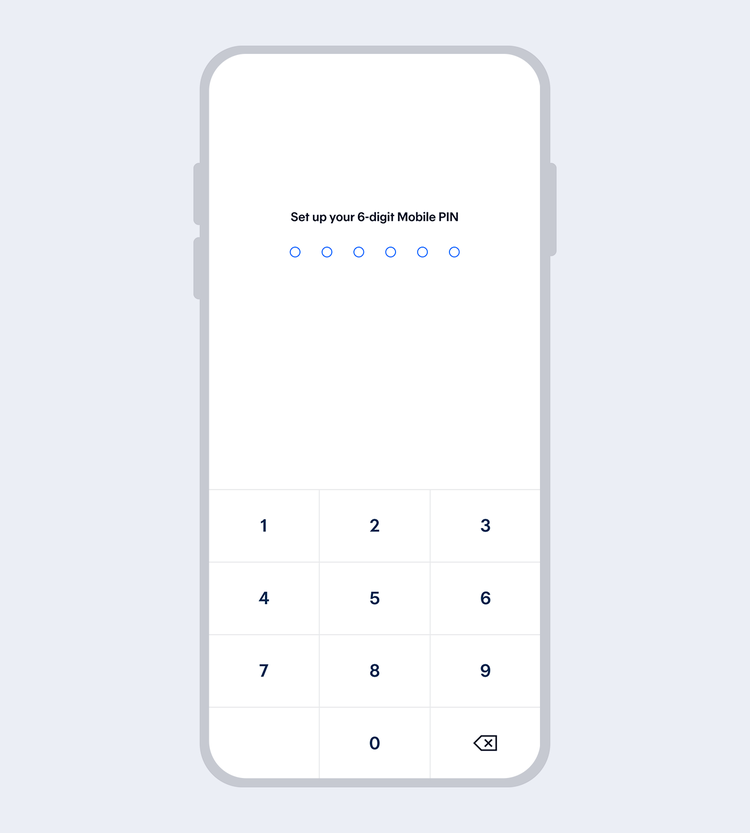
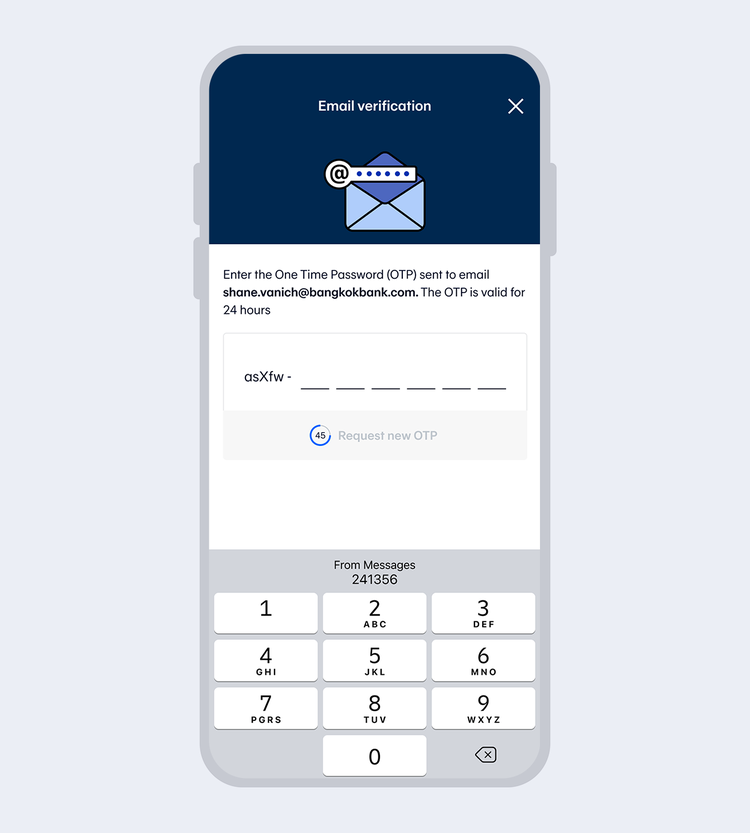
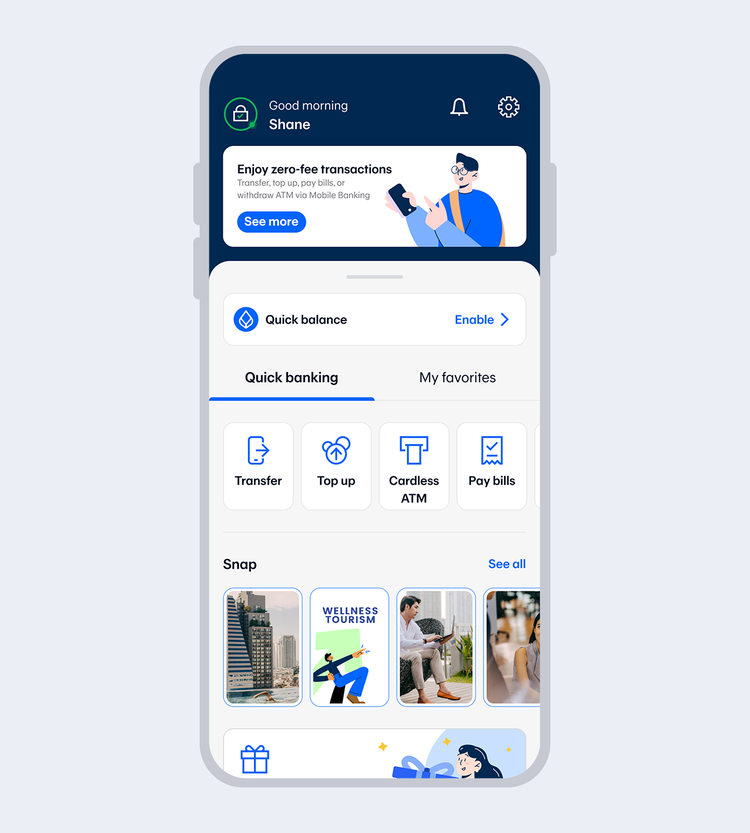
Download Bangkok Bank Mobile Banking.
Select “Get started” if you have a Bangkok Bank debit card.
Enter your Citizen ID no. and date of birth.
*for Thai citizens only.
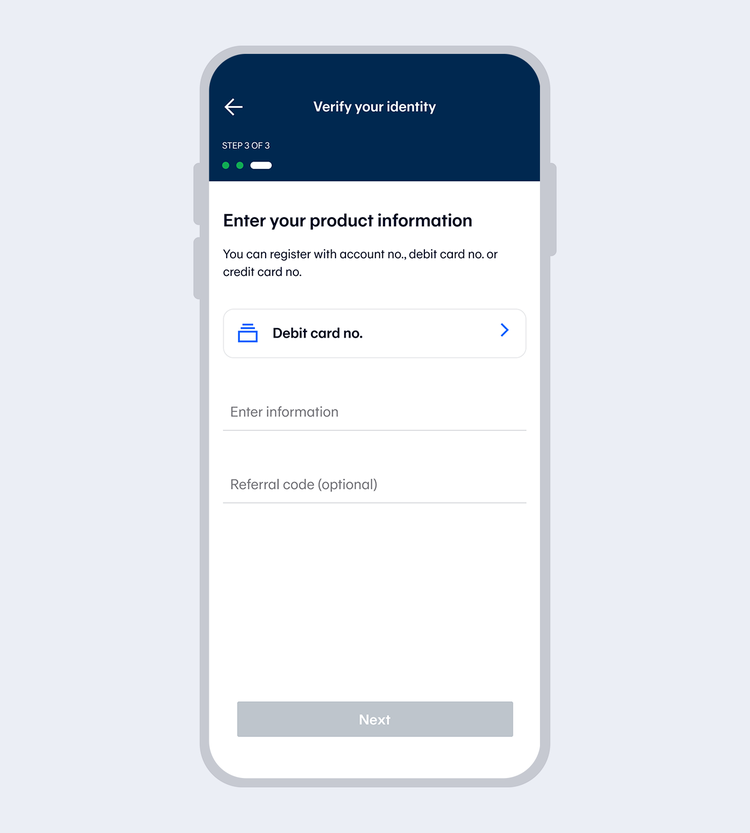
Select “Debit card”
Enter the debit card number and referral code (if any).
Note:
Applying with your Be1st Smart debit card will enable you to use all functions when you provide your mobile phone number that matches the one you registered with the Bank.
(If your mobile phone number does not match, you will only be able to use some functions i.e. check balance and view account activity for every account linked to your card.) You can request to use all functions at our Bualuang ATM or any Bangkok Bank branch.
Download Bangkok Bank Mobile Banking.
Select "Get started" if you have a Bangkok Bank credit card.
Enter your Citizen ID no. and date of birth.
*for Thai citizens only.
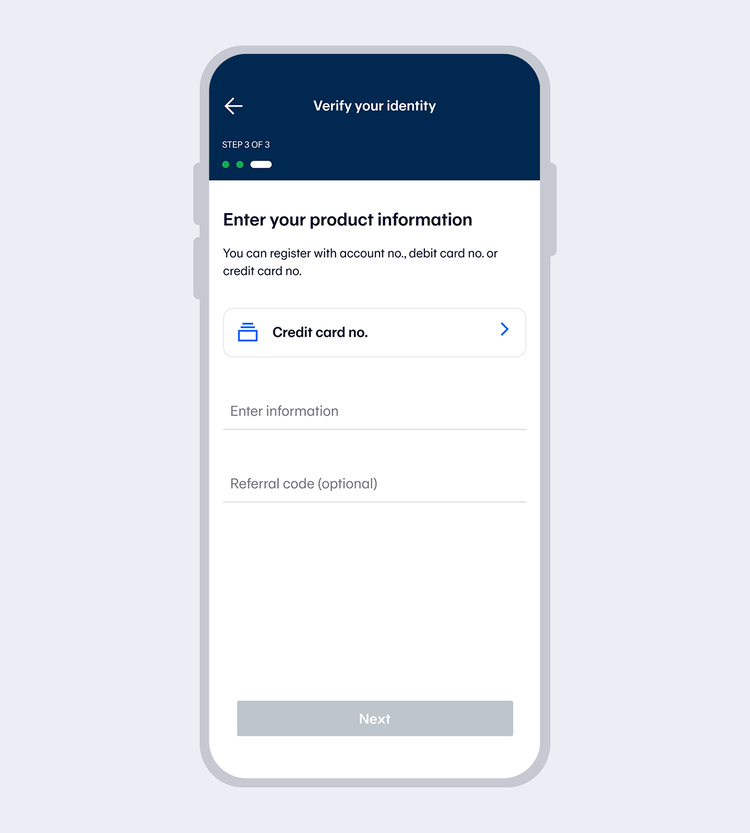
Select "Credit card".
Enter the Credit card number and referral code (if any).
Note:
Applying with your Bangkok Bank credit card will enable you to use some functions i.e.view credit card account and check your Thank You rewards. To use all functions, please visit any Bangkok Bank branch.
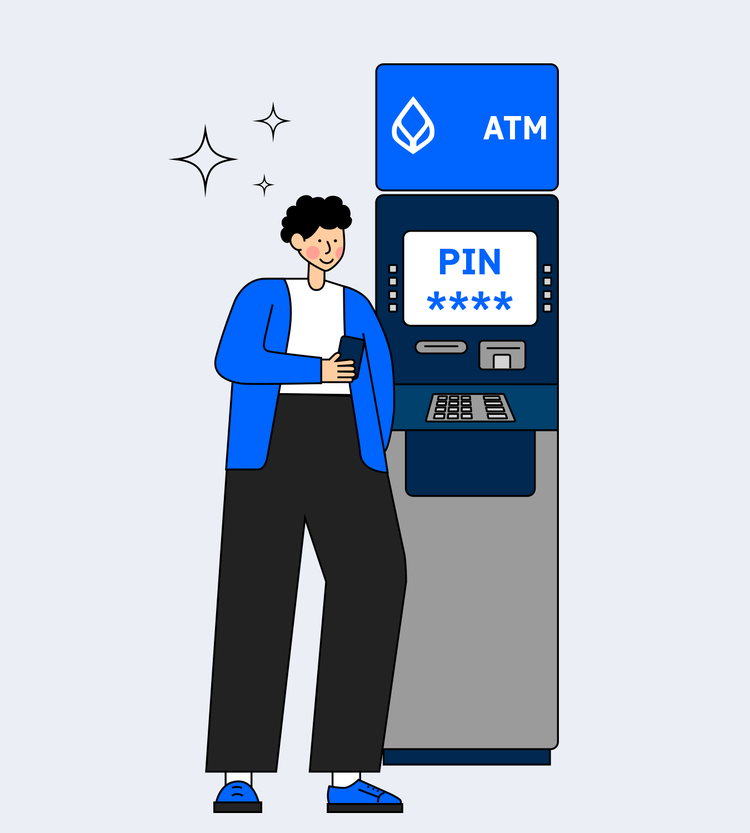
Download Bangkok Bank Mobile Banking.
Select "Get started"
Enter your Citizen ID no. and date of birth.
*for Thai citizens only.
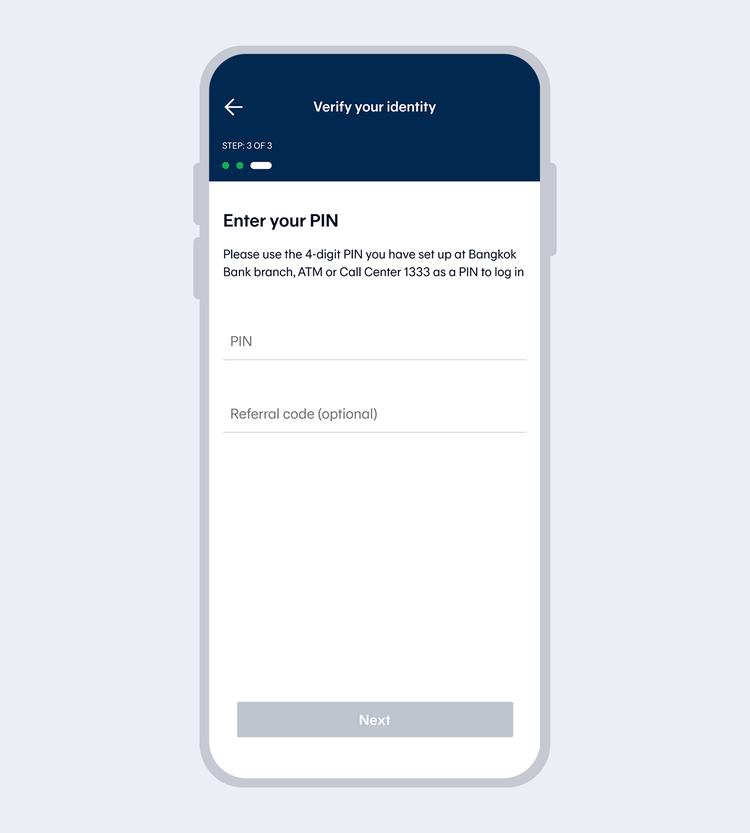

* Recommended for first-time foreign applicants of Bangkok Bank Mobile Banking
At Bangkok Bank branch
Download Bangkok Bank Mobile Banking.
Select "Get started" if you have a Bangkok Bank debit card.
Enter your personal information and date of birth.
Thai citizen: Enter your Citizen ID no.
Foreigner: Enter your passport no. or Alien identification card no.
Note:
For Thais & Foreigners
How to Reactivate
When reactivating the Bangkok Bank Mobile Banking application after changing your device or reinstalling the app—for security reasons, please connect to the internet using a mobile (cellular) network only.
Select "Get started"
Thai citizens should enter your Citizen ID number and date of birth.
Foreigners should enter your passport number, alien ID number, or other ID number and date of birth.
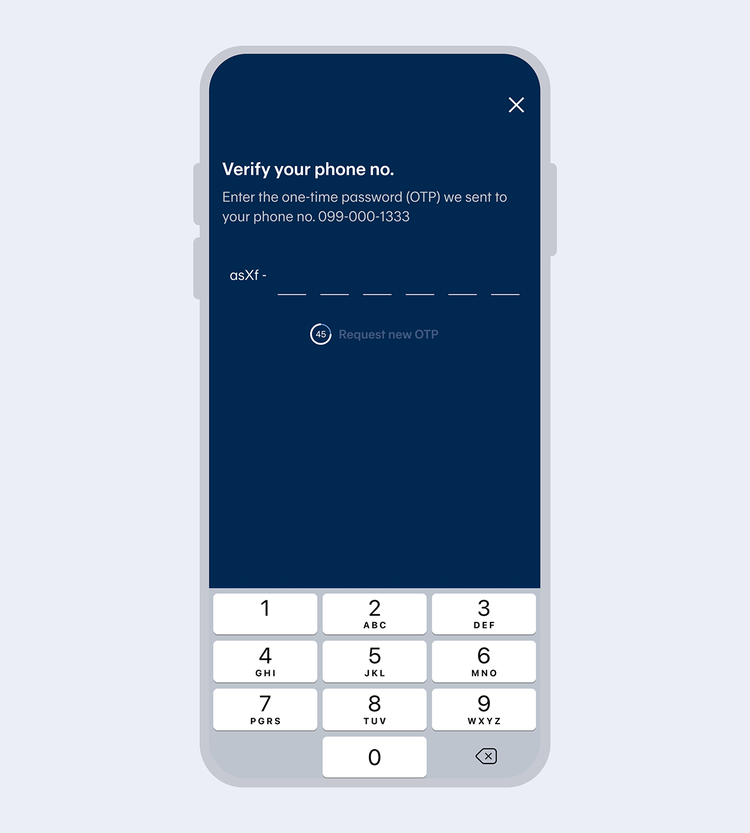
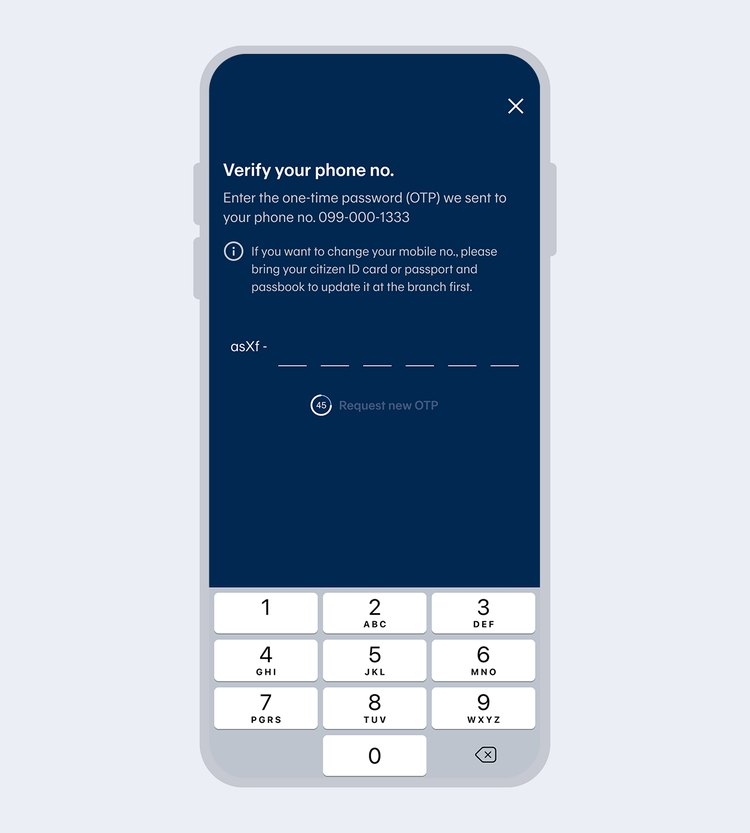
Enter the One Time Password (OTP) sent via SMS to verify your mobile number.
Note: The mobile number must match the number previously linked with Bangkok Bank Mobile Banking

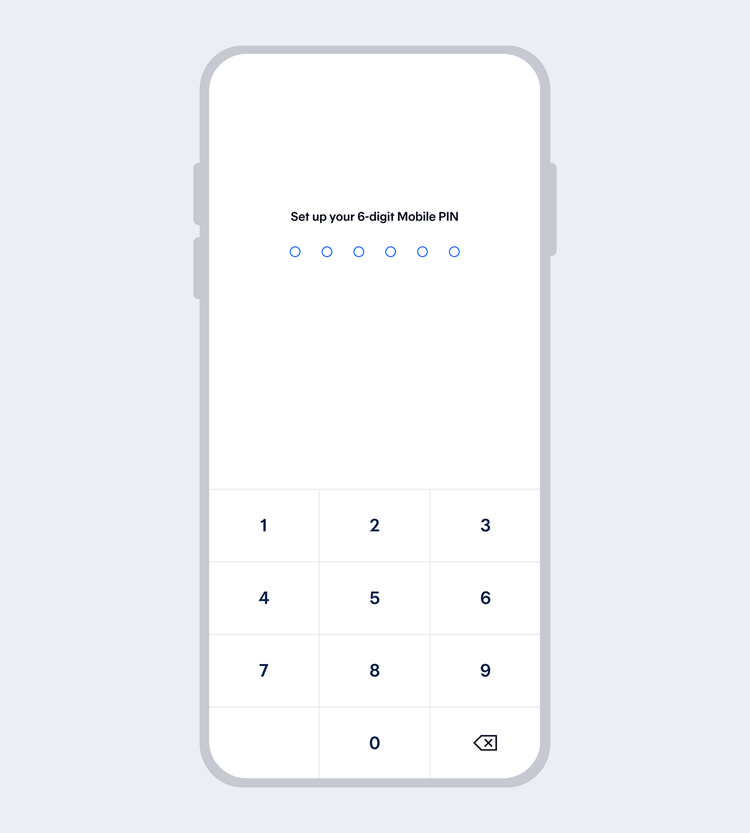
Enter your existing 6-digit Mobile PIN.
If you cannot remember your Mobile PIN but have previously linked a debit card to Mobile Banking, select "Forgot PIN" and provide your debit card information on the next screen
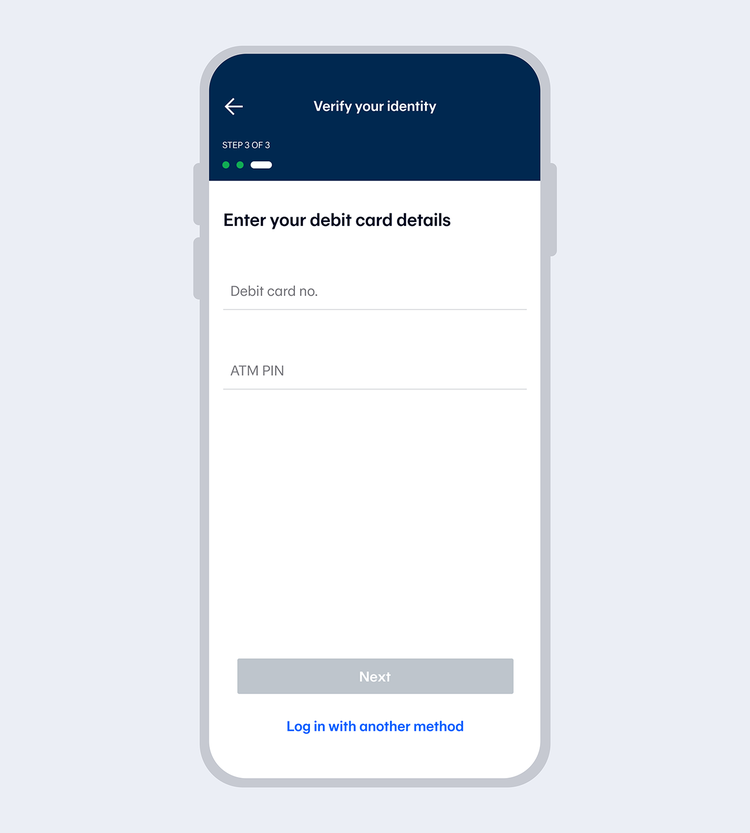
Enter the debit card number previously linked to Mobile Banking and the ATM PIN
If you don't have a Bangkok Bank debit card, select "Log in with another method" and follow the instructions under "Re-issue PIN at a Branch"
Open Bangkok Bank Mobile Banking.
Select "Get started"
Thai citizens should enter your Citizen ID number and date of birth.
Foreigners should enter your passport number, alien ID number, or other ID number and date of birth.
Enter the One Time Password (OTP) sent via SMS to verify your mobile number.
Note: The mobile number must match the number previously linked with Bangkok Bank Mobile Banking.
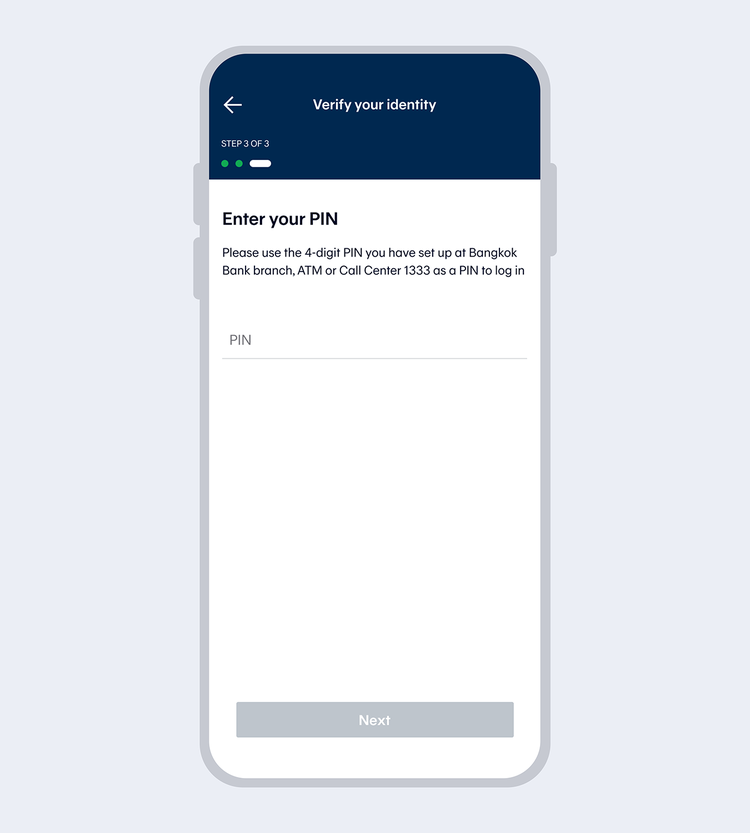
Note: If you don’t have a Bangkok Bank debit card, you can reactivate your account by following the instructions under “Re-issue PIN at a Branch”
Amendment and Account Deletion/Cancellation
To change your information or delete/cancel your Bangkok Bank Mobile Banking service, you can download, print and fill in the form and submit it at any Bangkok Bank branch.
How to request account deletion/ cancellation of your Bangkok Bank Mobile Banking service
- Download and print the Amendment form (#newtab Click here)
- Fill in the form and select ‘cancel this service’
- Sign the completed form and submit at any Bangkok Bank branch
- The Bank will process your deletion/cancellation request of the service and notify you via SMS.
Other Useful Information