simple
images
false


Authentication Service (NDID)
Reliable and safe to confirm your identity wherever you are
false
Key Benefits
Use cutting-edge technology to verify your identity via the National Digital ID platform (NDID), so you can be confident and safe when applying online services of government and private companies

scrollable

Convenient
Enroll to use the Authentication service anytime on Bangkok Bank Mobile Banking application

Reliable
Use facial recognition technology to verify your identity

Secure
Connect related parties in the National Digital ID platform using blockchain technology

Free
No fee for enrollment and authentication service
Enrollment Conditions
- For Thai nationals only
- Required to have completed the Know Your Customer (KYC) process to apply for products at Bangkok Bank branch before e.g. savings account
- Enrollment is available via Bangkok Bank Mobile Banking application only.
- Enrollment is available on the application every day from 06:00 a.m. to 11:00 p.m.
How to use the service
Follow a few steps on the Bangkok Bank Mobile Banking application and you are ready to use
the service and receive notifications for all your authentication requests.
true
15000
false
showArrowsDots
withDefaultImage
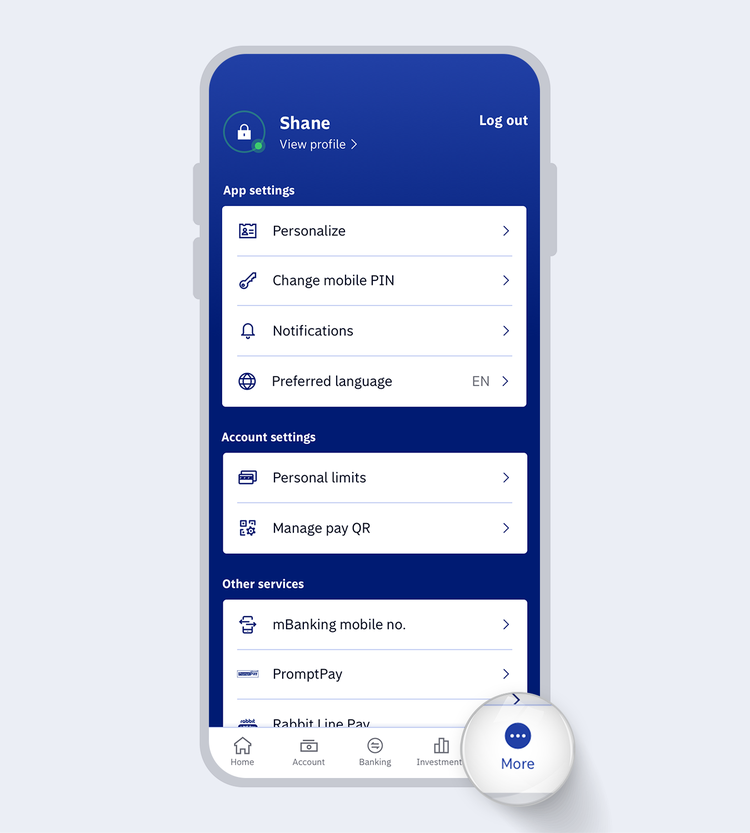
1.
Go to "More" menu and select "NDID service"
showArrowsDots
withDefaultImage
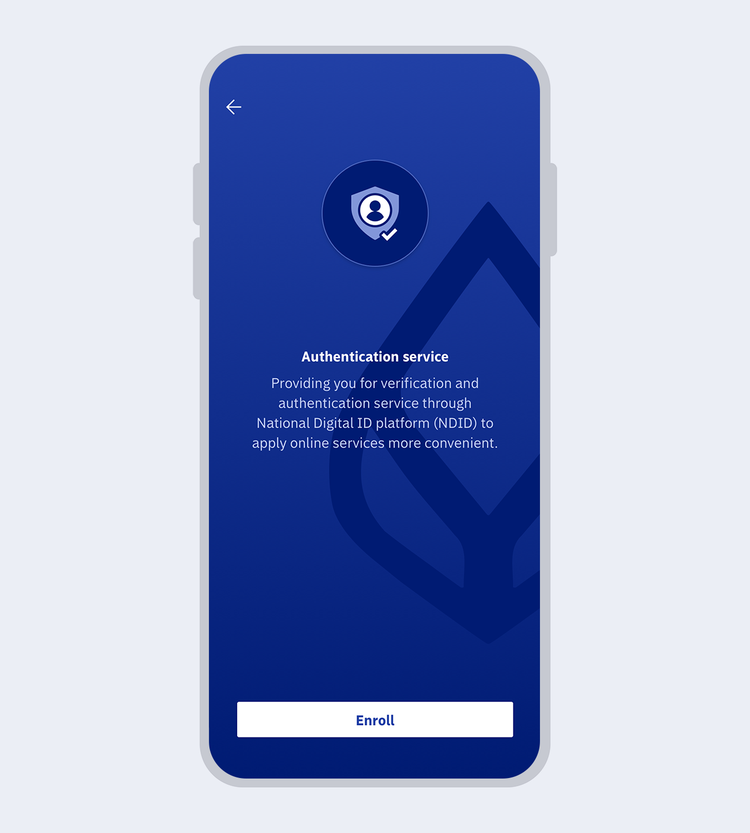
2.
Select "Enroll" then read and "Accept" Terms and Conditions to use the service
showArrowsDots
withDefaultImage
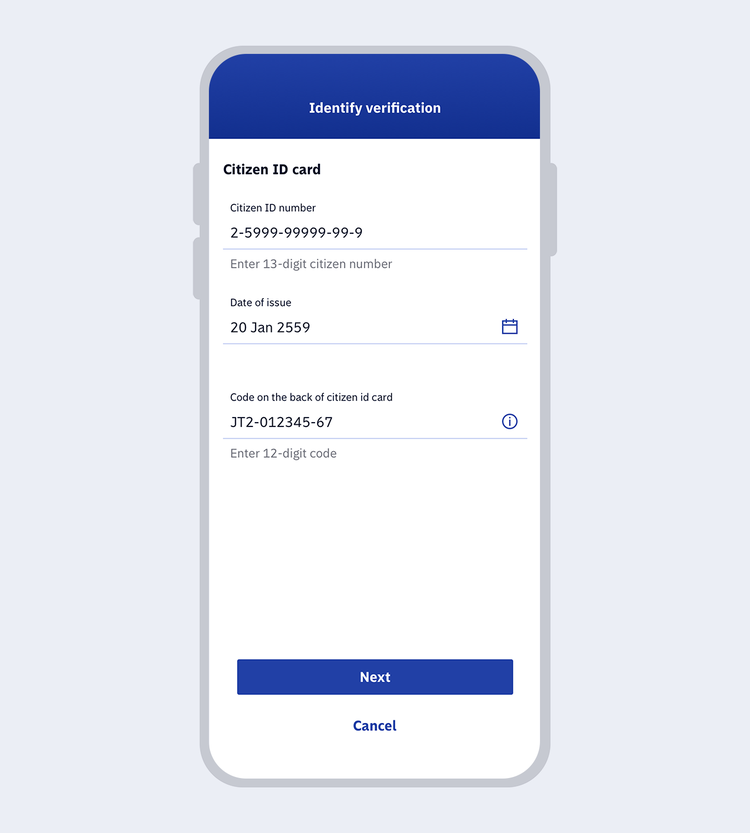
3.
Enter your Citizen ID card information and select "Next"
showArrowsDots
withDefaultImage
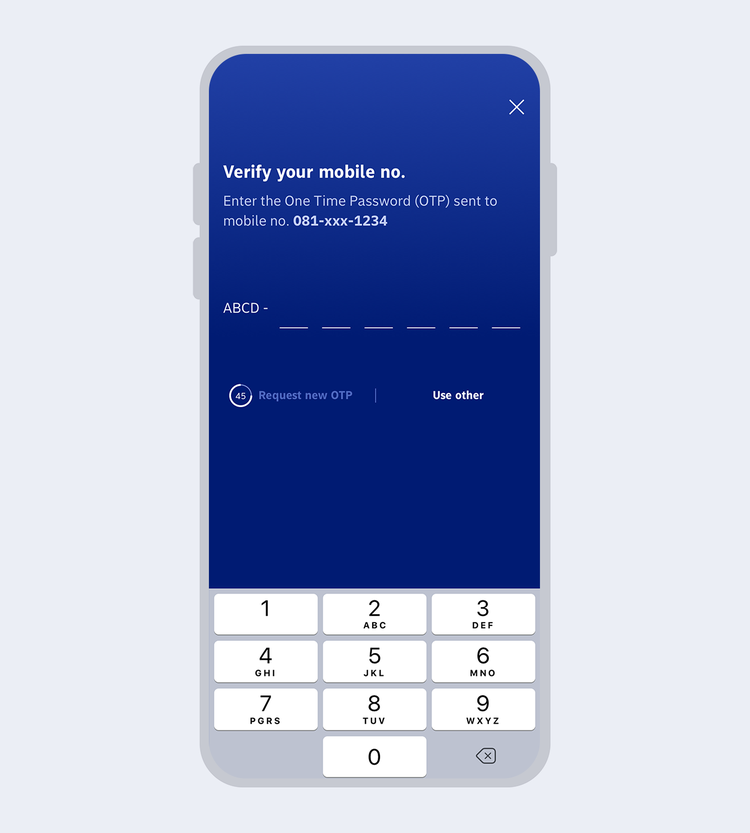
4.
Enter the One Time Password (OTP) received via SMS to verify your mobile phone number
showArrowsDots
withDefaultImage
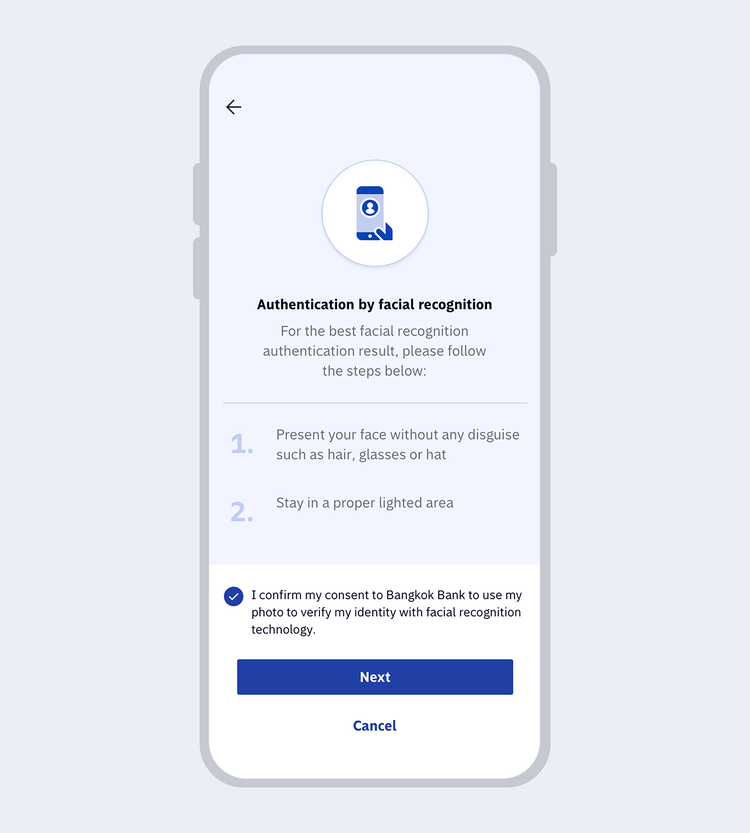
5.
Verify yourself by facial recognition, click "Confirm your consent" then select "Next"
showArrowsDots
withDefaultImage
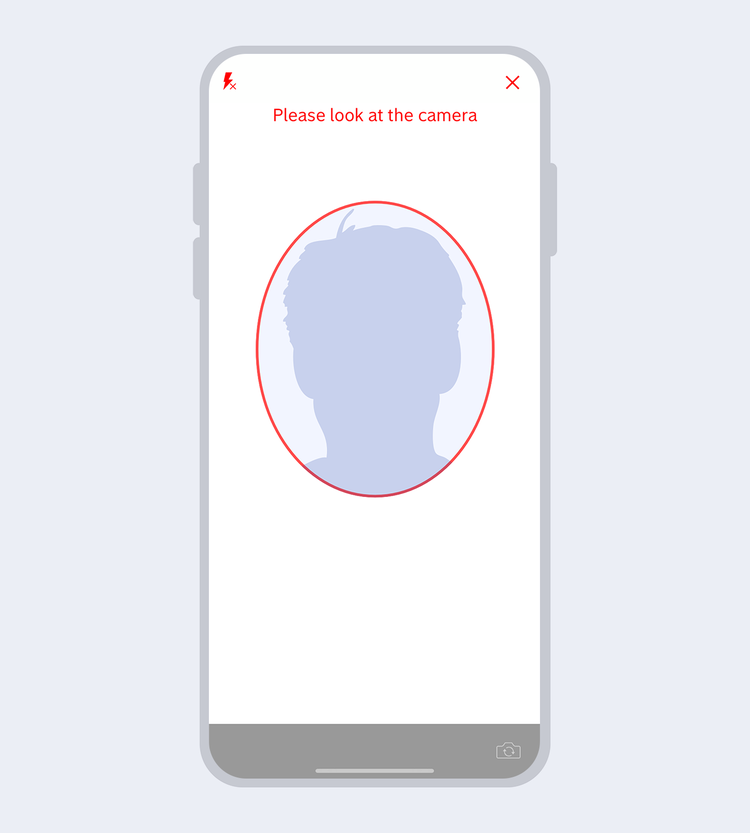
6.
Fit your face in the frame and follow instructions for liveness detection
showArrowsDots
withDefaultImage
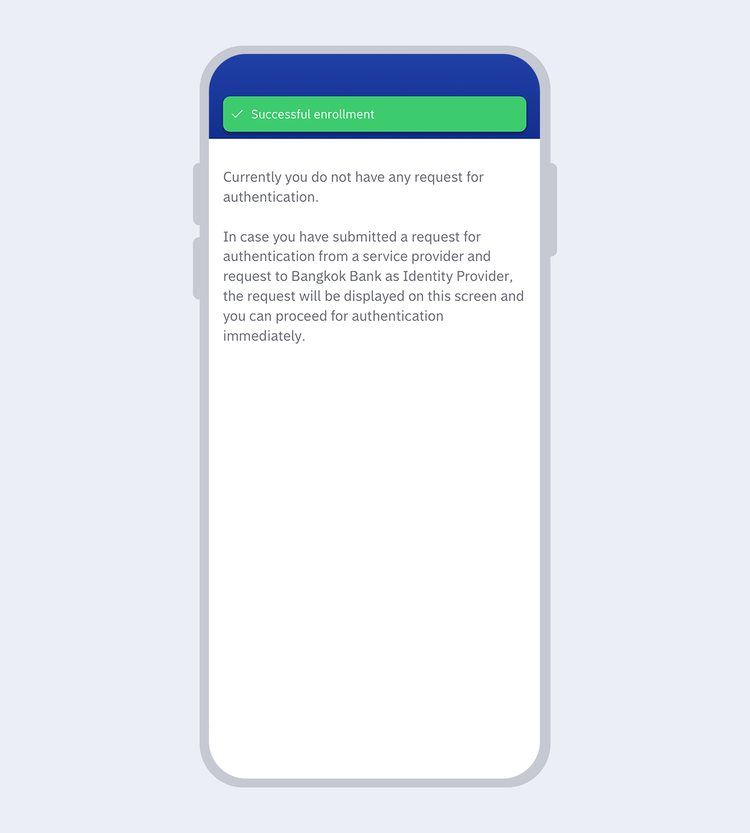
7.
The system will display the successful result of your enrollment.
true
15000
false
showArrowsDots
withDefaultImage
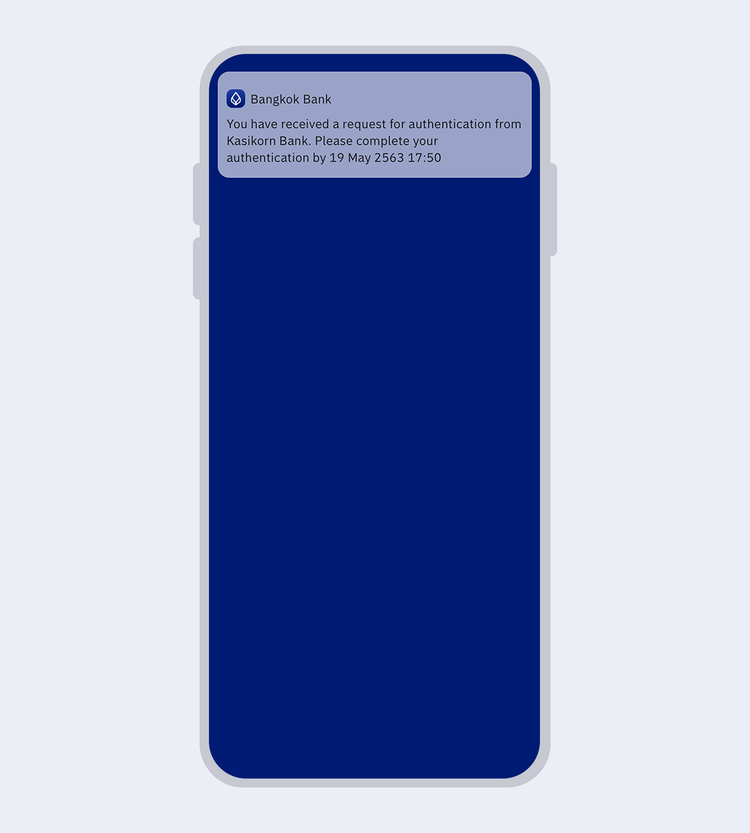
1.
Receive notification on authentication request
showArrowsDots
withDefaultImage
2.
Go to "More" menu and select "NDID service"
showArrowsDots
withDefaultImage
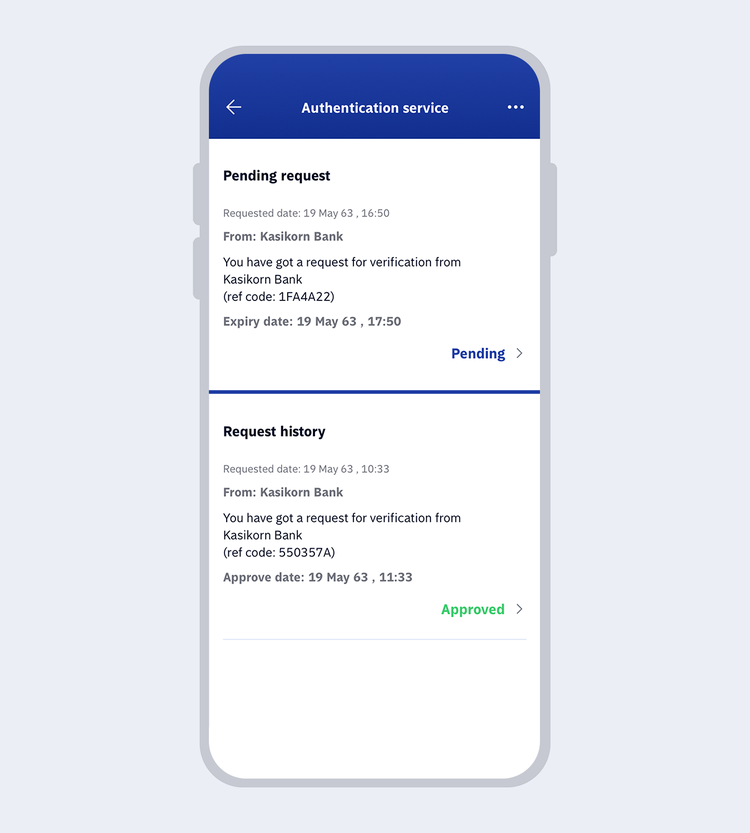
3.
Select "Pending request"
showArrowsDots
withDefaultImage
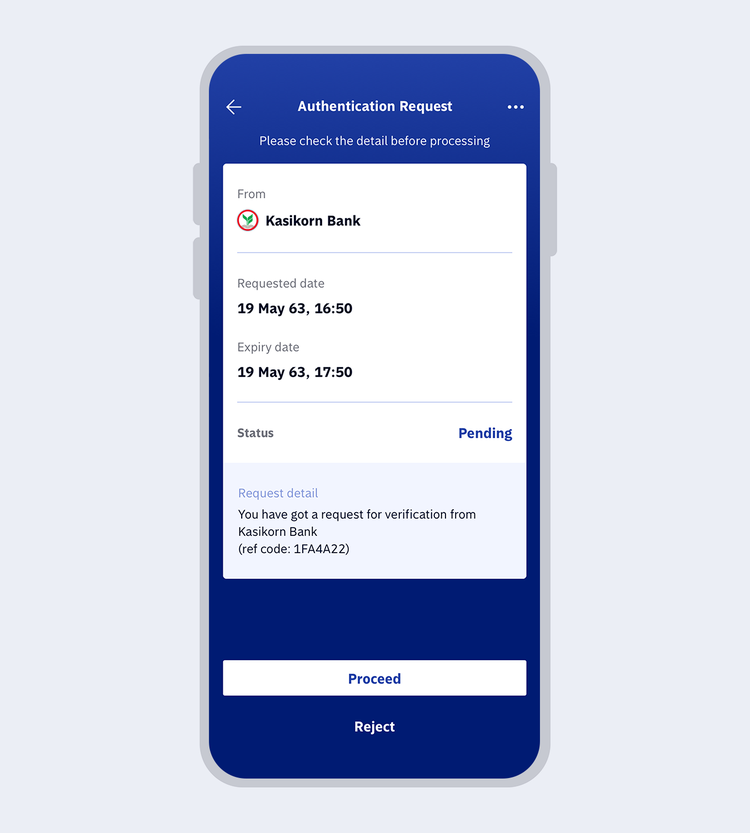
4.
Review the authentication request details and select "Proceed"
showArrowsDots
withDefaultImage
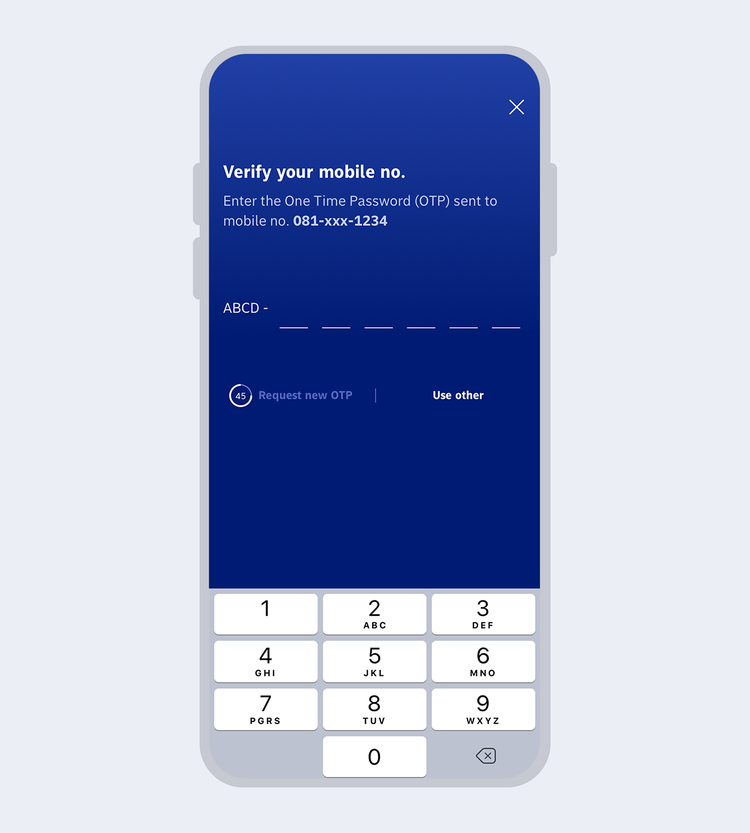
5.
Enter the One Time Password (OTP) received via SMS to verify your mobile phone number
showArrowsDots
withDefaultImage
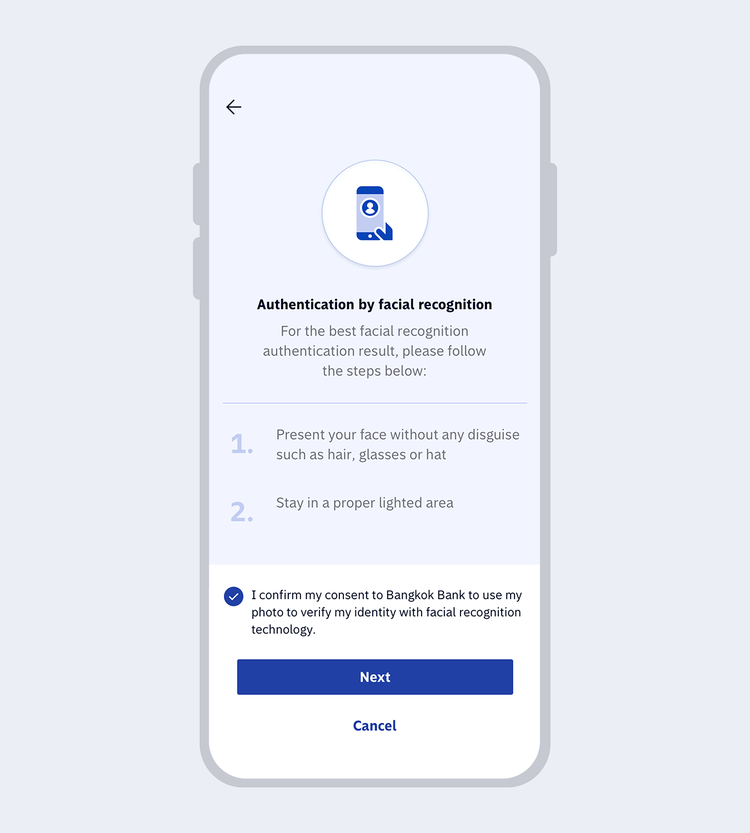
6.
Verify yourself by facial recognition, click "Confirm your consent" then select "Next"
showArrowsDots
withDefaultImage
7.
Fit your face in the frame and follow instructions for liveness detection
showArrowsDots
withDefaultImage
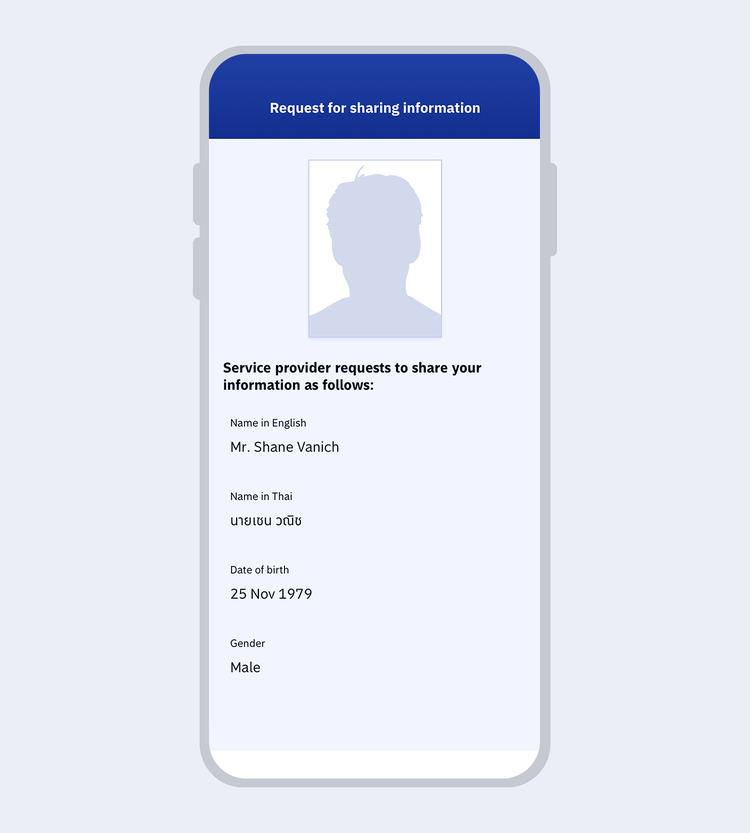
8.
Verify and click "Confirm your information and consent" then select "Accept"
showArrowsDots
withDefaultImage
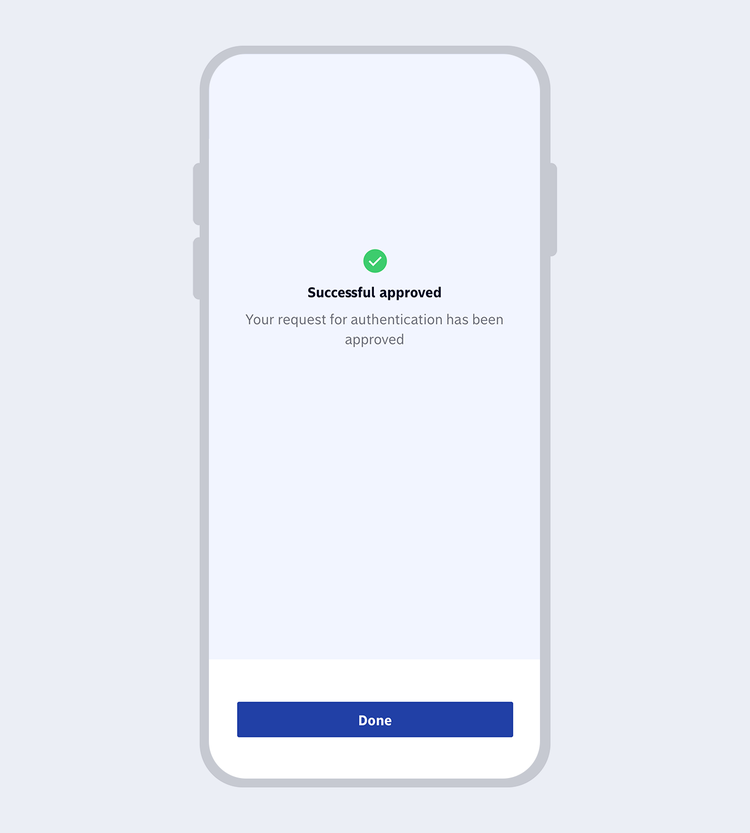
9.
The system will display the successful result of your authentication.
Frequently Asked Questions

TOOLS & ASSISTANCE

