Preventing and Resolving Screen Overlay Issues: Protect Yourself from Fraud and Transaction Impersonation
This guide is for Bangkok Bank Mobile Banking app users who have received notifications regarding the use of active screen overlay apps.
Bangkok Bank Mobile Banking has enhanced its security measures to prevent cyber threats from fraudsters who may use screen overlays to deceive customers or perform unauthorized transactions on their behalf. If the system detects any active screen overlay apps, access to the Bangkok Bank Mobile Banking app may be temporarily disabled.
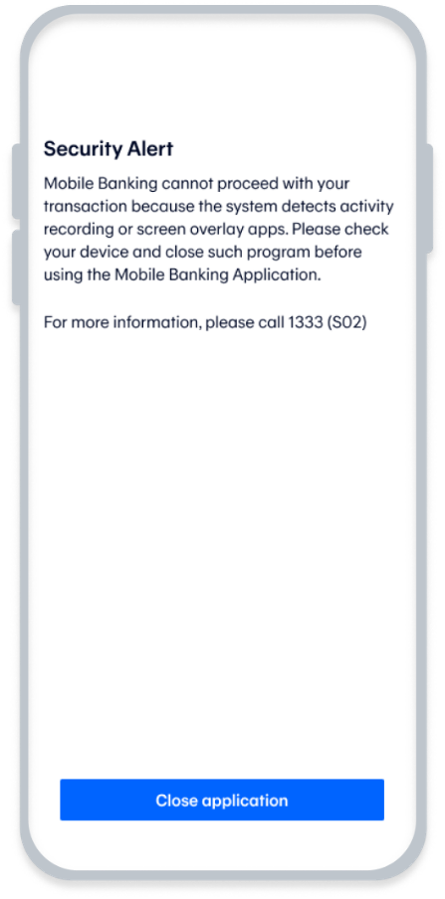
Examples of screen overlay detection alerts on Bangkok Bank Mobile Banking
What is a Screen Overlay and How Does It Affect Financial Security?
A Screen Overlay is a feature on the Android operating system that allows an app to display content over other active applications. Common everyday examples include chat heads from messaging apps, floating buttons, picture-in-picture video players, or screen-dimming filters.
While this feature offers convenience, in terms of cybersecurity, fraudsters can exploit screen overlays by creating transparent windows or fake overlay messages on top of your actual transaction screen (known as Cloaking or an Overlay Attack). This technique is used to trick users into entering their PINs, confirming unauthorized transfers, or stealing personal data without their knowledge.
To mitigate these risks, the Bangkok Bank Mobile Banking app has implemented advanced security measures. If the system detects any potential threat from apps with active screen overlay permissions, it will temporarily restrict your access to prevent impersonation and strictly safeguard your accounts.
Two Ways to Resolve Screen Overlay Notifications on Android
To ensure uninterrupted access to Bangkok Bank Mobile Banking App, we recommend following these steps for preventing and resolving screen overlay on Android devices.
1. Update your device to Android Operating System Version 12 or Higher
We encourage you to update your Android OS to Version 12 or higher (if your device supports it) to enhance security and maintain optimal performance.
General Steps:
- Go to Settings
- Software Update
- Select Download and Install.
2. Disable Apps with Screen Overlay Permissions
If your device cannot be updated to Android 12 or if you still receive the temporary access restriction notification after updating, you can manually disable the screen overlay permission by following these steps:
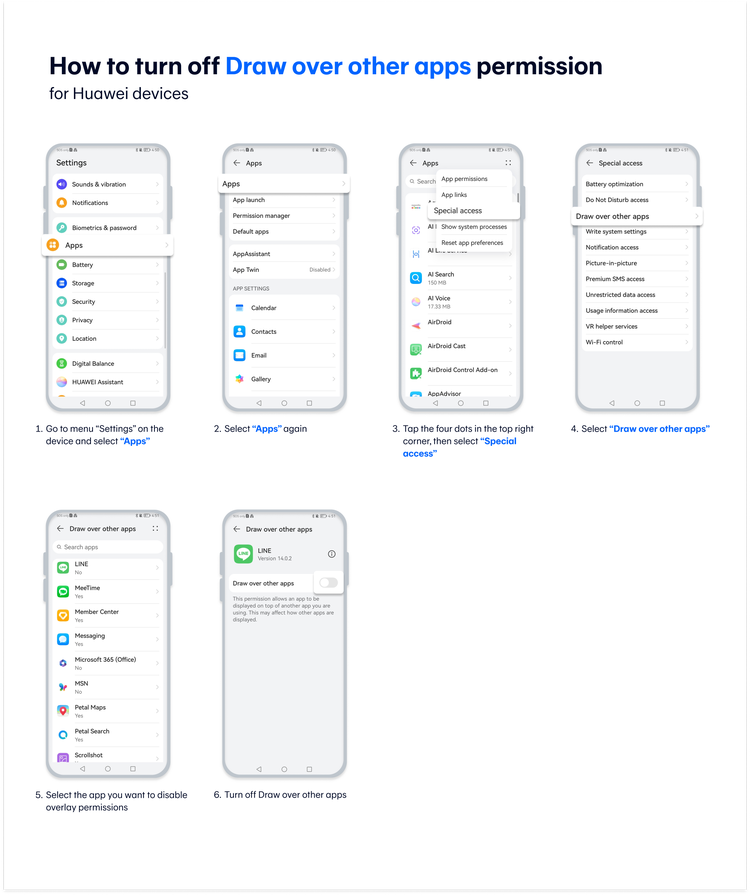
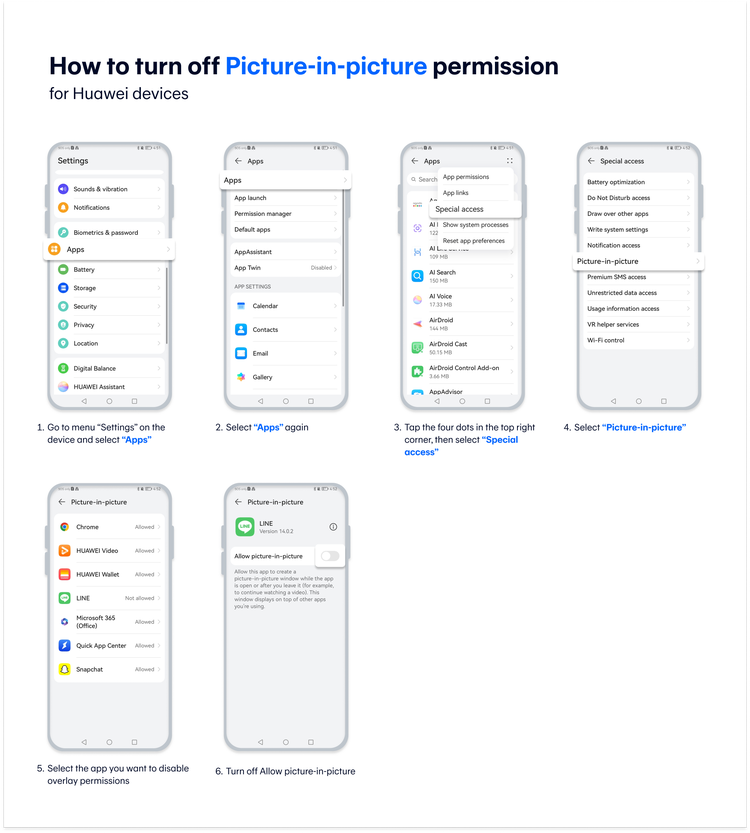
- Go to “Settings” on the device
- Tap “Apps”
- Select “Special App Access” or “Special Permissions”
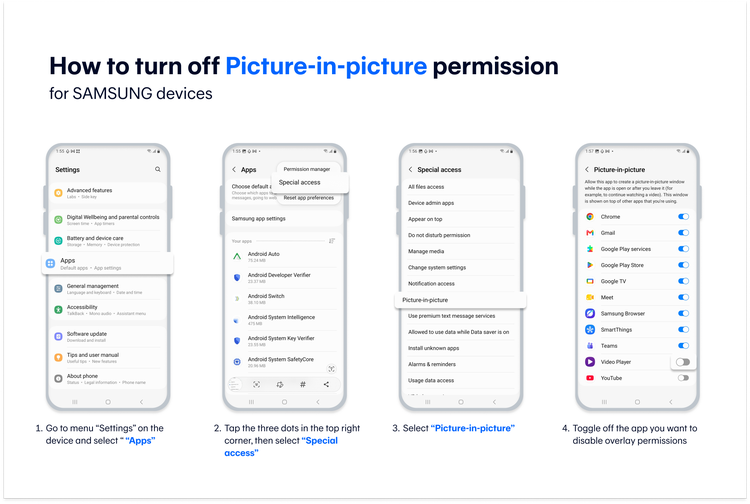
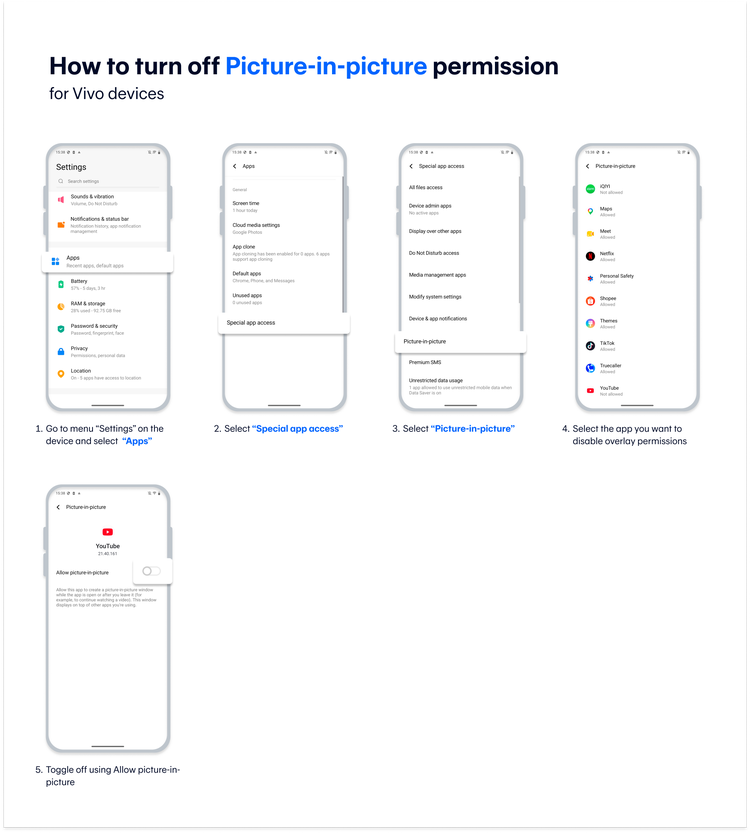
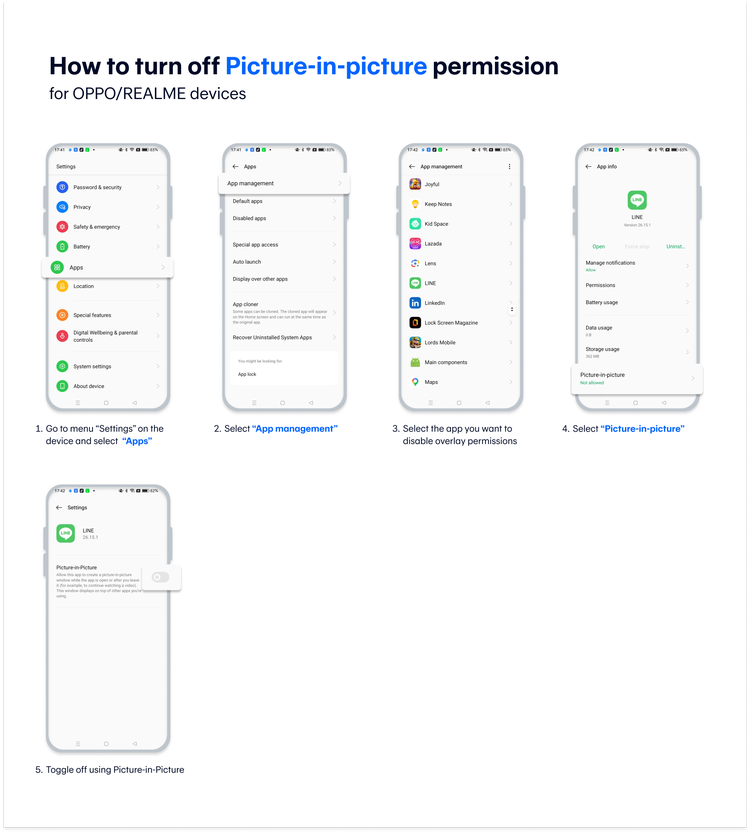
- Tap “Picture-in-Picture”
- Turn off apps that allow screen overlays, such as Messenger Chat Heads, LINE VDO Calls, Facebook Live, or any other floating video player
- Restart your device and try accessing the Bangkok Bank Mobile Banking App again
Guide to disabling Screen Overlay permissions for different brands
Please refer to the table below for instructions on how to disable apps or features that may display overlays on the screen for each mobile device brand.
| Brand | Disable Picture-in-Picture |
Disable Appear on Top |
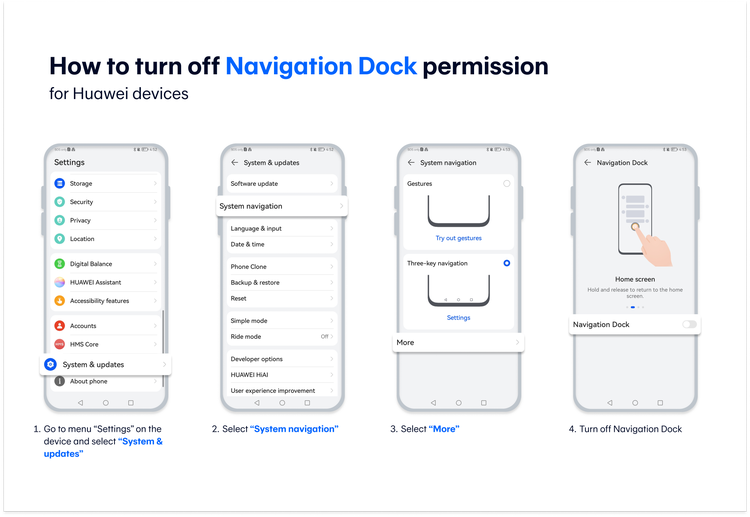
Disable Floating Menu |
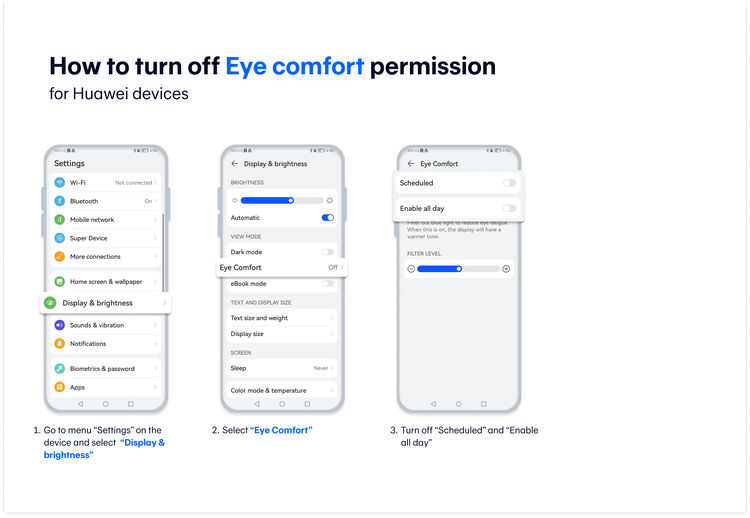
Other Settings That May Affect Overlay |
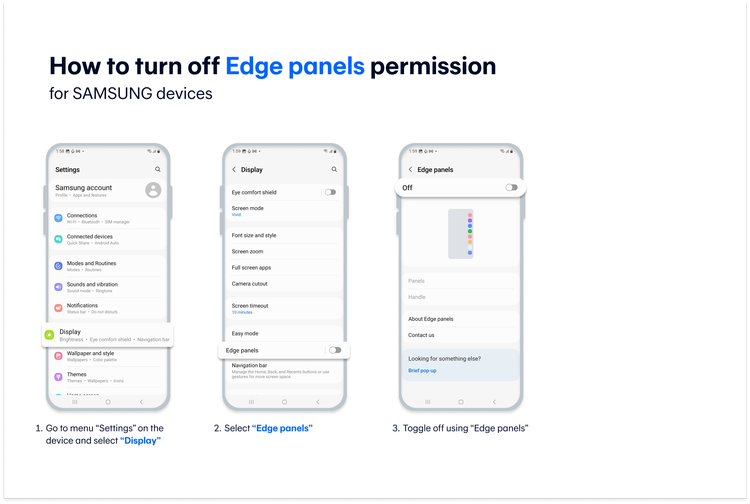
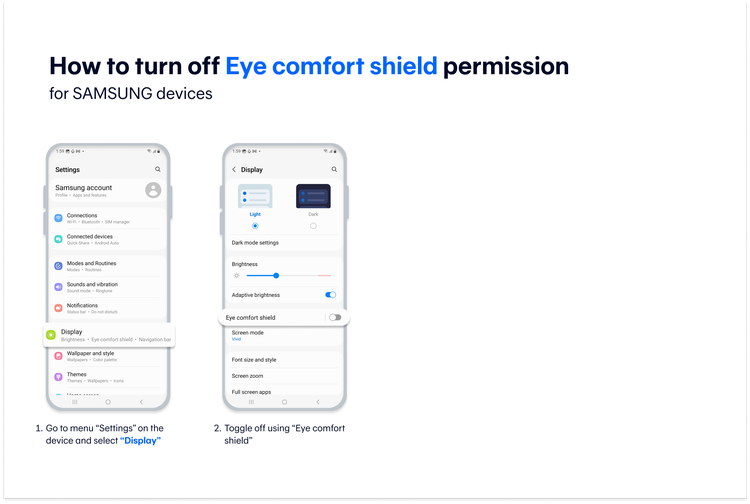
| Samsung | Picture-in-picture | Appear on Top | Edge panels / Edge lighting | Eye comfort shield |
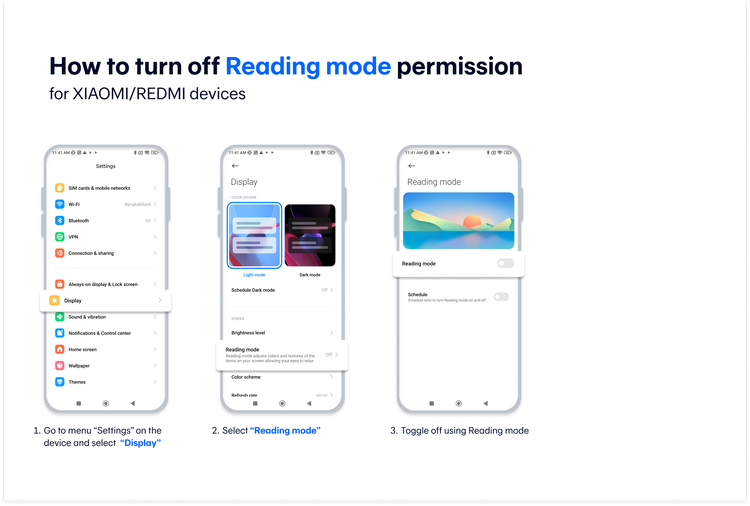
| Xiaomi/ Redmi | Picture-in-picture | Display over other apps | Sidebar / Floating Ball | Reading Mode |
| Huawei | Picture-in-picture | Draw / Display over other apps | Smart Multi-Window /Smart Sidebar | Eye Comfort |
| Honor | Picture-in-Picture (PiP) | Display over other apps | Smart Sidebar | Eye Comfort |
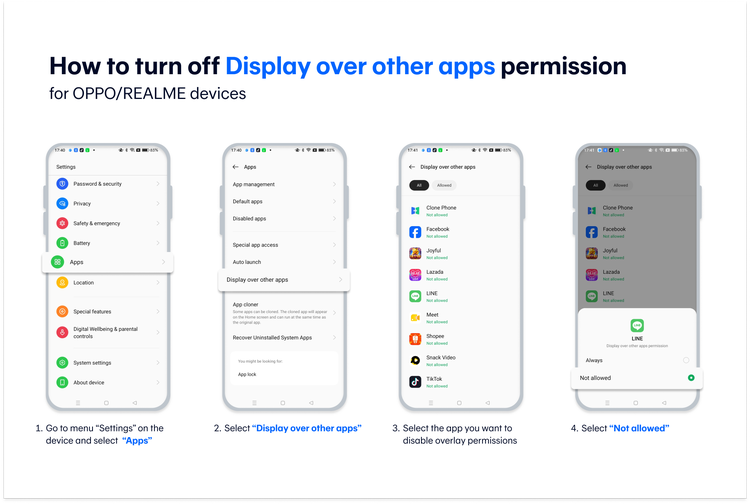
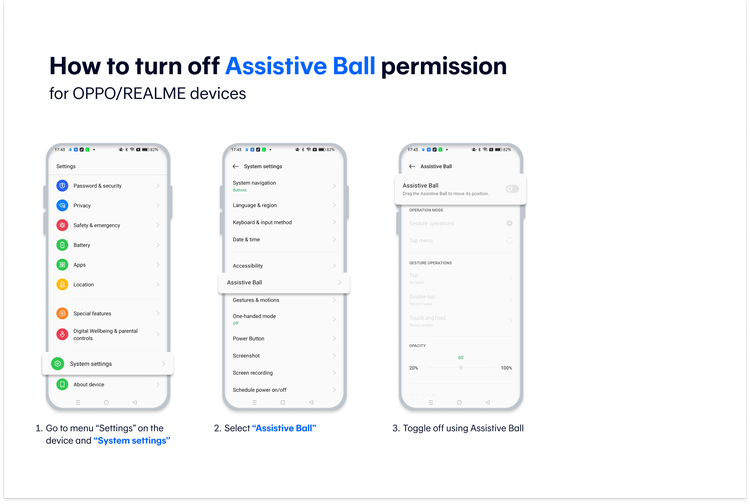
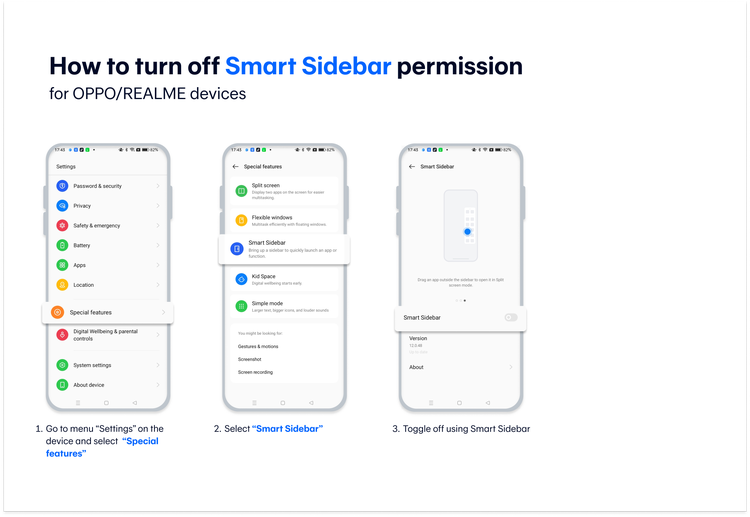
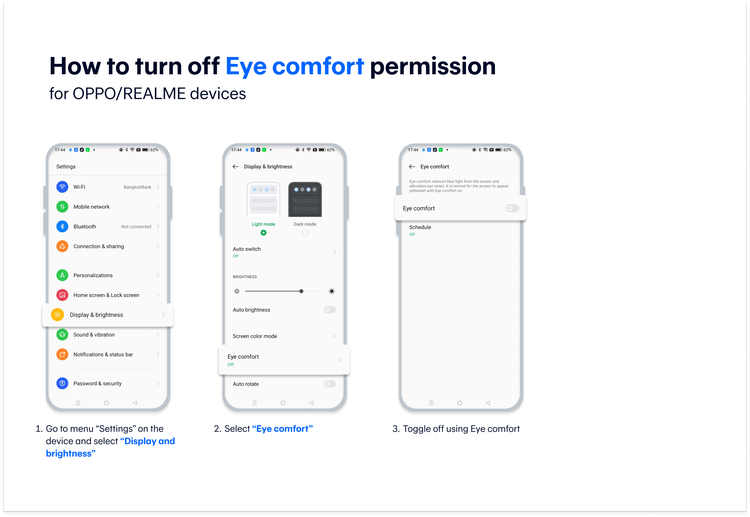
| OPPO/ Realme | Picture-in-picture | Display over other apps | Assistive Ball / Smart sidebar | Eye Comfort |
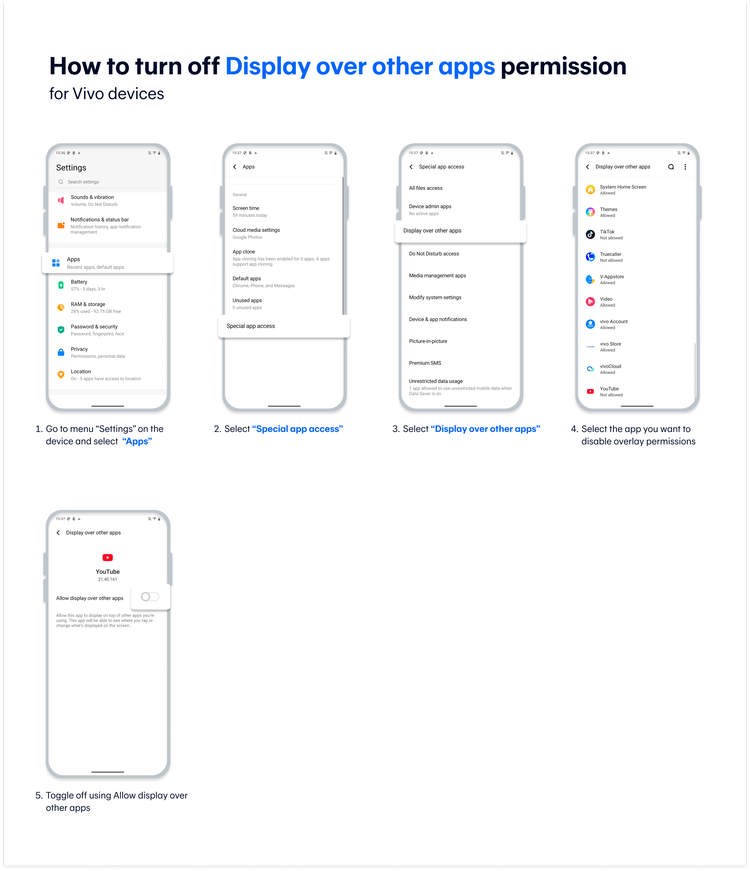
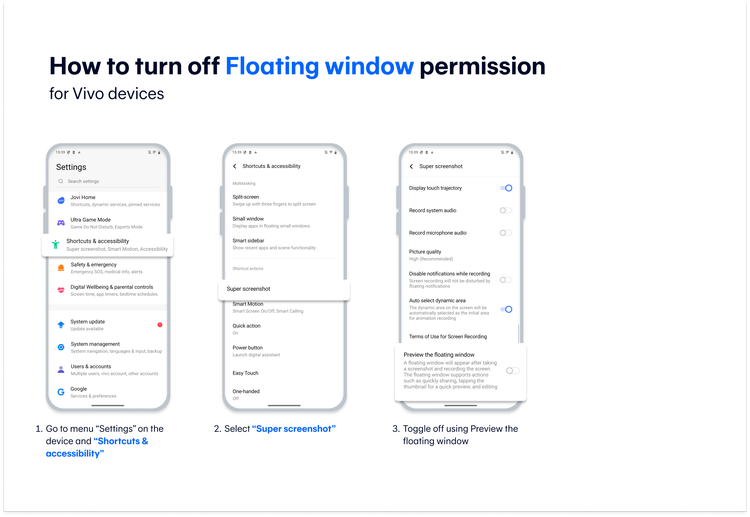
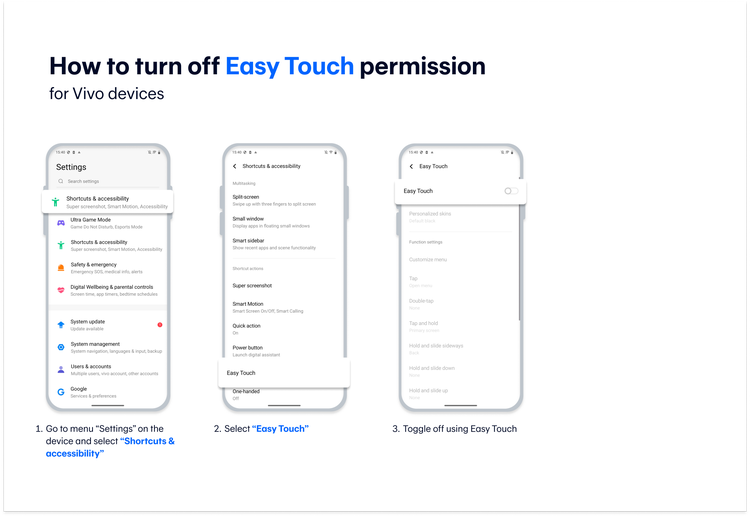
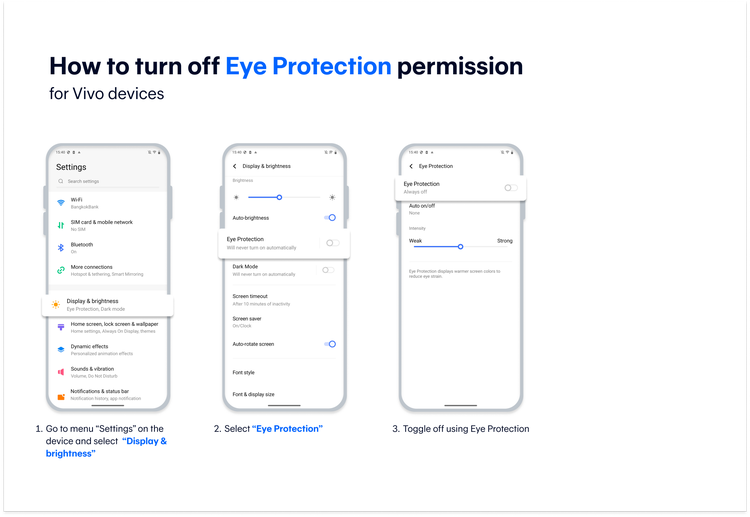
| Vivo | Picture-in-picture | Display over other apps | Preview the floating windows / Easy Touch | Eye protection |
| OnePlus | Picture-in-Picture (PiP) | Display over other apps | Quick Gestures / Shelf | Eye Comfort Mode |
| POCO | Picture-in-Picture (PiP) | Display over other apps | Sidebar | Reading Mode / Eye Comfort |
Contact Channels and Additional Assistance
Your data privacy and financial security are our top priorities. If you have followed the steps above and you still experience issues, or if you notice any unusual activity when you are using the app, please contact the Bangkok Bank Call Center for assistance on 1333 or 0 2645 5555.
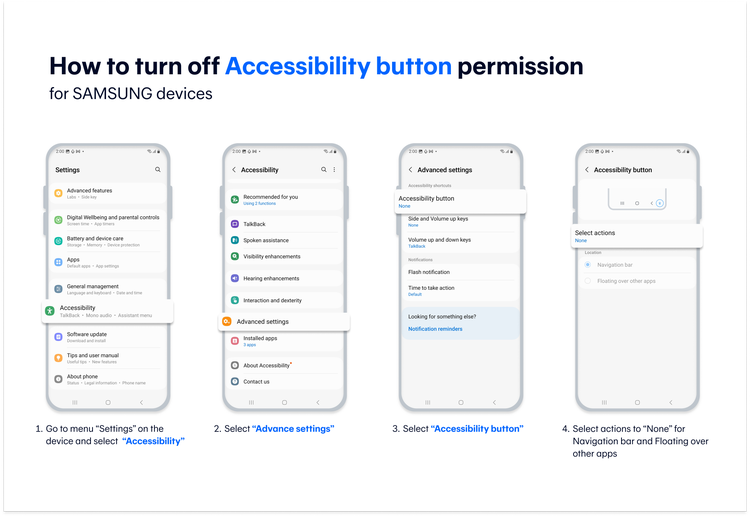
How to turn off screen overlay permissions for SAMSUNG devices
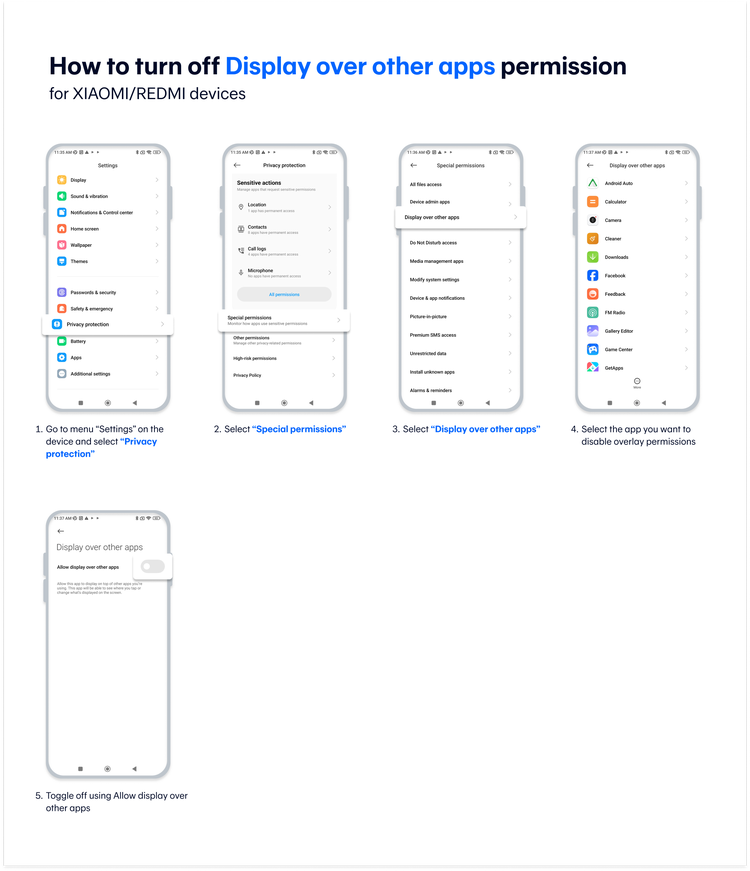
How to turn off screen overlay permissions for XIAOMI/REDMI devices
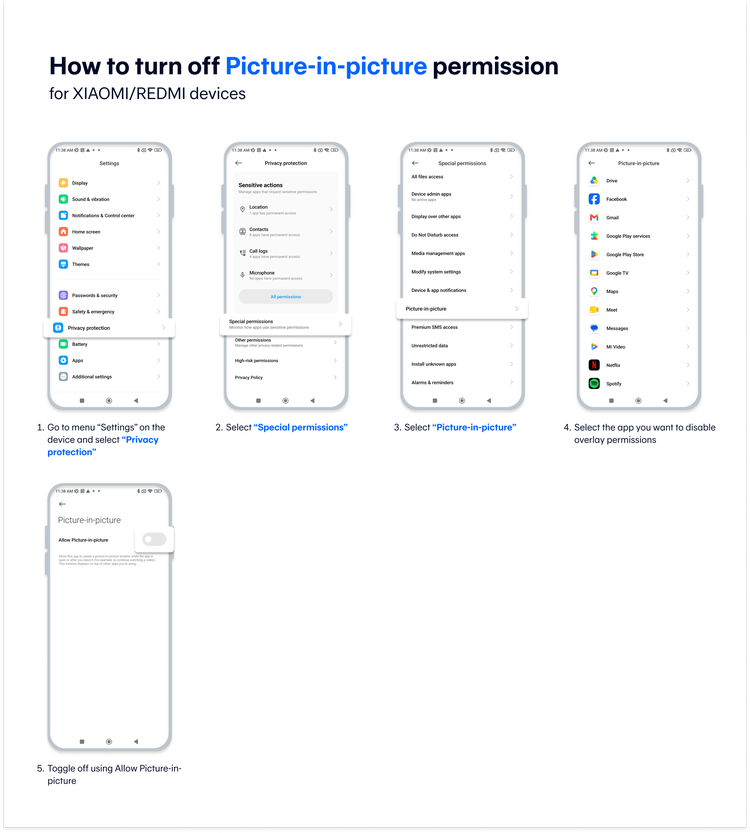
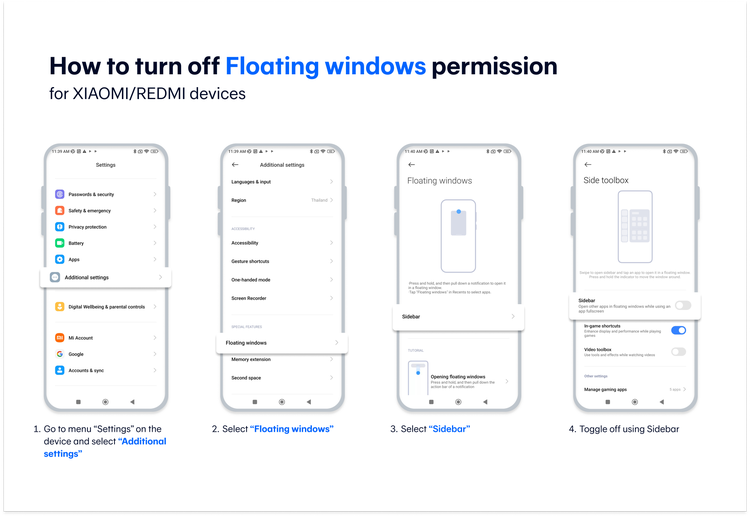
How to turn off screen overlay permissions for VIVO devices
How to turn off screen overlay permissions for OPPO/REALME devices
How to turn off screen overlay permissions for HUAWEI devices