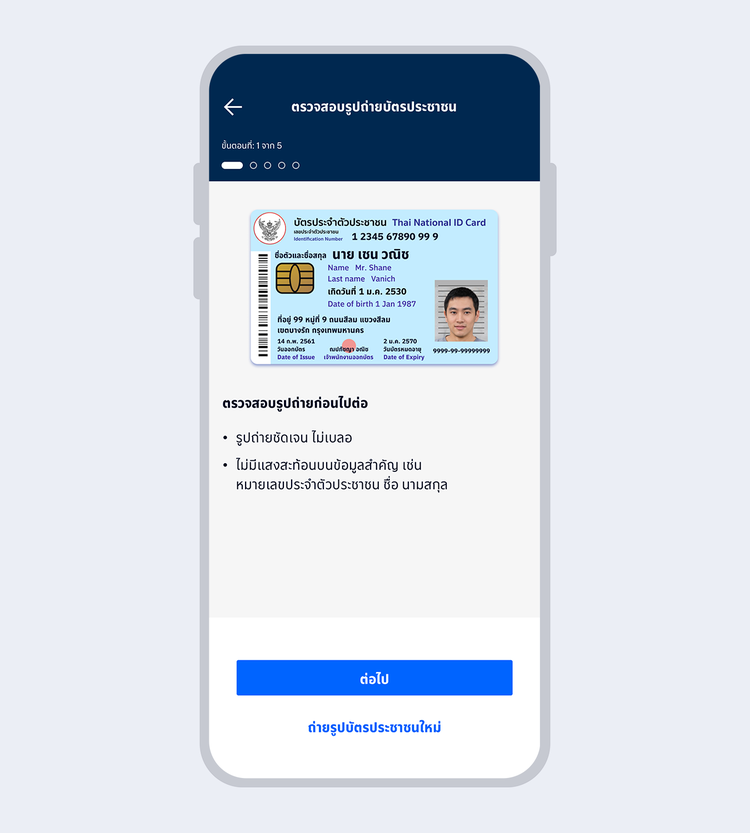
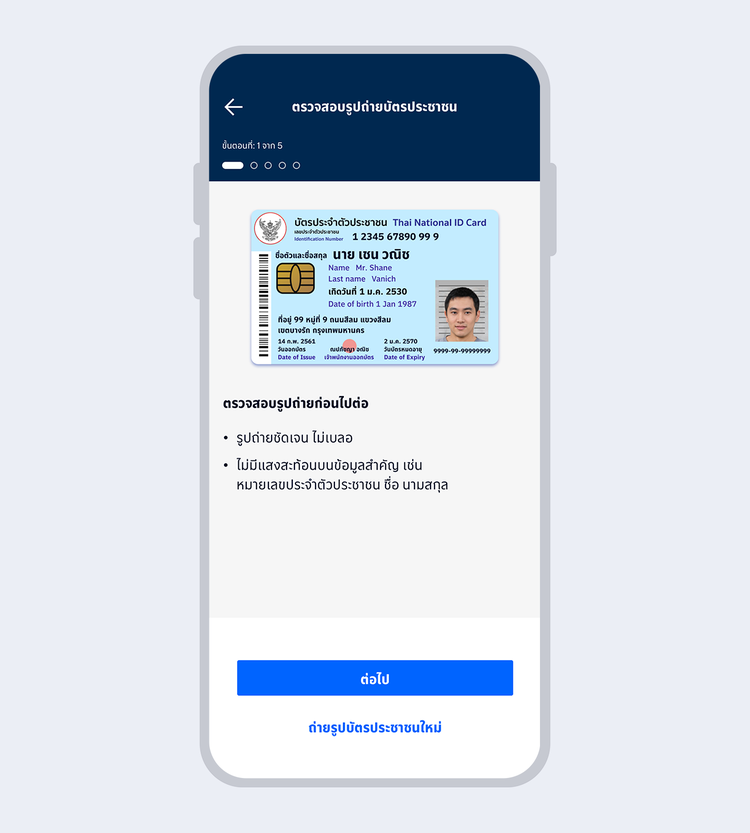
Take a photo of your Citizen ID card, review it and select "Next"
showArrowsDots
withDefaultImage
4.
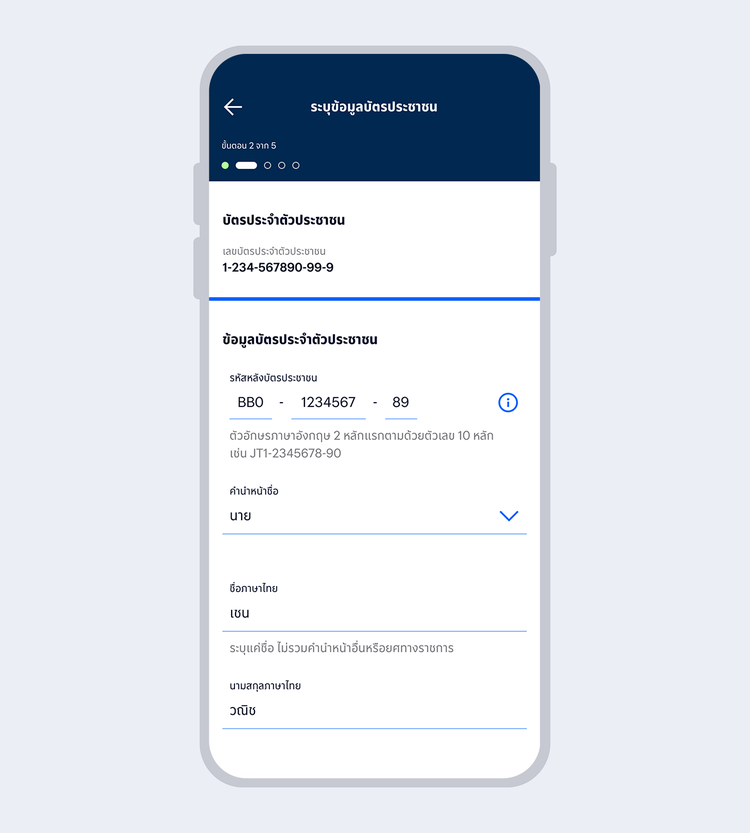
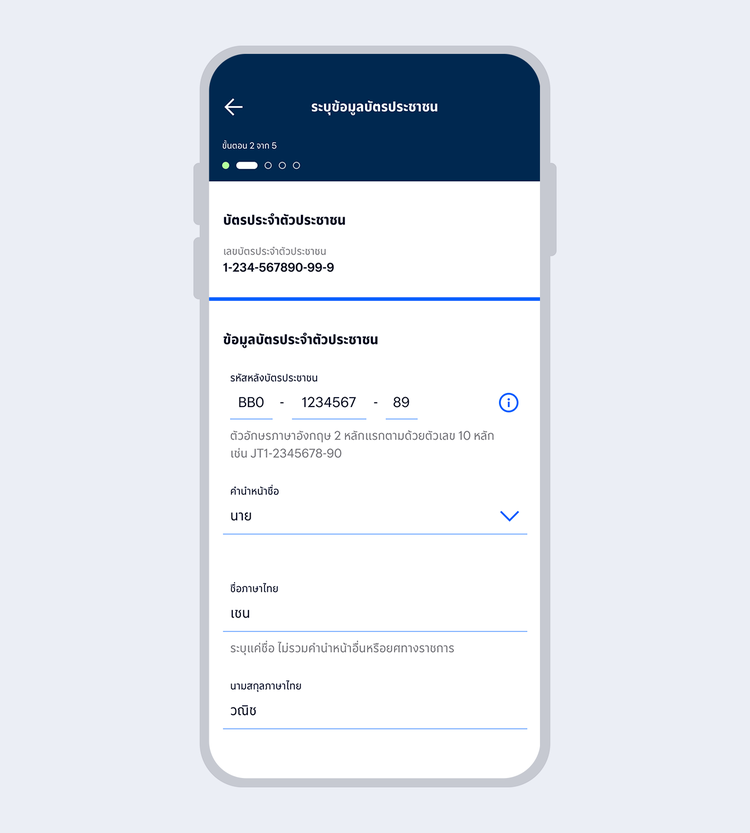
Enter your Citizen ID card information and select "Next"
showArrowsDots
withDefaultImage
5.
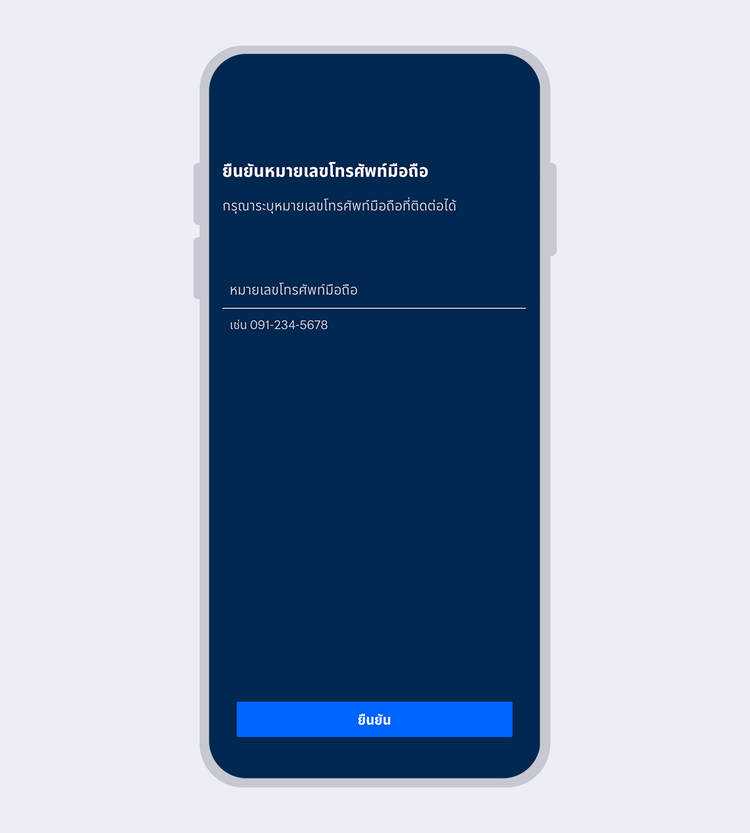
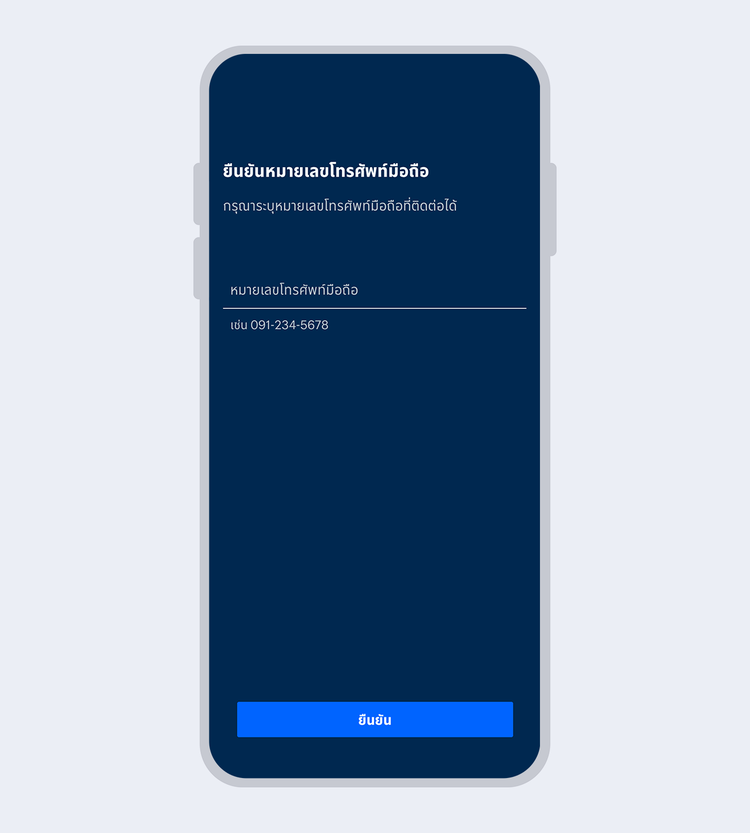
Enter your mobile phone number and select "Confirm"
showArrowsDots
withDefaultImage
6.
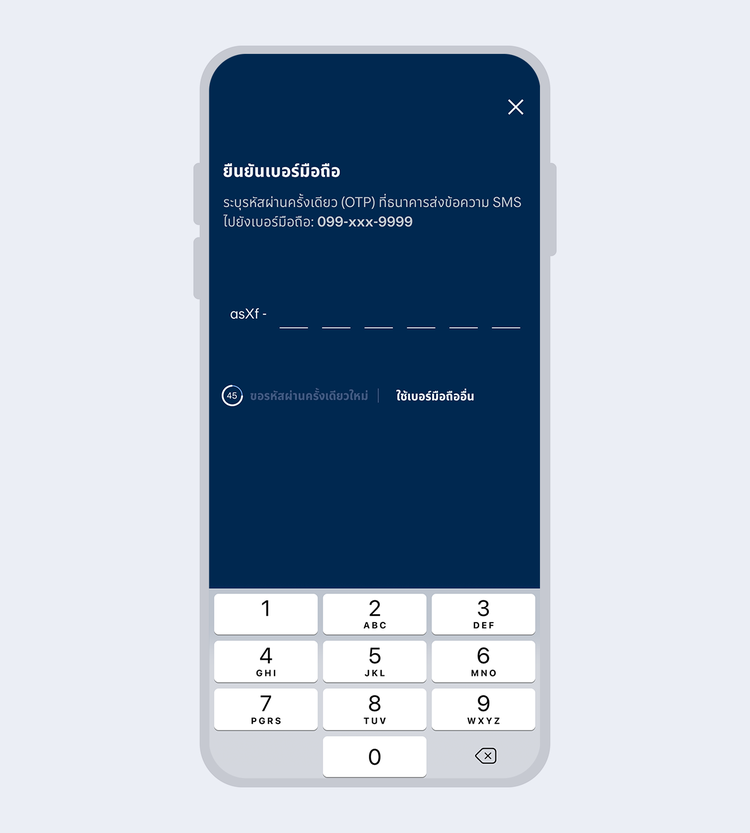
Enter the One Time Password (OTP) received via SMS to verify your mobile number
showArrowsDots
withDefaultImage
7.
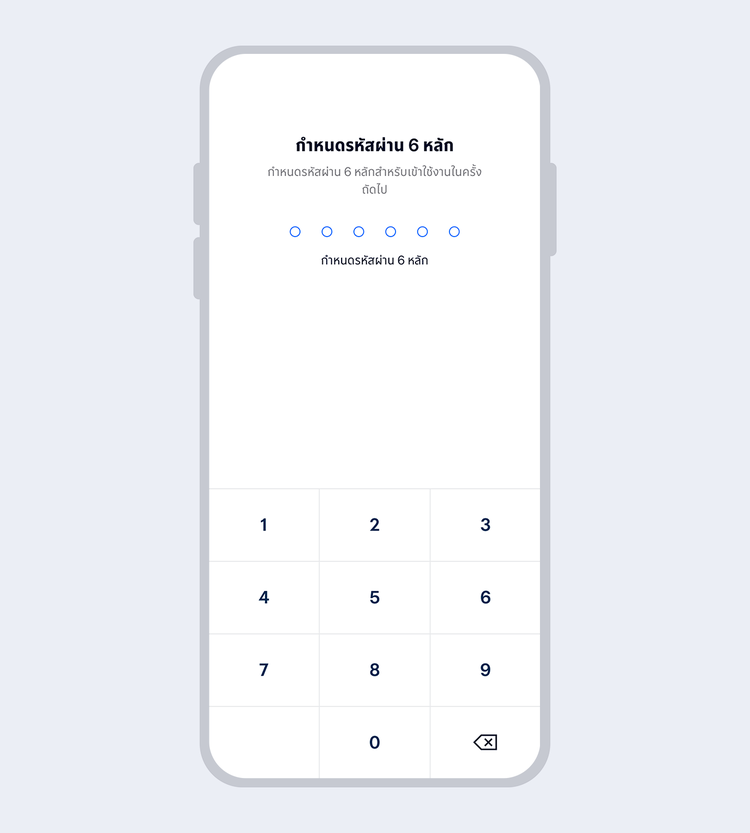
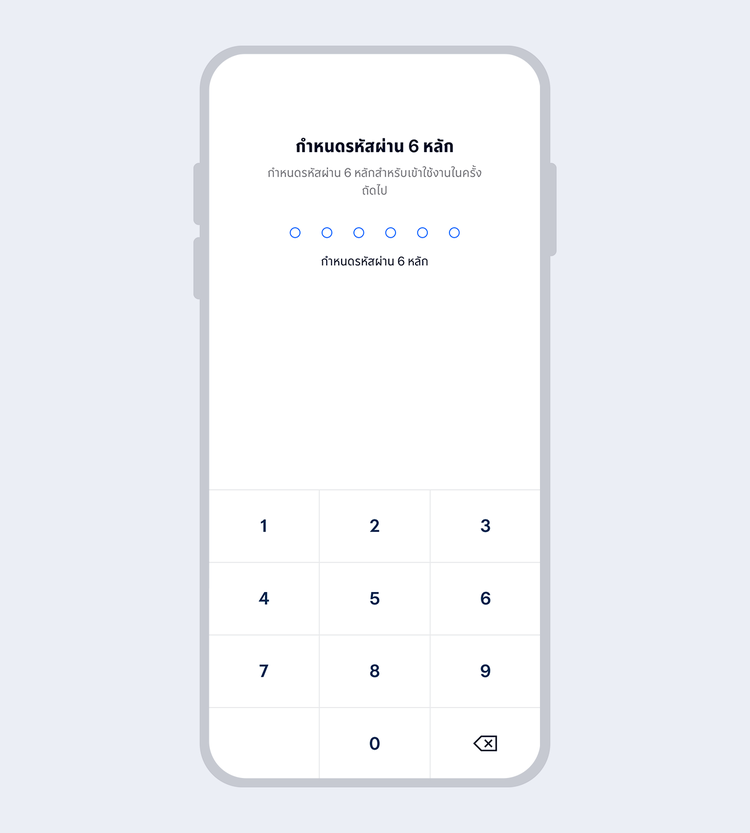
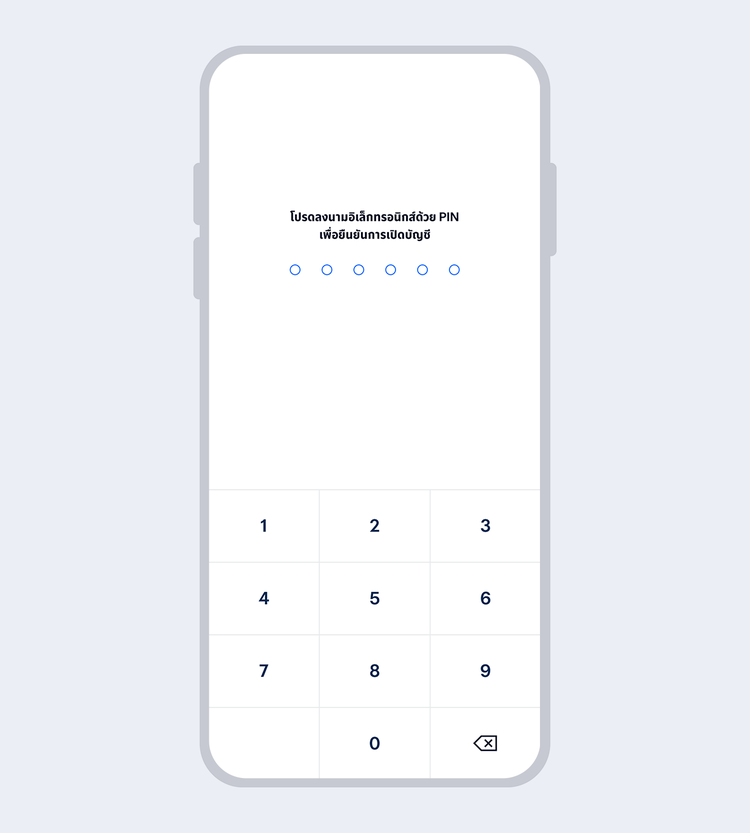
Set up your 6-digit Mobile PIN which you will use for subsequent log on to Mobile Banking
showArrowsDots
withDefaultImage
8.
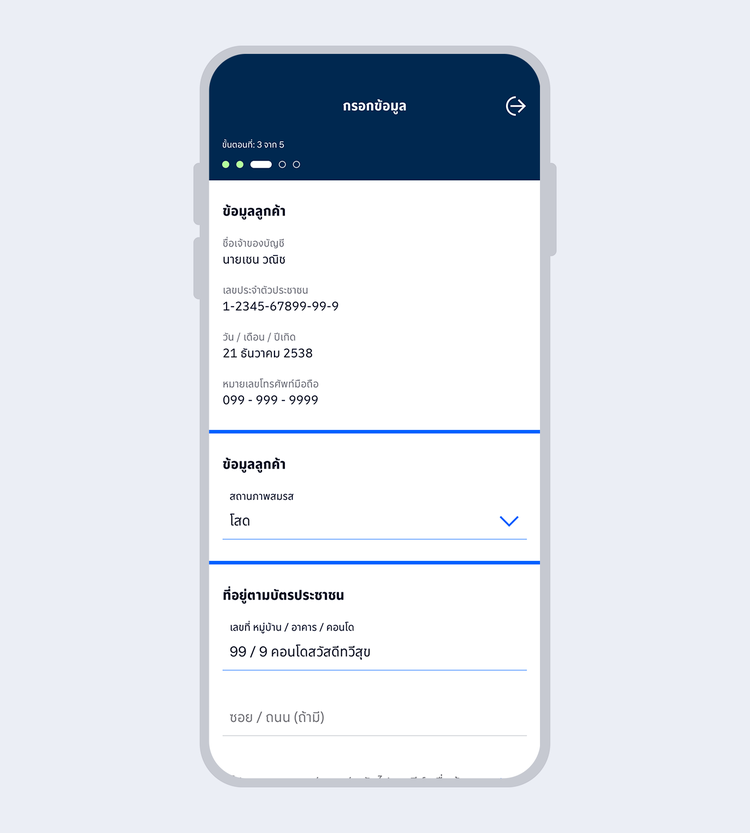
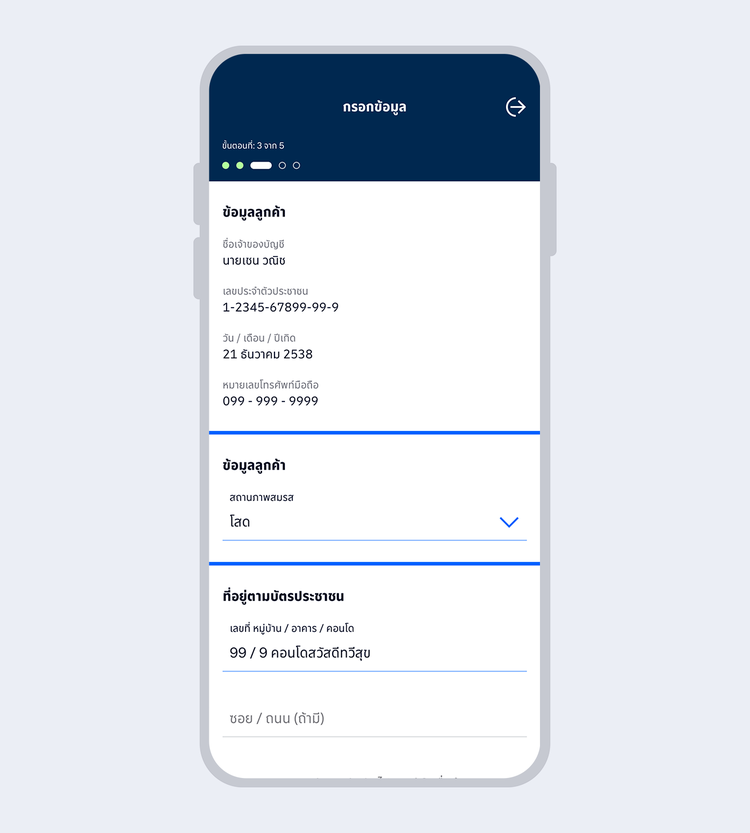
Enter your personal information and select "Next"
showArrowsDots
withDefaultImage
9.
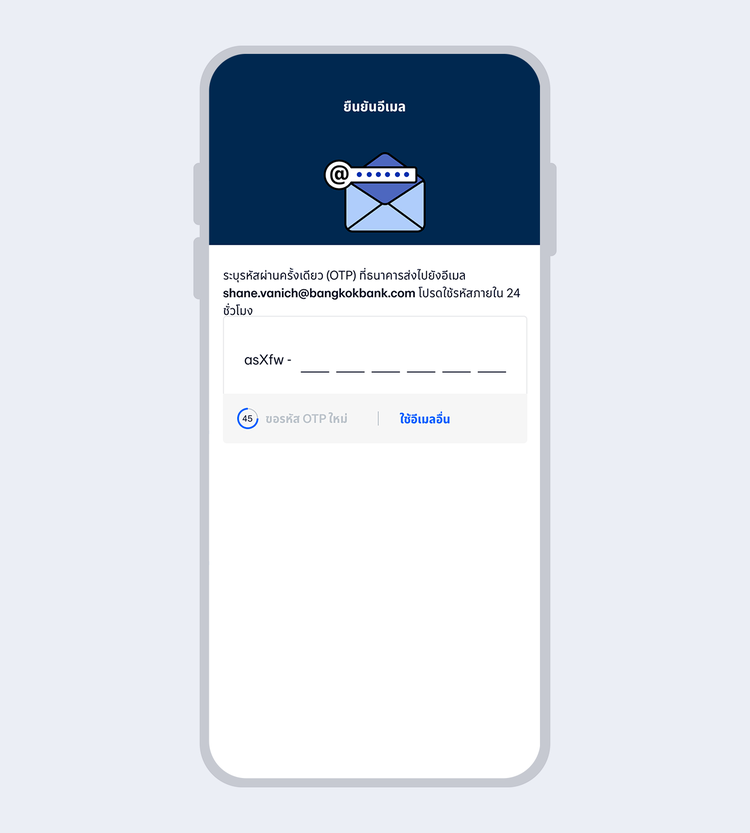
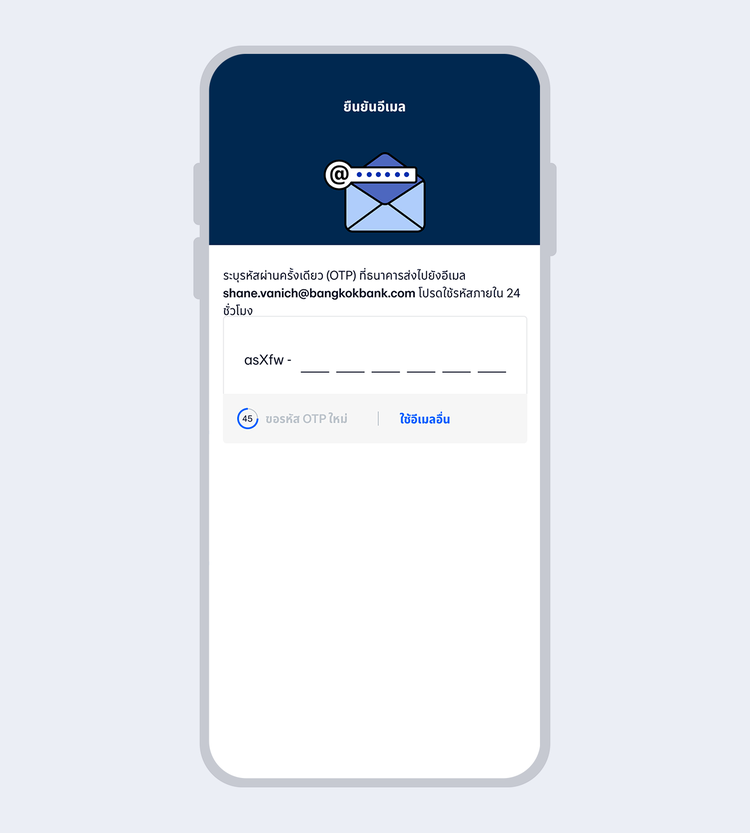
Enter the One Time Password (OTP) received via email to verify your email
showArrowsDots
withDefaultImage
10.
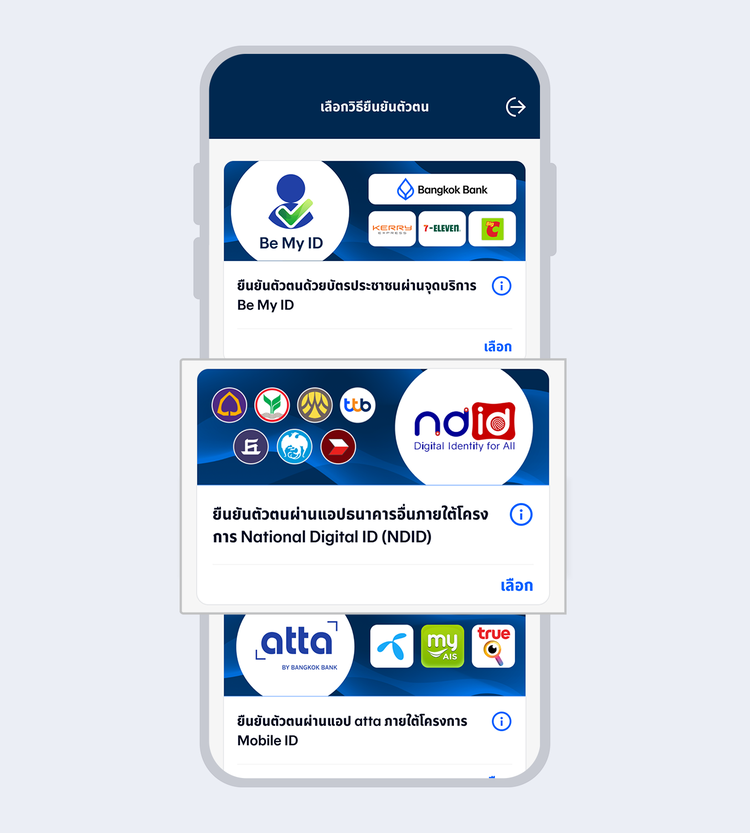
Select "Authenticated by National Digital ID (NDID)"
showArrowsDots
withDefaultImage
11.
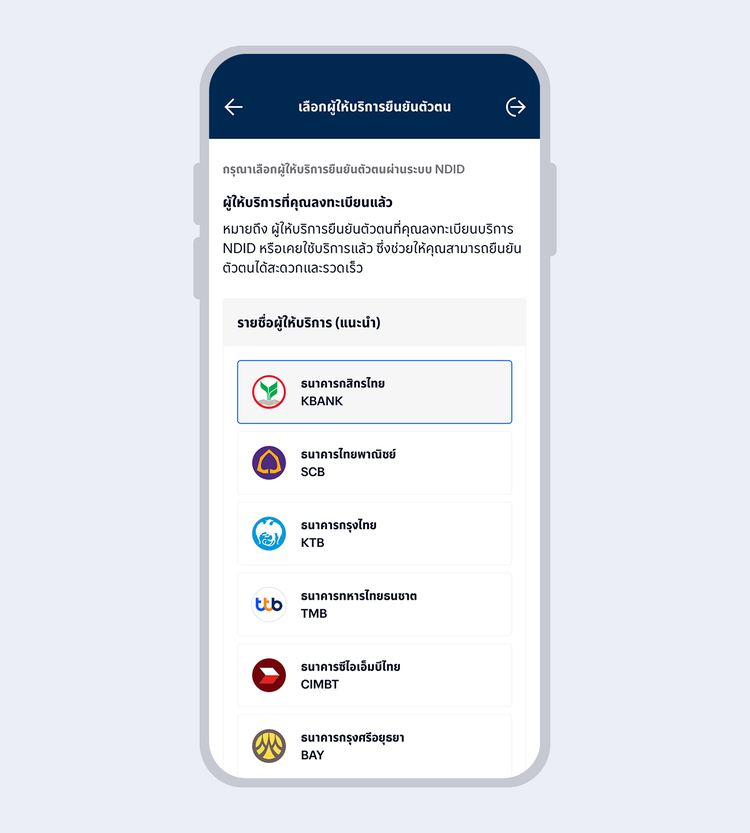
Select the identity provider you have registered with
showArrowsDots
withDefaultImage
12.
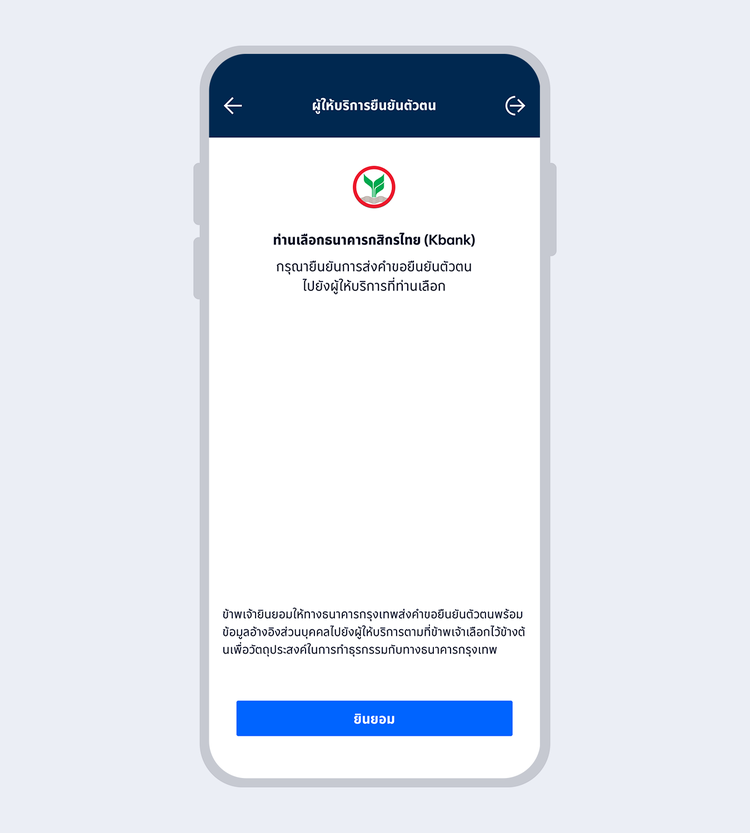
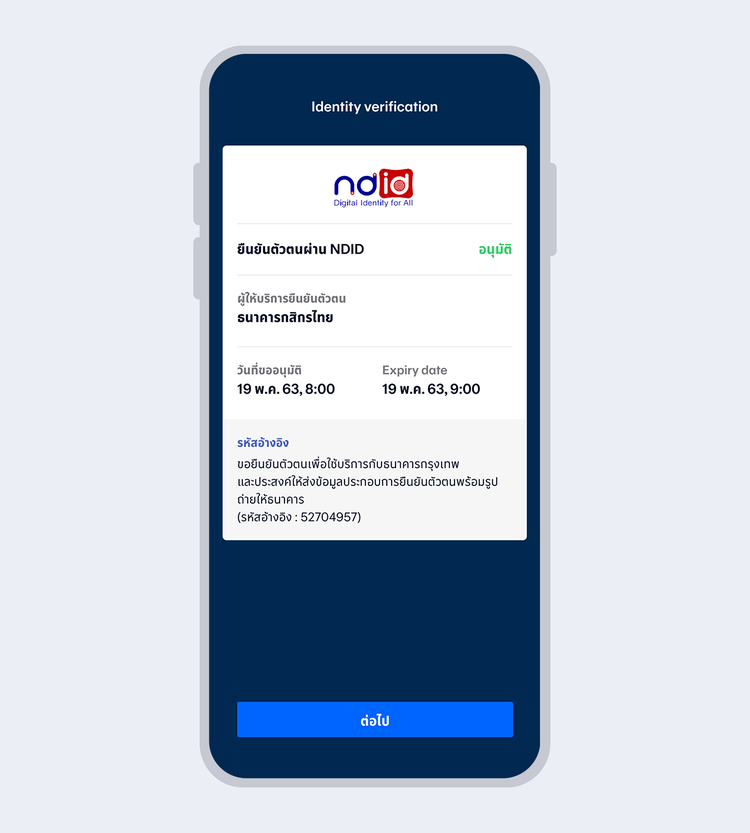
Select "Accept"
showArrowsDots
withDefaultImage
13.
When your authentication with the identity provider is completed, the request status will change to "Approved". Select "Next"
showArrowsDots
withDefaultImage
14.
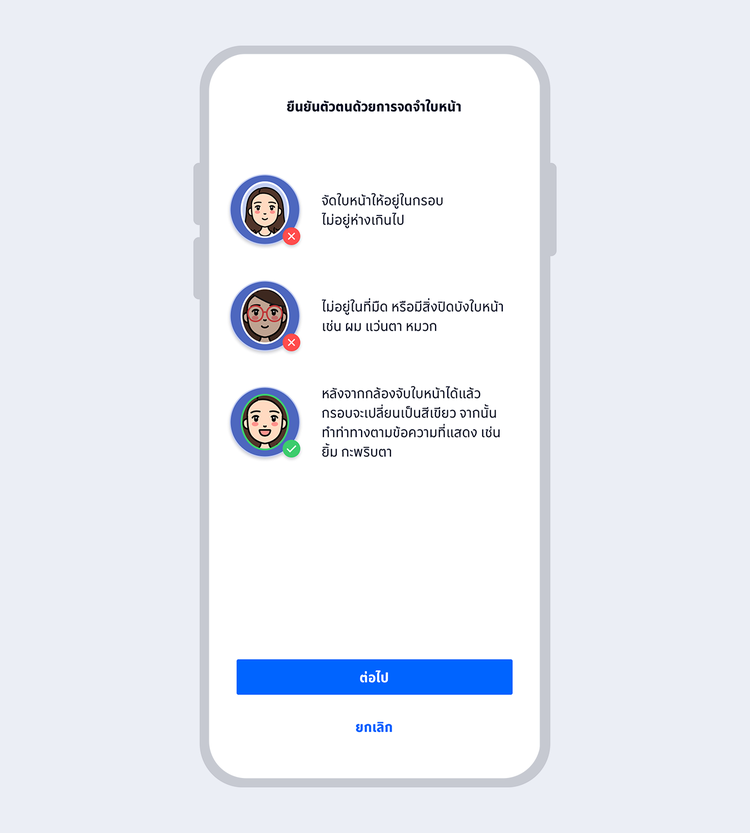
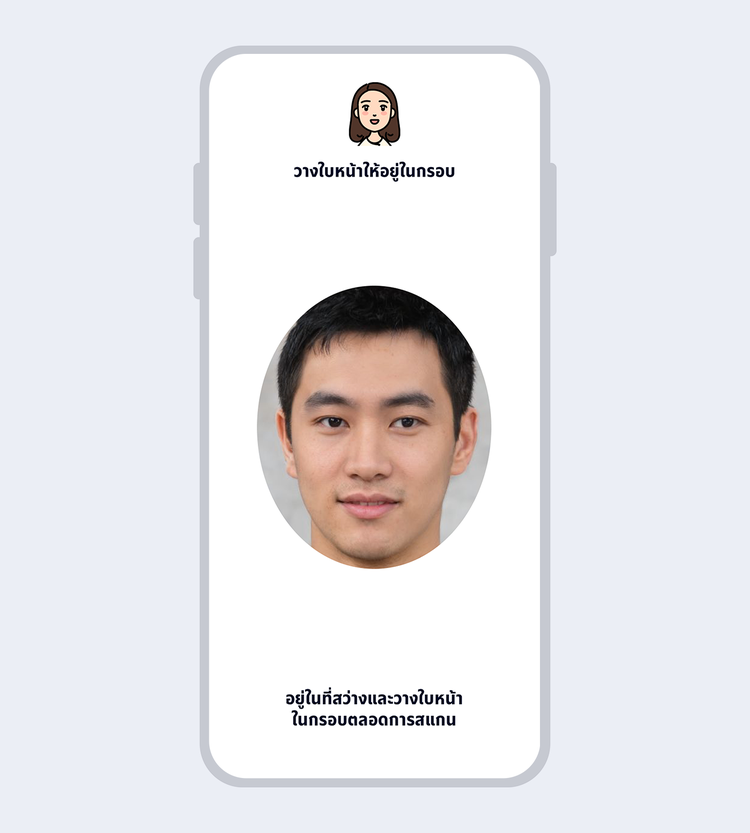
Prepare to take a selfie photo to verify your identity with facial recognition technology
showArrowsDots
withDefaultImage
15.
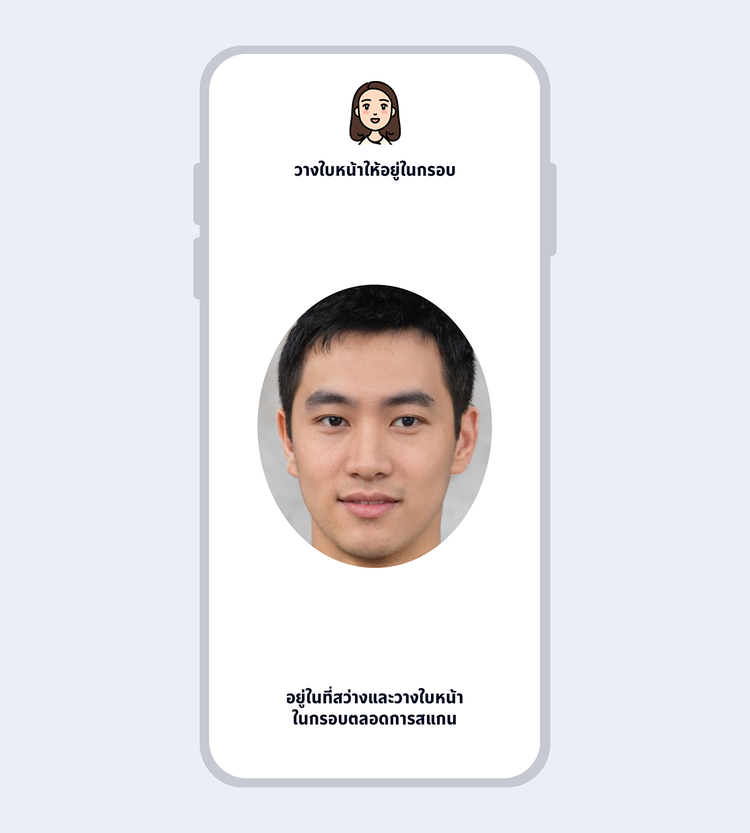
Fit your face in the frame and follow instructions for liveness detection
showArrowsDots
withDefaultImage
16.
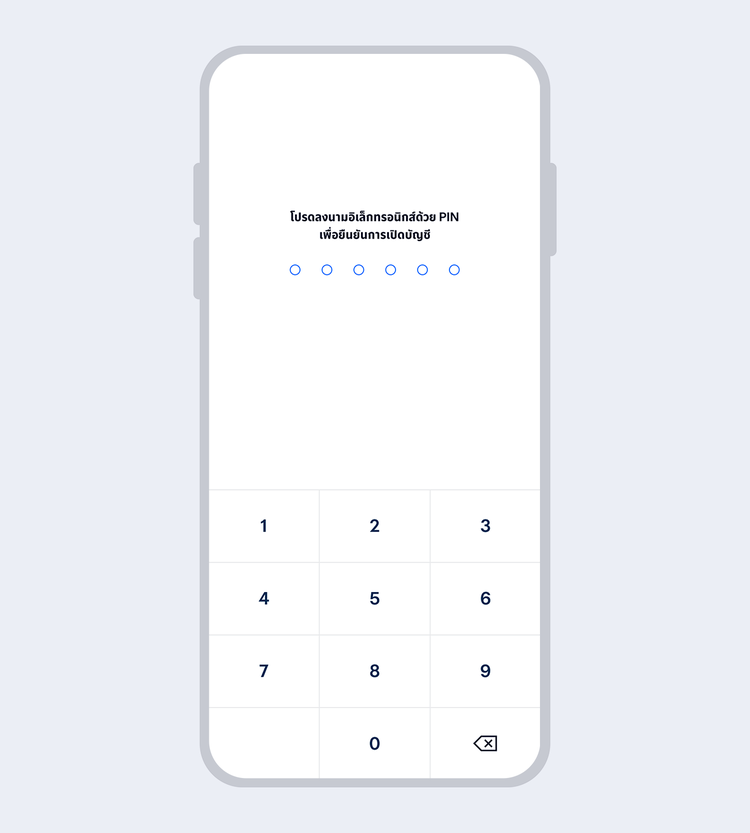
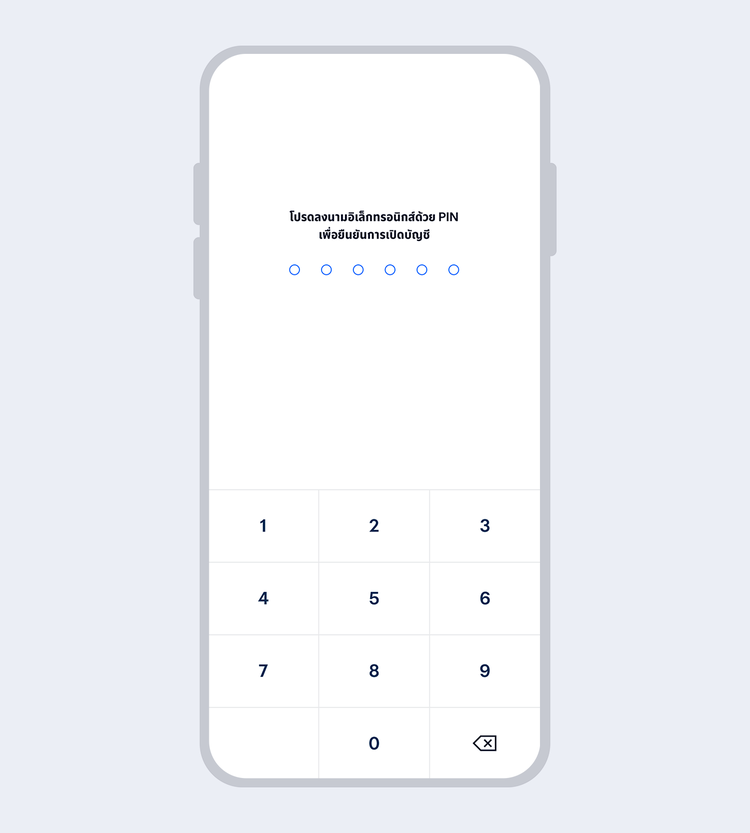
Enter your 6-digit Mobile PIN as an e-Signature to confirm account opening
showArrowsDots
withDefaultImage
17.
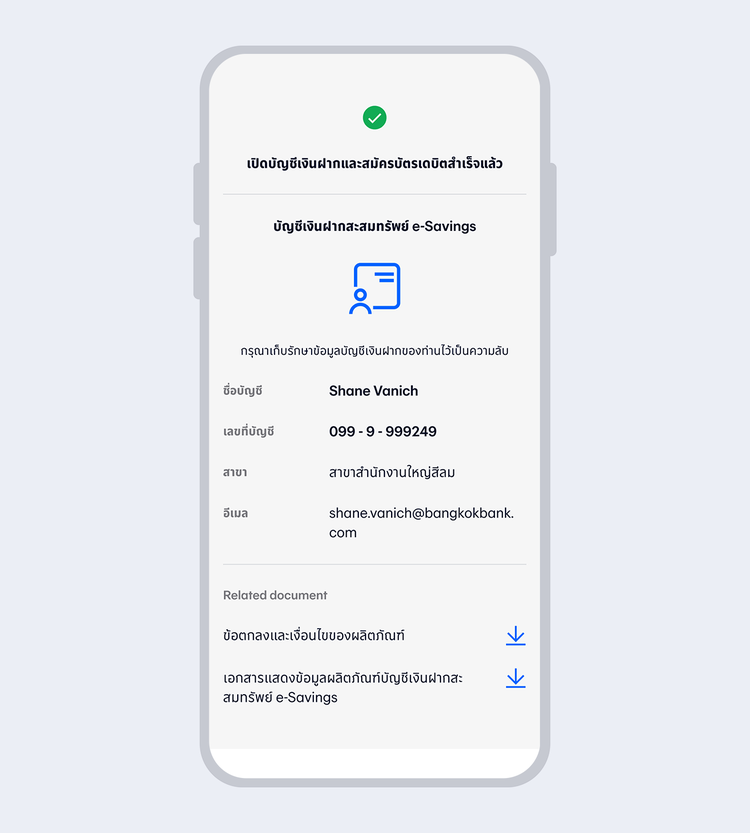
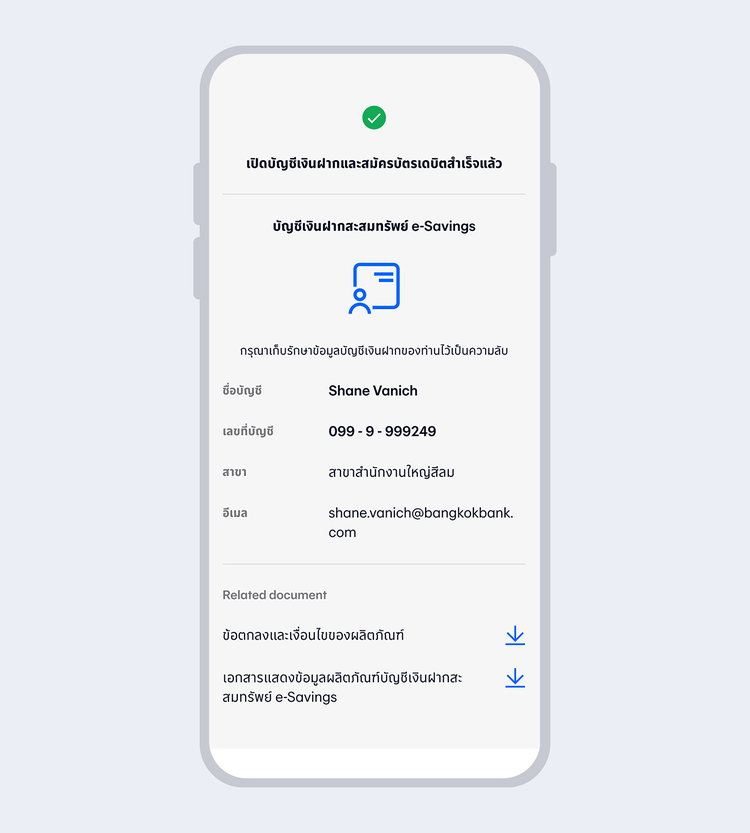
Account successfully opened
showArrowsDots
withDefaultImage
18.
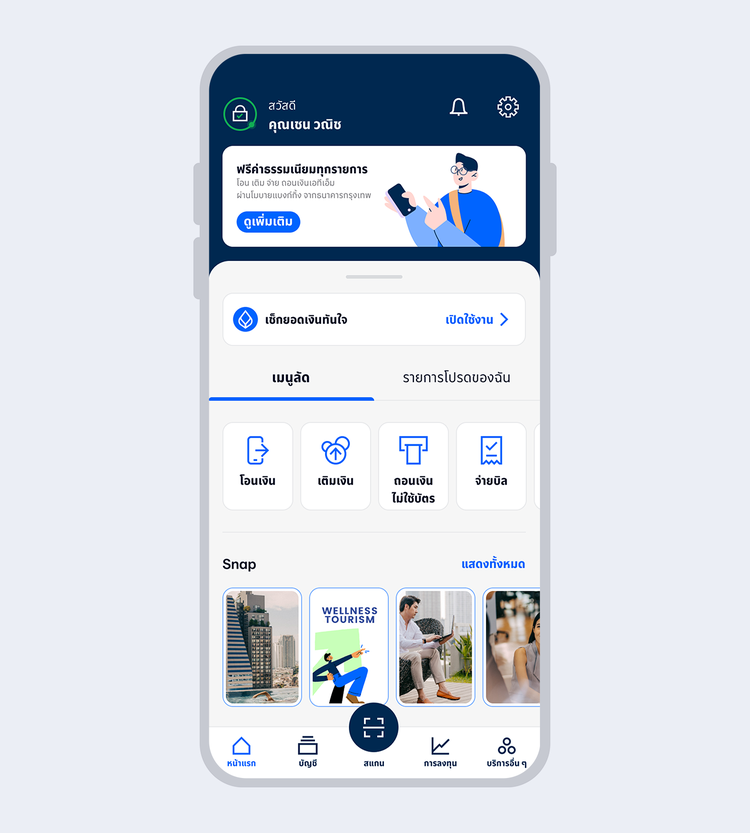
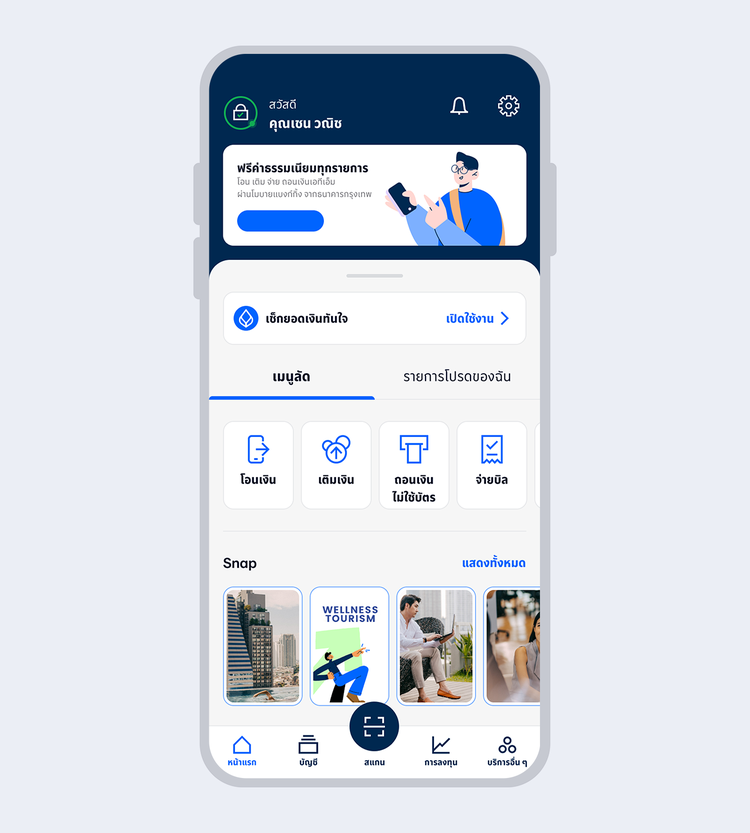
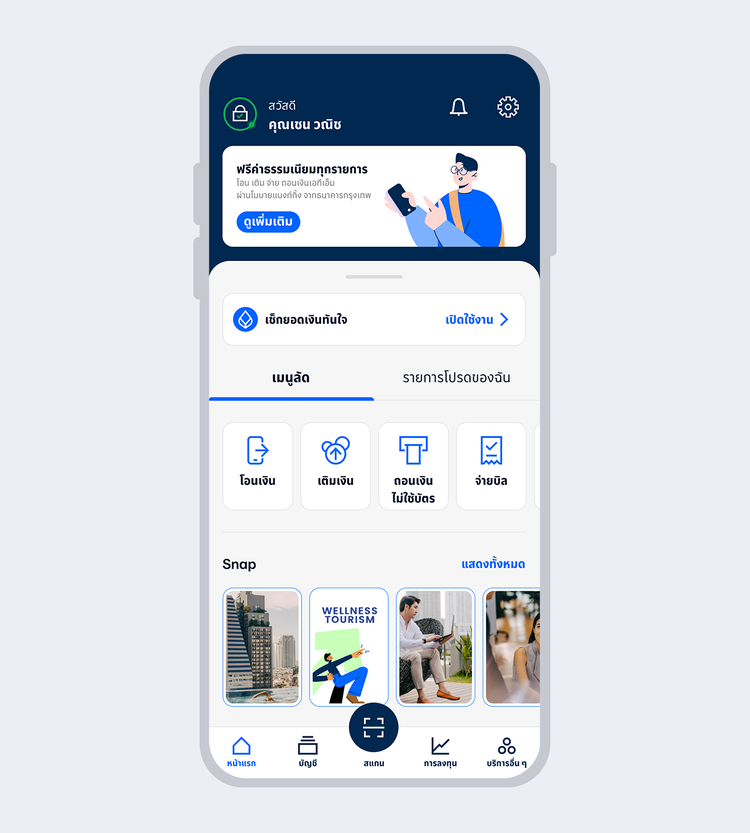
Welcome to Bangkok Bank Mobile Banking. Now you are ready for your financial transactions.
tab-variant
simple-tab
tab-name
New Customer using NDID
style
pad-bot-30, central-aligned, pad-top-30
true
10000
false
showArrowsDots
withDefaultImage
1.
Select "Open a Bangkok Bank account"
showArrowsDots
withDefaultImage
2.
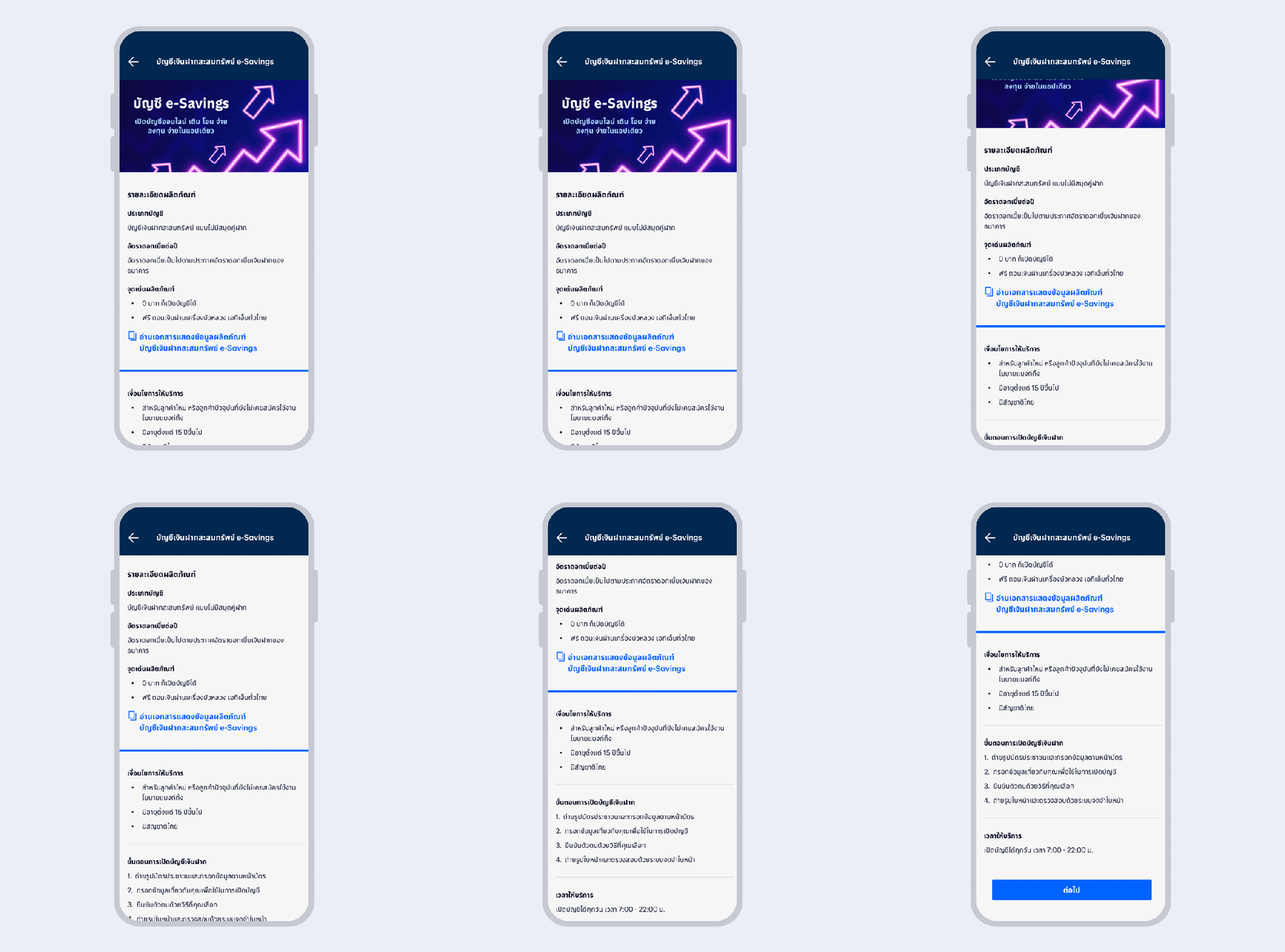
Read the product details and select "Next"
showArrowsDots
withDefaultImage
3.
Take a photo of your Citizen ID card, review it and select "Next"
showArrowsDots
withDefaultImage
4.
Enter your Citizen ID card information and select "Next"
showArrowsDots
withDefaultImage
5.
Enter your mobile number and select "Confirm"
showArrowsDots
withDefaultImage
6.
Enter the One Time Password (OTP) received via SMS to verify your mobile number
showArrowsDots
withDefaultImage
7.
Set up your 6-digit Mobile PIN which you will use for subsequent log on to Mobile Banking
showArrowsDots
withDefaultImage
8.
Enter your personal information and select "Next"
showArrowsDots
withDefaultImage
9.
Enter the One Time Password (OTP) received via email to verify your email
showArrowsDots
withDefaultImage
10.
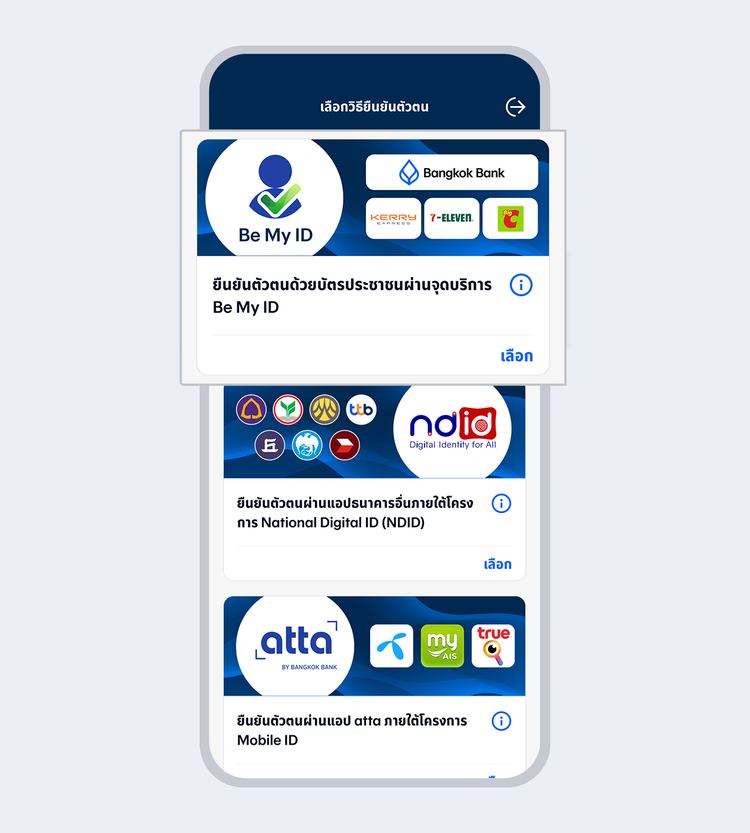
Select "Authenticated by Be My ID"
showArrowsDots
withDefaultImage
11.
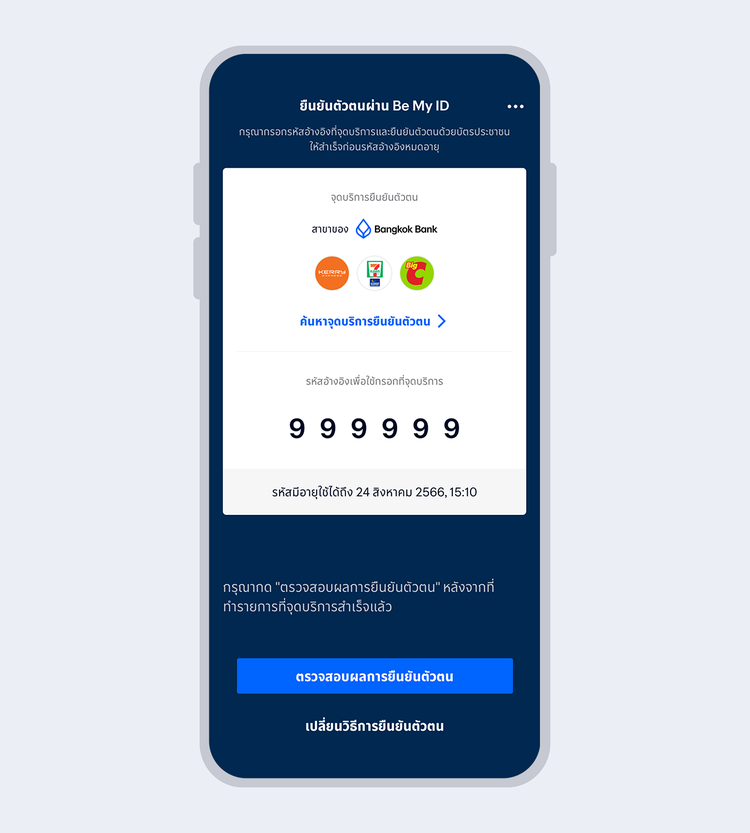
Use the reference code and your Citizen ID card to authenticate yourself at Be My ID service point
showArrowsDots
withDefaultImage
12.
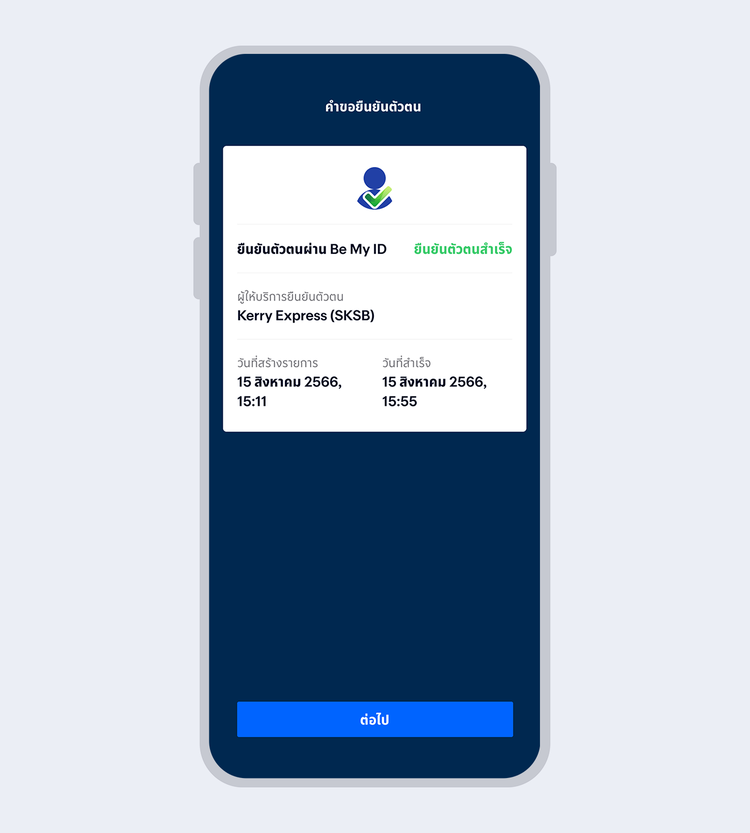
When your authentication is completed, the request status will change to "Approved". Select "Next"
showArrowsDots
withDefaultImage
13.
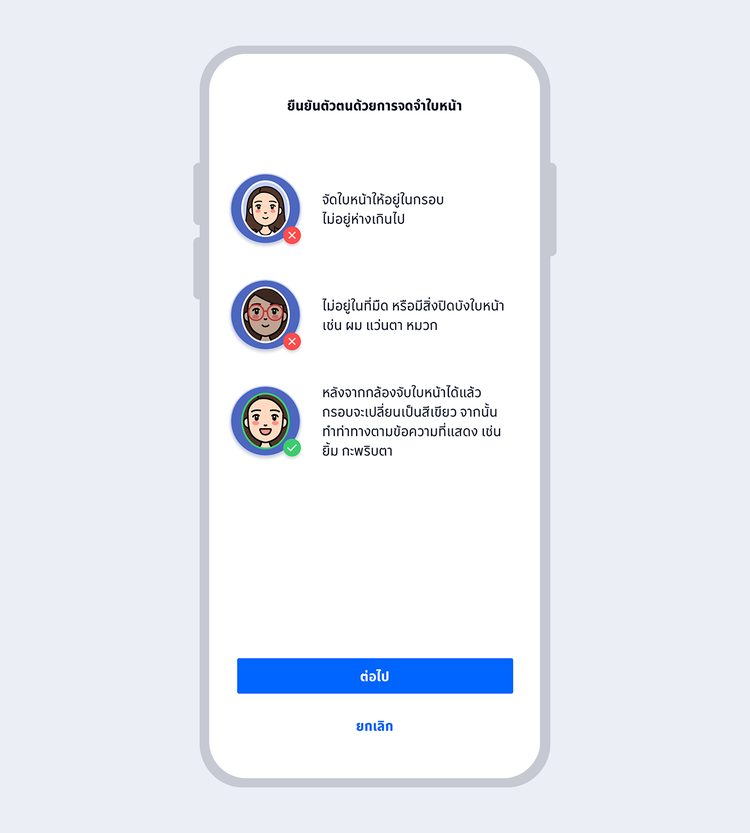
Prepare to take a selfie photo to verify your identity with facial recognition technology
showArrowsDots
withDefaultImage
14.
Fit your face in the frame and follow instructions for liveness detection
showArrowsDots
withDefaultImage
15.
Enter your 6-digit Mobile PIN as an e-Signature to confirm account opening
showArrowsDots
withDefaultImage
16.
Account successfully opened
showArrowsDots
withDefaultImage
17.
Welcome to Bangkok Bank Mobile Banking. Now you are ready for your financial transactions.
tab-variant
simple-tab
tab-name
New Customer using Be My ID
style
pad-bot-30, central-aligned, pad-top-30
true
10000
false
showArrowsDots
showArrowsDots
withDefaultImage
1.
Select "Open a Bangkok Bank account"
showArrowsDots
withDefaultImage
2.
Read the product details and select "Next"
showArrowsDots
withDefaultImage
3.
Take a photo of your Citizen ID card, review it and select "Next"
showArrowsDots
withDefaultImage
4.
Enter your Citizen ID card information and select "Next"
showArrowsDots
withDefaultImage
5.
Enter your mobile number and select "Confirm"
showArrowsDots
withDefaultImage
6.
Enter the One Time Password (OTP) received via SMS to verify your mobile number
showArrowsDots
withDefaultImage
7.
Set up your 6-digit Mobile PIN which you will use for subsequent log on to Mobile Banking
showArrowsDots
withDefaultImage
8.
Enter your personal information and select "Next"
showArrowsDots
withDefaultImage
9.
Enter the One Time Password (OTP) received via email to verify your email
showArrowsDots
withDefaultImage
10.
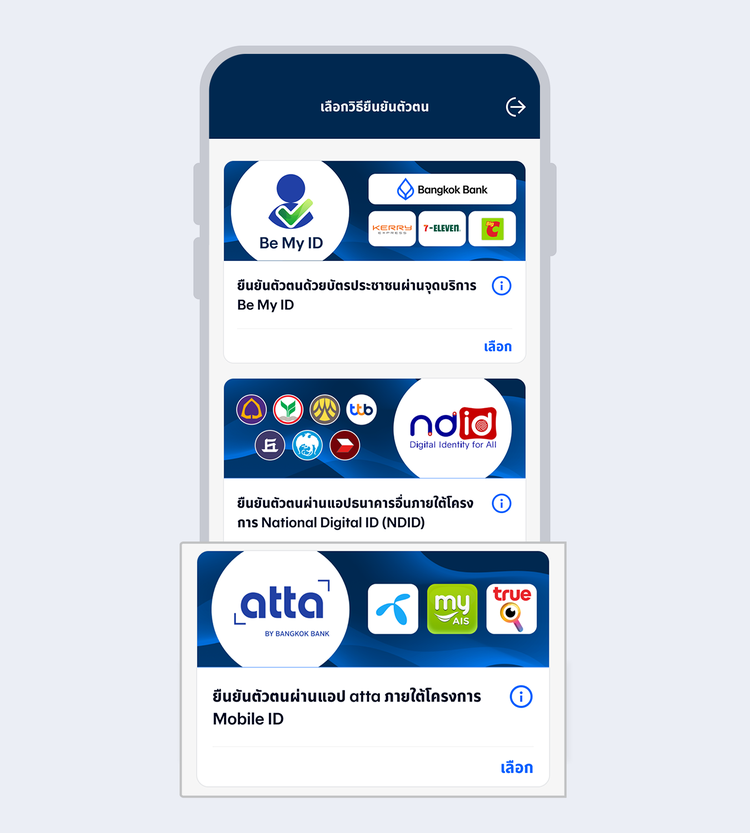
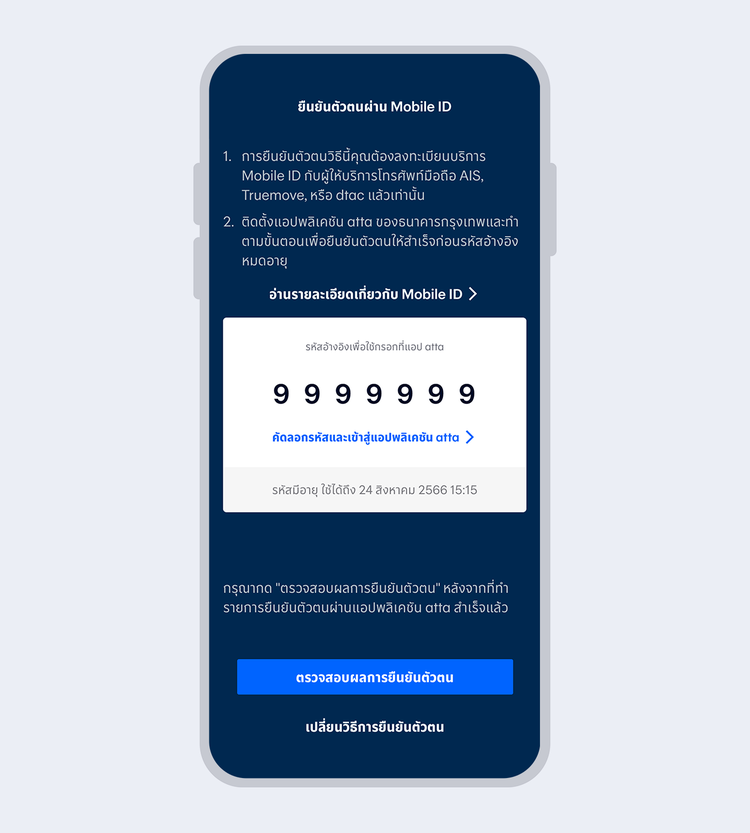
Select "Authenticated via atta app under the Mobile ID project"
showArrowsDots
withDefaultImage
11.
Copy the reference code and enter it on the atta app
showArrowsDots
withDefaultImage
12.
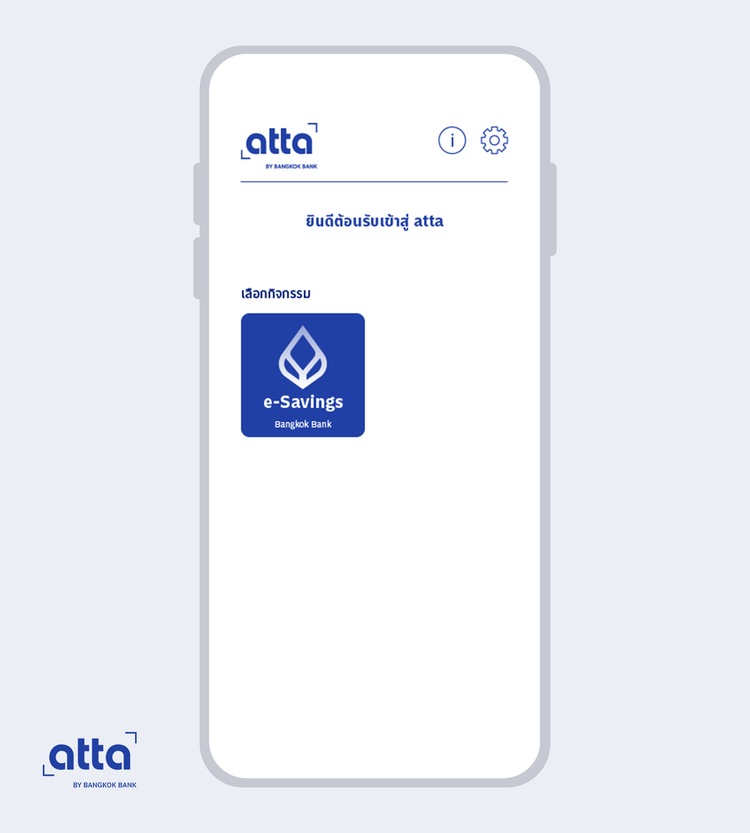
Open the atta app, and select "e-Savings Bangkok Bank"
showArrowsDots
withDefaultImage
13.
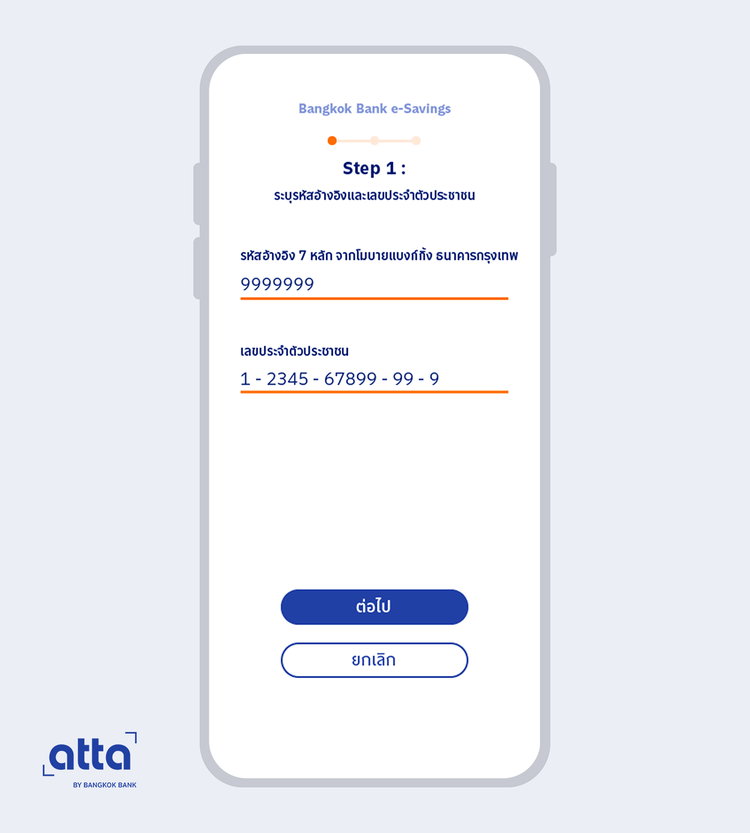
Enter the 7-digit reference code received from Mobile Banking app and your Citizen ID number
showArrowsDots
withDefaultImage
14.
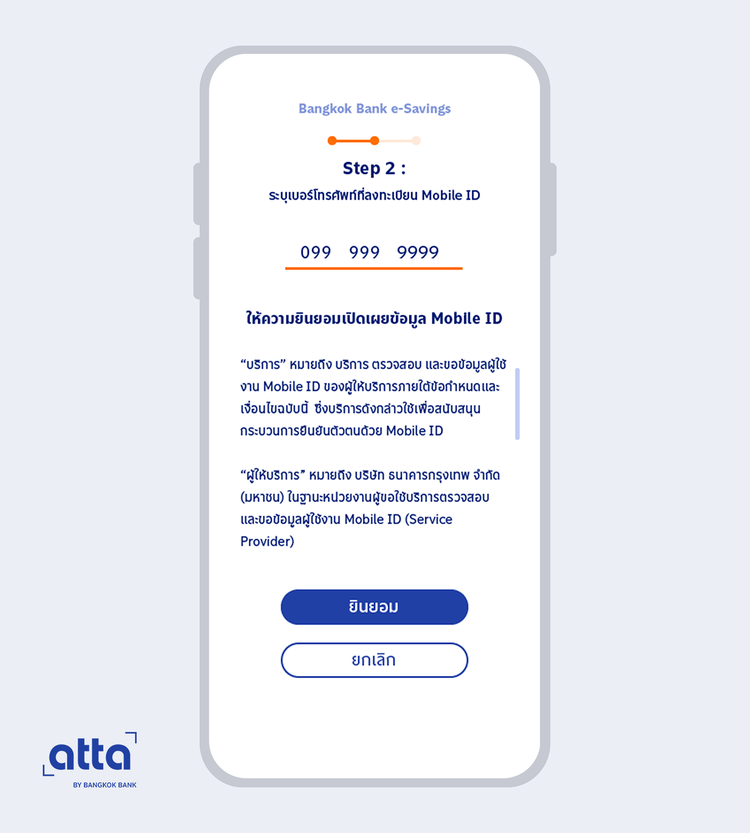
Enter your registered mobile number, read the terms and service conditions and select "Accept"
The system will direct you to authentication with the mobile operator app linked to your registered Mobile ID number. Please follow the instructions for authentication on the mobile operator app
showArrowsDots
withDefaultImage
15.
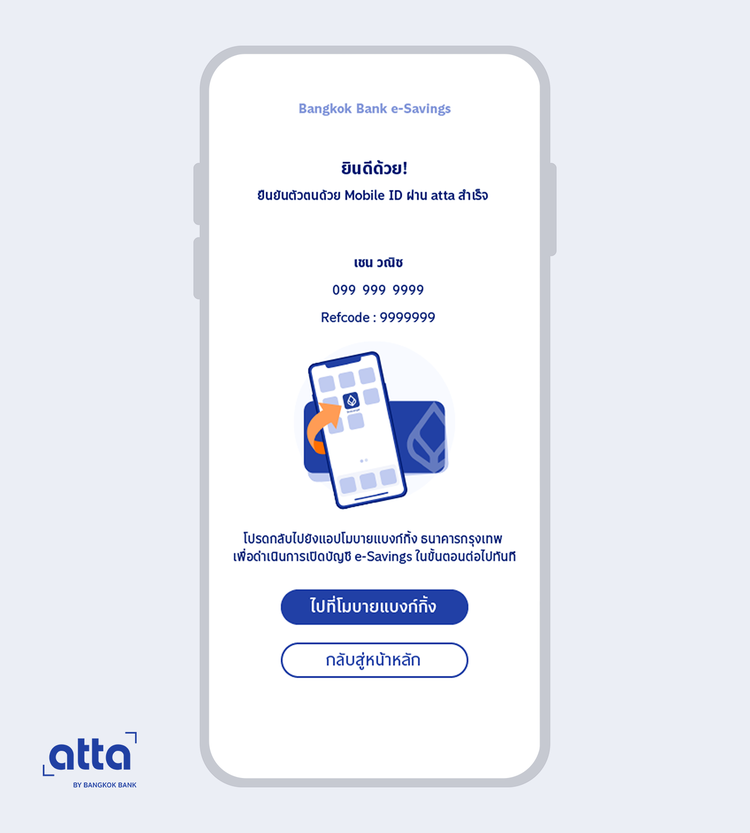
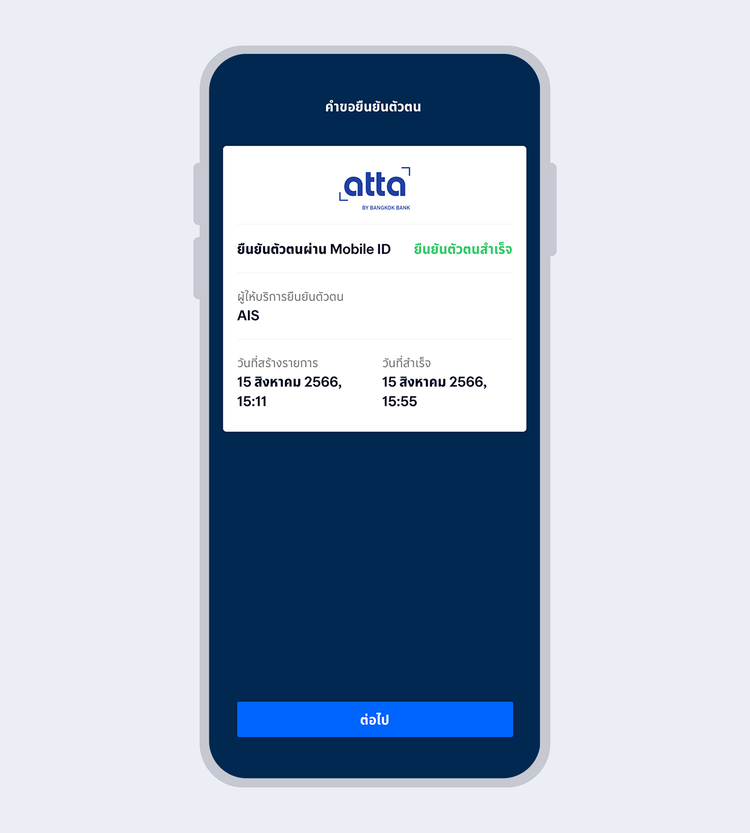
The system will display your Mobile ID authentication results. Then, return to Mobile Banking app to proceed with the next step of account opening
showArrowsDots
withDefaultImage
16.
When your authentication is completed, the request status will change to "Approved". Select "Next"
showArrowsDots
withDefaultImage
17.
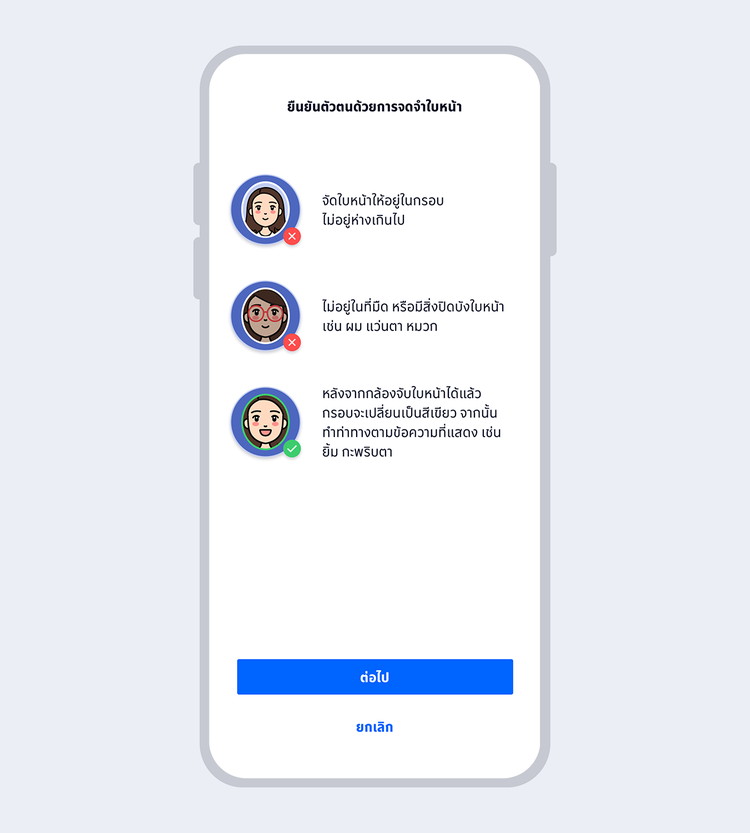
Prepare to take a selfie photo to verify your identity with facial recognition technology
showArrowsDots
withDefaultImage
18.
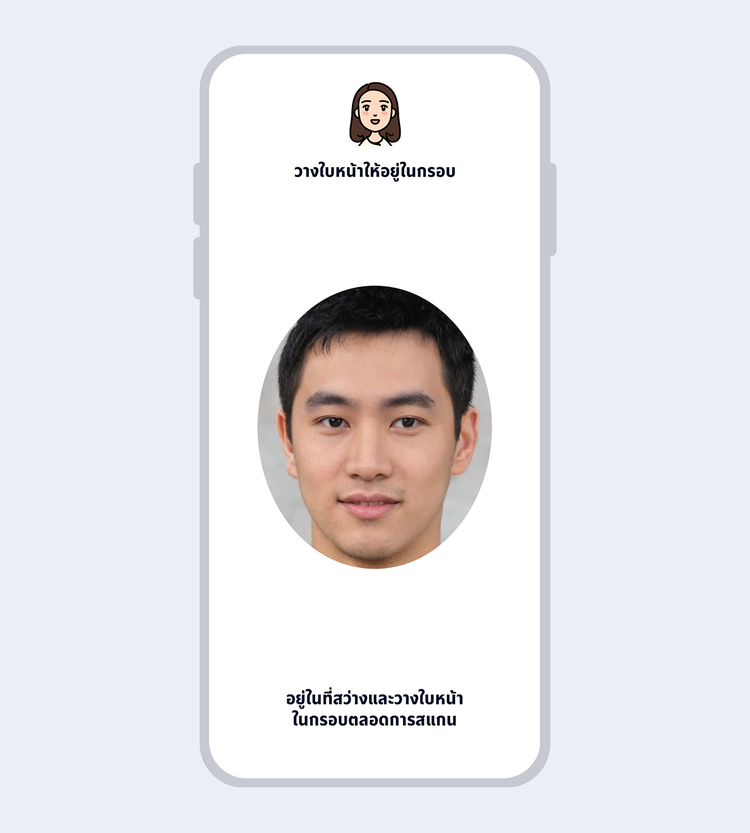
Fit your face in the frame and follow instructions for liveness detection
showArrowsDots
withDefaultImage
19.
Enter your 6-digit Mobile PIN as an e-Signature to confirm account opening
showArrowsDots
withDefaultImage
20.
Account successfully opened
showArrowsDots
withDefaultImage
21.
Welcome to Bangkok Bank Mobile Banking. Now you are ready for your financial transactions.
tab-variant
simple-tab
tab-name
New Customer using Mobile ID
style
pad-bot-30, central-aligned, pad-top-30
Authentication Methods
stacked
center
cards-3
NDID
Verify your identity via other banks’ apps – suitable for those who have already gone through the authentication process.
Verify your identity using your Citizen ID card at Be My ID service points at any Bangkok Bank branch, KEX Service Points, or counter service in 7-Eleven store.